
Windows 11 Media Creation Tool: The Official Path to Bootable USBs
Verdict: Windows 11 Media Creation Tool - Your Gateway to a Fresh OS Install For anyone looking to install Windows 11, either on a brand-new PC or by performing a clean wipe on an existing one, Microsoft's official
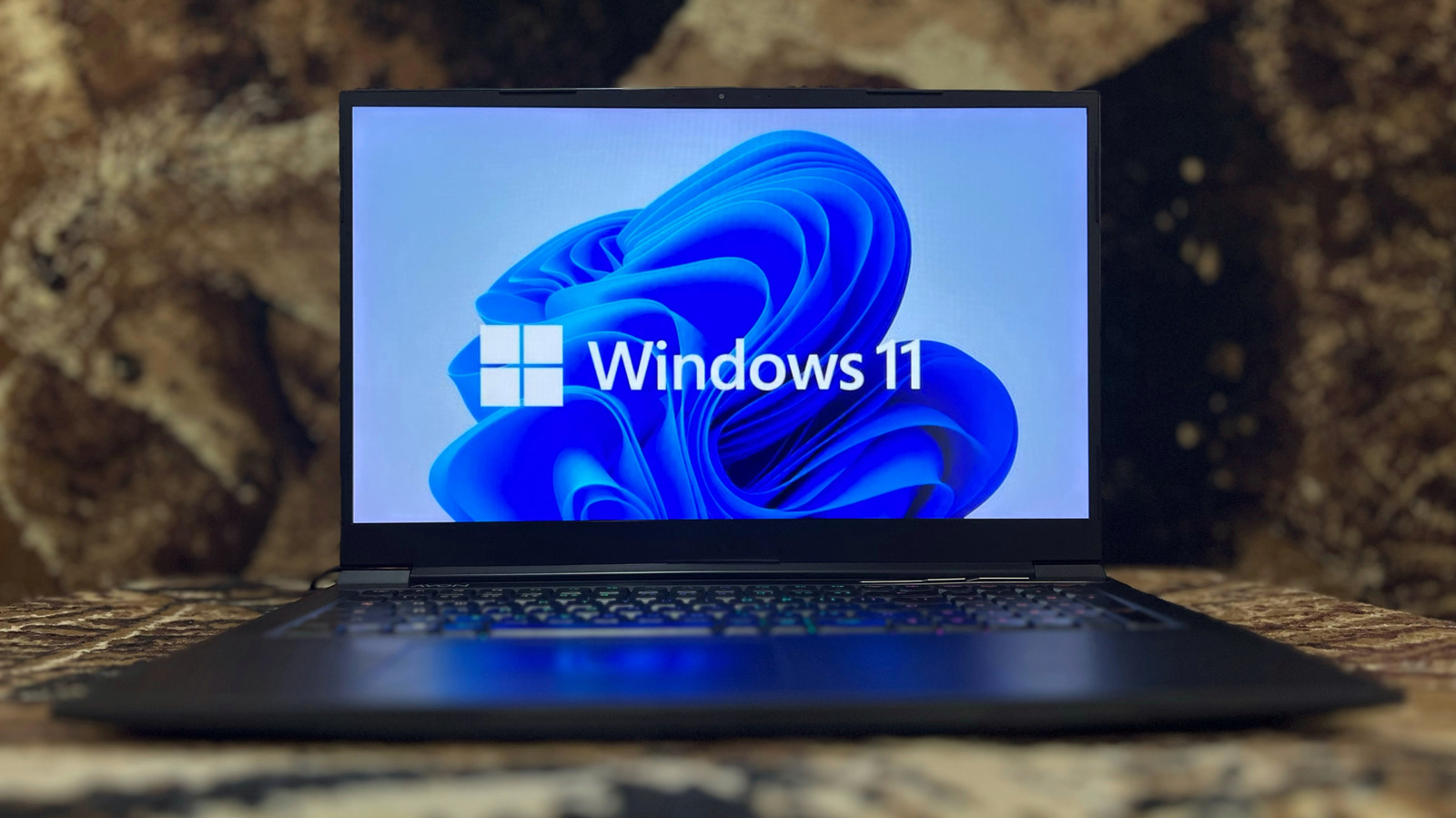
Verdict: Windows 11 Media Creation Tool - Your Gateway to a Fresh OS Install
For anyone looking to install Windows 11, either on a brand-new PC or by performing a clean wipe on an existing one, Microsoft's official Windows 11 Media Creation Tool stands out as a highly effective and generally straightforward solution. This utility streamlines the process of downloading the operating system and preparing a bootable USB drive. While it’s designed for simplicity, there are crucial considerations and potential pitfalls to be aware of, which, if understood beforehand, can save considerable frustration. Our review delves into what makes this tool tick, its user experience, common issues and their solutions, and even explores some robust third-party alternatives for those with more specialized needs.
Getting Started: Essential Prerequisites for Success
Before embarking on the journey of creating your Windows 11 installation media, ensuring you have the right setup can prevent unwelcome interruptions. Here’s what you’ll need:
- USB Flash Drive: A minimum of 8GB of storage space is required. Critically, all existing data on this drive will be erased, so make sure to back up anything important before you begin.
- Stable Internet Connection: The Windows 11 download is several gigabytes in size, necessitating a reliable internet connection to complete the process efficiently.
- Compatible Host Device: The PC you use to create the media must have a compatible 64-bit (x64) processor. If your target installation is for an ARM-based device, you'll need to source the specific ARM64 ISO directly from Microsoft.
- Windows 11 License (Optional): While you’ll be prompted for a license during Windows 11 setup, it’s not strictly required to download and use the Media Creation Tool. Skipping the license entry will result in only minor personalization limitations.
Beyond the creation process, remember that the target PC for Windows 11 installation must meet specific minimum system requirements. The most significant hurdle for many older machines is the need for TPM 2.0. Additionally, the PC must have at least 4GB of RAM, 64GB of storage, and a graphics card compatible with DirectX 12 or newer. Verifying these beforehand is paramount to a successful installation.
User Experience: A Straightforward (Mostly) Journey
Using the Windows 11 Media Creation Tool is largely a guided experience, designed for accessibility. Here's a breakdown of the typical workflow:
- Download the Tool: Head to Microsoft's official Windows 11 download page. Locate the section for 'Create Windows 11 Installation Media' and click 'Download Now'. This will fetch a small executable file,
MediaCreationTool.exe. - Run as Administrator: This step is non-negotiable. Right-click the downloaded file and select 'Run as administrator'. Without administrative privileges, the tool simply won't function correctly.
- Accept Terms and Select Options: After the tool loads, you'll be presented with license terms to accept. On the 'Select language and edition' screen, the default 'Use the recommended options' is usually correct, but you have the flexibility to uncheck and adjust if necessary.
- Choose USB Flash Drive: The next critical step involves selecting 'USB flash drive' as your media type. If you haven't plugged in your USB drive yet, do so now. Then, carefully choose the correct drive from the list. Double-checking here is vital, as the tool will format and erase everything on the selected drive.
- The Waiting Game: Once the correct drive is selected, the tool initiates the download of Windows 11 and subsequently writes the bootable image to your USB drive. This phase can vary significantly in duration, influenced by your internet speed, the performance of your PC, and the write speeds of your USB drive. Patience is key here; avoid interrupting the process.
- Ready for Installation: Upon completion, the tool will confirm that your USB drive is ready. Click 'Finish'. Your bootable Windows 11 USB is now prepared. To install, connect it to your target PC, then during startup, access the boot menu (often by pressing
Esc,F12, orDel) and select your USB drive to begin the Windows installation environment.
The overall process is user-friendly, relying on clear prompts and a step-by-step interface. However, the 'waiting game' can feel lengthy, and minor issues can arise, which we'll address next.
Common Roadblocks and How to Navigate Them
Even with its simplicity, the Media Creation Tool isn't entirely immune to hiccups. Here are some common problems and their effective solutions:
-
USB Drive Not Recognized:
- Port Check: Try plugging the USB drive into a different port on your PC, ensuring it's fully inserted.
- Format to FAT32: Open File Explorer, navigate to 'This PC', right-click your USB drive, select 'Format', and choose 'FAT32' under the 'File system' option.
- Disk Management: Right-click the 'Start button' and open 'Disk Management'. Verify that your USB drive appears with an assigned drive letter. If it shows as 'unallocated', right-click the unallocated space, create a 'New Simple Volume', and assign it a letter. After attempting these fixes, re-run the Media Creation Tool. If issues persist, consider trying a different USB drive.
-
Tool Isn't Opening:
- Administrator Rights: As emphasized, the tool must be run as an administrator. Right-click the
.exefile and explicitly select 'Run as administrator'. - Interference Check: Background processes like antivirus software or Windows Update can sometimes interfere. Try temporarily disabling your antivirus or restarting your PC before attempting to open the tool again.
- Corrupted Download: The downloaded executable itself might be incomplete or corrupted. Delete the existing
MediaCreationTool.exefile and download a fresh copy from Microsoft's website.
- Administrator Rights: As emphasized, the tool must be run as an administrator. Right-click the
Beyond the Official Tool: Exploring Advanced Options
While Microsoft's tool is excellent for its intended purpose, some users might find its limitations too restrictive or simply prefer alternatives. For these scenarios, directly downloading the Windows 11 ISO file (the third option on Microsoft's download page) opens up a world of third-party utilities.
Rufus is a highly regarded, free, and lightweight utility that excels at creating bootable USB drives from ISO files. It’s portable, meaning no installation is required, and it works on Windows 8 and later. Rufus even boasts a built-in feature to download the latest ISO directly from Microsoft, bypassing the need for a manual download. It offers more granular control over partition schemes and file system options than the Media Creation Tool, though its default settings are usually sufficient. For creating a single bootable Windows 11 USB with greater control, Rufus is an excellent choice.
For power users and IT professionals, Ventoy takes versatility to another level. Instead of creating a single OS installation drive, Ventoy transforms your USB into a multi-boot menu. Once Ventoy is installed on the USB, you simply drag and drop various ISO files (from Windows to various Linux distributions) onto it. This allows a single, larger USB drive to house multiple operating system installers, eliminating the need to manage many separate boot drives.
However, Ventoy does come with a steeper learning curve. Its initial setup is more involved than Rufus, and managing multiple boot options can be more complex than a straightforward, single-OS installation. If your goal is just a single Windows 11 drive, Rufus maintains the edge in simplicity; Ventoy truly shines for those who frequently work with diverse OS images.
Here’s a comparison of the three primary methods:
| Feature | Windows 11 Media Creation Tool | Rufus | Ventoy |
|---|---|---|---|
| Primary Use | Single Windows 11 bootable USB | Single OS (Windows/Linux) bootable USB | Multi-OS bootable USB drive (boot menu) |
| Ease of Use | Very easy, guided | Easy to use, good control | More complex, power user oriented |
| ISO Download | Built-in (downloads then writes) | Can download ISO from Microsoft | Requires manual ISO download |
| Install Type | Writes specific Windows 11 image | Writes specific OS image | Creates boot menu, drag-and-drop ISOs |
| Portability | Not portable | Portable app | Installer for the USB drive |
| Control | Limited options | Better control (partitions, file systems) | High versatility, boot menu management |
| Ideal User | Casual user, first-time creator | Users needing more control, single OS | Power users, IT professionals, multiple OSes |
Recommendation: Who is the Windows 11 Media Creation Tool For?
For the average user seeking to install Windows 11 without fuss, Microsoft's Media Creation Tool is the recommended choice. Its guided process minimizes complexity, making it ideal for first-timers or those who just need a single bootable drive. It's a reliable, official method for getting the job done.
If you require more control over the creation process, perhaps for specific partition schemes, or if you prefer a standalone executable, Rufus is an excellent, user-friendly step up. It maintains a high degree of simplicity while offering advanced options.
Finally, for advanced users, IT professionals, or anyone who regularly needs to boot multiple operating systems from a single drive, Ventoy is the ultimate power tool. Its multi-boot capability, while initially more complex, offers unparalleled convenience for managing diverse OS images.
In essence, the best tool depends entirely on your specific needs and comfort level. All three provide robust solutions for creating Windows 11 bootable media.
FAQ
Q: Do I need a Windows 11 license to use the Media Creation Tool?
A: No, you do not need a Windows 11 license to download and use the Media Creation Tool to create a bootable USB drive. You will typically be asked for a license key during the actual Windows 11 installation process, but you can usually skip this step and deal with only minor personalization limitations in the installed OS.
Q: What should I do if the Media Creation Tool doesn't recognize my USB drive?
A: First, try plugging the USB drive into a different USB port and ensure it's fully inserted. If that doesn't work, try formatting the drive to FAT32 via File Explorer. As a last resort, check 'Disk Management' to ensure the drive is allocated and has a drive letter. If all else fails, consider using a different USB drive.
Q: Is there a simpler alternative for creating a single Windows 11 bootable USB?
A: While the Media Creation Tool is very simple, if you're looking for an alternative with slightly more control without too much complexity, Rufus is an excellent option. It's free, lightweight, and can even download the ISO for you, offering a good balance between ease of use and advanced features for a single OS bootable drive.
Related articles

Samsung Wallet Perks & Cash Card: A Convenient Catch
As an experienced tech reviewer, I've seen countless apps promise to revolutionize our financial lives, only to gather digital dust in the dreaded "cash-back app graveyard." Samsung, with its latest offering, aims to

Netflix's PUBG Show: A Bold Gamble with Donald Glover
Verdict: An Unpredictable High-Stakes Adaptation Netflix's announcement of a live-action series based on the massively popular battle royale game PUBG, with none other than Donald Glover at the helm, is certainly one of

regional: Coding Dojo co-founder unveils ‘Idea to Launch,’ a 30-day
Coding Dojo co-founder Richard Wang has launched "Idea to Launch," a 30-day program empowering aspiring founders to build products with AI. It offers AI coding tools, hands-on engineering, and business coaching, taking no equity and allowing participants to keep their jobs. Wang aims to democratize product creation and foster a new builder economy.

GitHub's AI Code Surge: Infrastructure Under Pressure
Quick Verdict GitHub’s recent report on the colossal influx of AI-generated code is nothing short of a seismic event in the tech world. The numbers are staggering, revealing an unprecedented demand for computational

Bluesky Blocks Links to Major Leak of DHS Employee Records
Bluesky has taken action to block users from accessing links to a substantial archive of records belonging to over 41,000 Department of Homeland Security (DHS) employees and contractors. The social media platform labels

Microsoft Hits 10 Quarters of Consecutive Record Revenue
Microsoft has achieved its tenth consecutive quarter of record revenue, hitting $92.3 billion, a 19% year-over-year increase. This remarkable performance is largely driven by its Microsoft Cloud division, which saw revenue surge by 30% to $63.9 billion, including $10 billion from OpenAI. The company is investing heavily in future growth, with record capital expenditures.