
Unlock Your Fire TV's Hidden Potential - Master 4 Free Upgrades
Learn to utilize 4 major, free Fire TV upgrades, including smart home control, enhanced navigation, expanded app pinning, and a new Instagram app, to streamline your streaming experience.
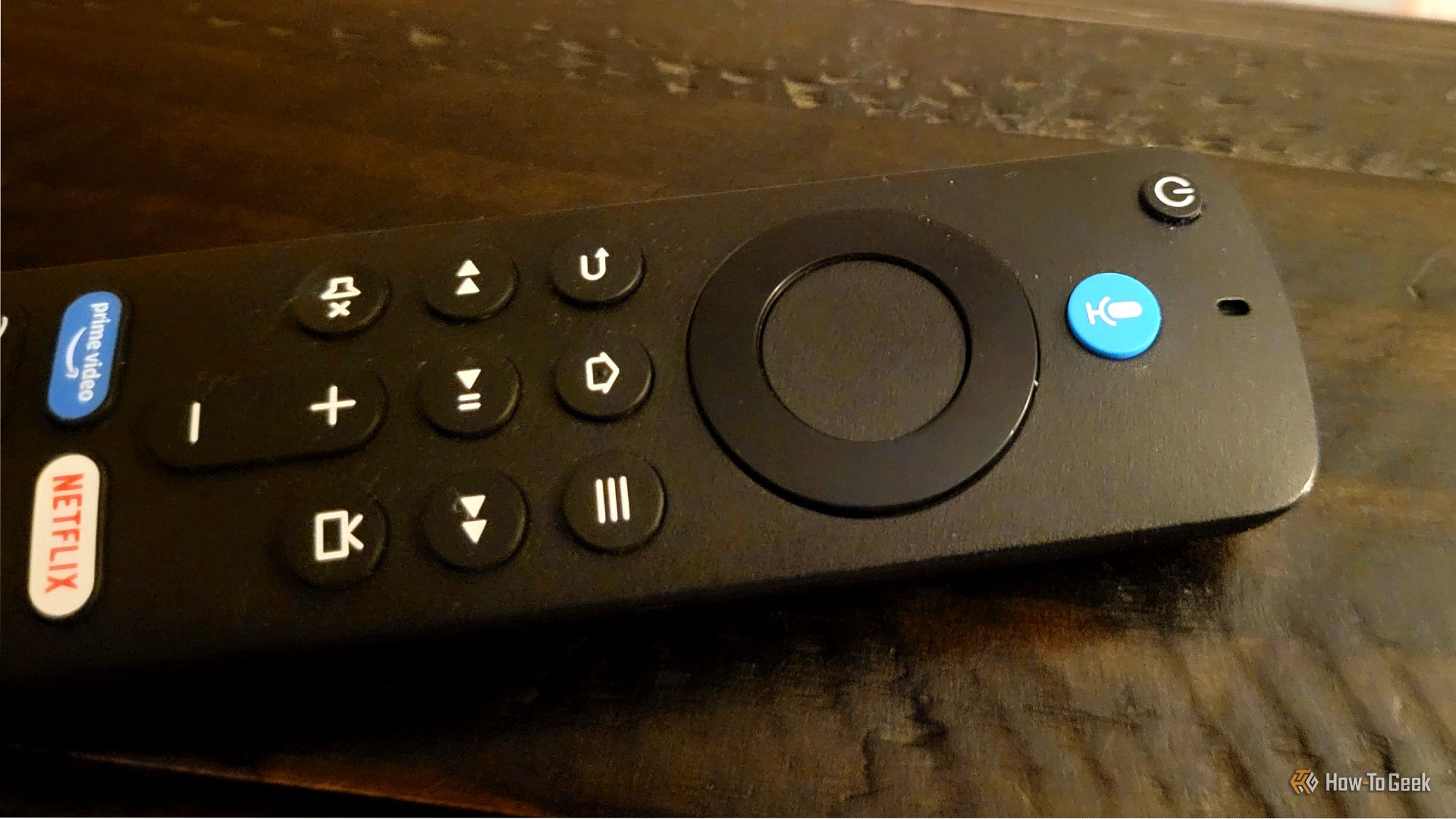
Amazon has quietly rolled out a series of significant, free updates to Fire TV devices, transforming the user experience with smarter controls, improved navigation, and even a dedicated Instagram app. Unlike previous changes that sometimes felt arbitrary, these new features genuinely make your Fire TV easier and more enjoyable to use.
This guide will walk you through each of these four upgrades, explaining how to activate them and integrate them into your daily streaming habits. By the end, you'll be leveraging a more efficient and personalized Fire TV experience, often without needing to pause your favorite shows.
Before You Start: Prerequisites
To make the most of these new Fire TV features, ensure you have the following:
- An Amazon Fire TV device: These updates are rolling out to various Fire TV models. Make sure your device is updated to the latest software version.
- An Alexa Voice Remote: Essential for accessing many of the new quick settings and voice commands.
- Smart Home Devices (Optional): If you plan to use the Smart Home Dashboard, ensure your smart home devices (like Ring cameras or smart lights) are set up and linked to your Alexa account.
- Instagram Account (Optional): To use the new Instagram app, you’ll need an active Instagram account and a smartphone for the initial login.
1. Control Your Smart Home Without Interrupting Your Show
One of the most user-friendly additions is the new Smart Home Dashboard and Shortcut Panel. This feature allows you to manage your smart home devices and Fire TV settings as an overlay, meaning your video continues playing in the background.
How to Use the Smart Home Dashboard:
- Access Quick Settings: While watching content or navigating the home screen, press and hold the Home button on your Alexa Voice Remote.
- Navigate the Panel: A quick settings panel will slide out on the side of your screen. Use the directional pad on your remote to move between options.
- Adjust Settings: Here, you can quickly change display and resolution settings, adjust surround sound options, or enable the dialogue booster for clearer late-night listening.
- Control Smart Devices: Select your smart home devices (e.g., Ring cameras, smart lights). If you select a Ring camera, a live feed will load directly on your TV. It even supports a picture-in-picture mode, showing the camera feed in a small corner while your main content continues.
- Open Full Dashboard (Voice Command): For a more comprehensive view, press and hold the Alexa button on your remote and say, "Open Smart Home Dashboard." The full dashboard will appear, allowing you to interact with all your connected devices.
Tips for Smart Home Control:
- Familiarize yourself with the quick settings panel for common adjustments. It's designed to be a fast, non-intrusive way to manage your environment.
- Ensure your smart home devices are properly linked to your Amazon Alexa account for them to appear and be controllable via the Fire TV dashboard.
2. Experience a Smarter, Unified Main Menu
Amazon has revamped the Fire TV's main navigation, moving the menu bar back to the top of the screen and introducing dedicated content tabs. This change declutters the interface and simplifies content discovery across all your streaming services.
How to Navigate the New Main Menu:
- Locate the Navigation Bar: When you power on your Fire TV, you'll immediately notice the main navigation bar has returned to the top of the screen, making it much more prominent and intuitive.
- Explore Dedicated Content Tabs: Look for new tabs labeled Movies, TV Shows, Sports, News, and Live TV.
- Browse Unified Content: Select any of these tabs. Your Fire TV will now pull content from all your installed streaming services and present it in a single, aggregated feed. This means you no longer need to jump between individual apps to find something to watch.
- Discover Content: Content within these tabs is grouped by genre, theme, or based on your viewing history, providing a curated experience regardless of whether the content is from a paid subscription or a free channel.
Tips for Unified Browsing:
- Make a conscious effort to use the new content tabs rather than going straight into individual apps. This will help you discover new shows and movies from across your subscriptions more efficiently.
- The cleaner fonts, rounded thumbnails, and softer backgrounds contribute to a less cluttered browsing experience, making it easier to find what you want.
3. Pin More Apps to Your Home Screen (Up to 20!)
Previously limited to just six apps, Fire TV now allows you to pin up to twenty of your favorite applications directly to your home screen. This greatly improves accessibility for households with many streaming services, gaming apps, or utility tools.
How to Pin and Reorder Your Apps:
- Access Your App List: From the home screen, navigate to your full list of installed applications.
- Highlight an App: Use your remote's directional pad to highlight the app you wish to move or pin.
- Open Options Menu: Press and hold the center select button on your remote for about a second.
- Choose Your Action: A small options menu will appear with choices like "Move" and "Move to front."
- Move: Select "Move" to freely drag the highlighted app to any available slot using your directional pad. Press the center select button again to drop it into place.
- Move to front: Select "Move to front" to automatically send the app to the first position in your row of pinned apps.
- Repeat for Other Apps: Continue this process to arrange your top twenty most-used apps for quick access.
Tips for App Organization:
- Take advantage of the increased limit to organize apps by user, type (streaming, gaming, utilities), or frequency of use.
- The tightened layout with smaller icons means ten apps fit in a single horizontal row, with another ten just a quick scroll away, keeping your screen tidy even with more pinned apps.
4. Enjoy Instagram on the Big Screen
Surprisingly, Amazon has developed a full, dedicated Instagram app for Fire TV. This means you no longer need to resort to screen mirroring or casting from your phone to view Instagram content on your television. The app is optimized for a large screen and designed for easy login and multi-account use.
How to Use the Instagram App on Fire TV:
- Download the App: Search for and download the Instagram app from the Amazon Appstore on your Fire TV.
- Initial Login: The first time you open the Instagram app, a QR code will display on your TV screen. Use your smartphone's camera to scan this QR code.
- Sign In via Phone: Follow the prompts on your phone to complete the login process for your Instagram account.
- Browse Content: Once logged in, you can browse your feed, watch Reels, and view other Instagram content directly on your TV using your Fire TV remote.
- Manage Multiple Accounts: The app supports up to five Instagram accounts on a single device, allowing each family member to maintain their own feed. You can also create an account that exists solely on the TV if you prefer to keep it separate from your phone account.
Tips for Instagram on Fire TV:
- The app excels at displaying Reels; vertical videos remain vertical, with comments and likes filling the space on either side, providing an optimized viewing experience.
- The QR code login simplifies the process, eliminating the need to type out usernames and passwords with your remote.
Next Steps
Now that you've discovered these powerful new features, take some time to explore them. Experiment with the Smart Home Dashboard, reorganize your app list, and dive into unified content browsing. You might be surprised at how much more enjoyable and efficient your Fire TV experience has become.
FAQ
Q: How do I confirm my Fire TV has received these updates?
A: Fire TV updates are generally rolled out automatically. You can manually check for system updates by going to Settings > My Fire TV > About > Check for Updates. If an update is available, your device will download and install it.
Q: Do I need a specific Fire TV model to get these upgrades?
A: While Amazon typically rolls out updates across a range of devices, some older models might not receive all the latest features due to hardware limitations. Most recent Fire TV Sticks and Fire TV Cube models should be compatible. Ensure your device is connected to the internet to receive updates.
Q: If I use the new content tabs (Movies, TV Shows), does it automatically log me into my streaming services?
A: The new content tabs display content from all your streaming services, but you'll still need to have those individual apps installed and be logged into them on your Fire TV for the content to be accessible and play. The tabs provide a unified discovery experience, not a universal login system.
Related articles

Ditch Merge & Center: The Better Way to Align Text in Excel
Learn to use Excel's "Center Across Selection" to align text across cells without merging, avoiding common data manipulation issues. This guide provides steps to utilize this newly accessible feature and add it to your Quick Access Toolbar.

Ars Technica's Rocket Report: Your Essential Space Industry Briefing
Quick Verdict Ars Technica's Rocket Report, presented by veteran space reporter Stephen Clark, offers an invaluable and meticulously organized weekly (or similar frequency, implied by "Edition 9.15") digest of the most
Amazon Prime Video Launches AI-Powered Prime 360 for NBA Coverage
Amazon Prime Video is elevating its NBA coverage with the introduction of Prime 360, an AI-powered replay system offering immersive, 'fly through' views of the action. Kicking off its second season, Prime Video also adds Yahoo fantasy integration and gains exclusive Eastern Conference Finals rights, expanding its tech-driven sports broadcast. The new features aim to deliver a unique and interactive viewing experience for basketball fans.

Enterprise AI Beyond Chatbots: A Vision for Actionable Intelligence
Quick Verdict: Redefining Enterprise AI's Potential TechRadar Pro's opinion piece, "What it takes to move enterprise AI beyond the chatbot," delivers a refreshingly honest and vital perspective on the current state and

Stop Android Auto Battery Drain: Essential Features to Disable and
Android Auto offers unparalleled convenience, bringing your phone's most useful features directly to your car's display. From navigation and calls to messages and music, it keeps you connected without distracting you

Apple’s new HomeView smart display is $10 cheaper at Amazon: latest
In a rare move for a new Apple product, the highly anticipated HomeView smart display is already available at a discount on Amazon, weeks before its official launch. Consumers can now pre-order Apple's first dedicated