
Unlock Android 17's Hidden Power: 5 Underrated Features to Enable Now
Discover and enable 5 powerful, often overlooked Android 17 features like custom vibrations, expanded dark mode, and smarter app reminders in this step-by-step guide.
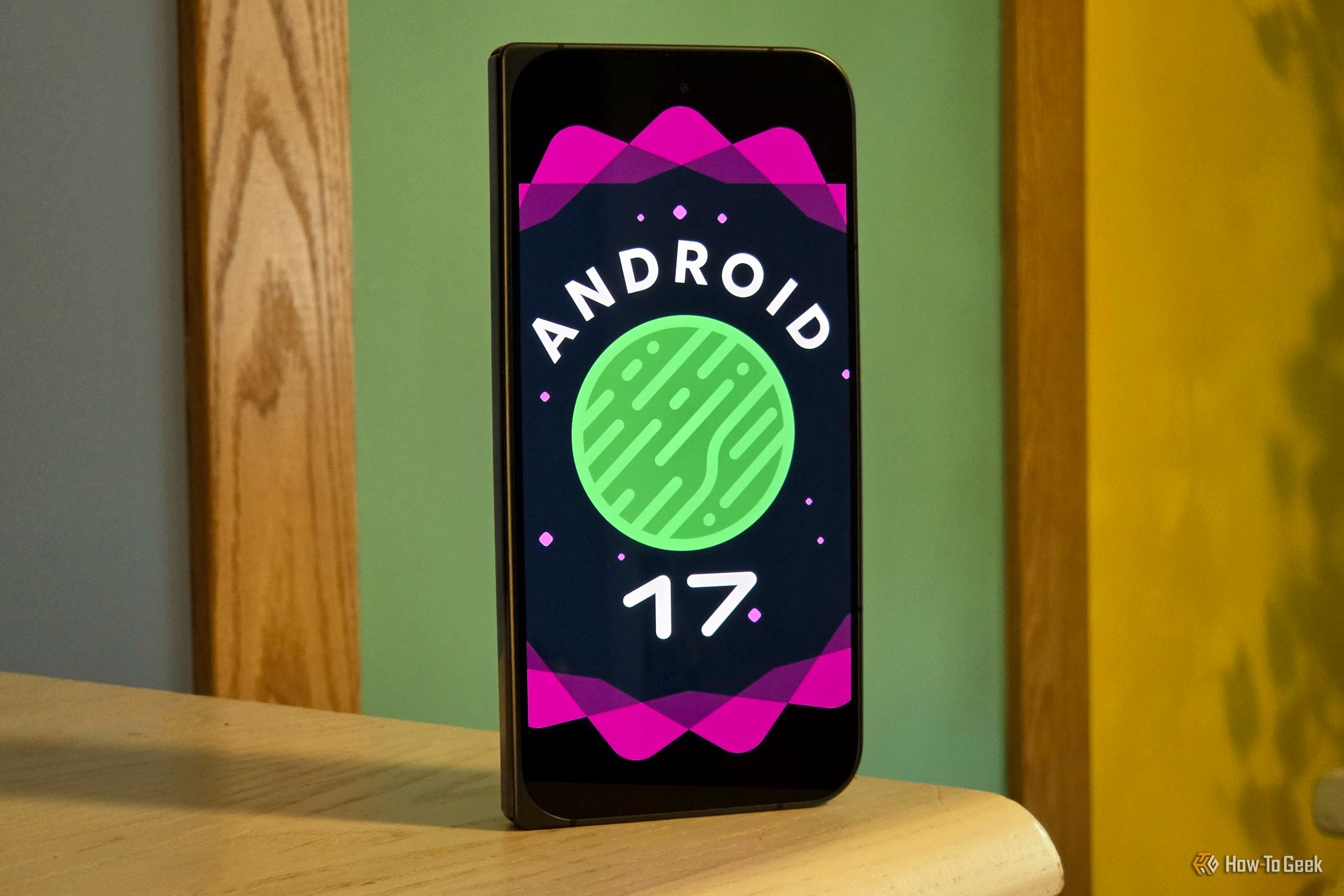
Android 17 brings a host of exciting new capabilities to your phone, from flashy multitasking tools to advanced voice features. While many of these are front and center, some of the most impactful improvements are subtly tucked away, waiting for you to discover and enable them. These "under-the-radar" features can significantly enhance your daily Android experience, offering more control, customization, and digital well-being.
This guide will walk you through five of Android 17's most underrated features, showing you how to find, understand, and activate them immediately. Get ready to personalize your notifications, manage your screen time more effectively, and enjoy a truly tailored Android experience.
What You'll Accomplish: By following this guide, you will learn to:
- Set unique vibration patterns for calls, even when your phone is on silent.
- Apply a system-wide dark theme to virtually every app, regardless of its native support.
- Implement intelligent "Pause Point" reminders to help curb excessive app usage.
- Control your digital assistant's volume independently from other media.
- Automatically quiet overwhelming bursts of notifications.
Prerequisites:
- An Android device running Android 17.
- Note: At the time of writing, most of these specific features are primarily available on Pixel phones, but Google often rolls them out to other Android devices in the future.
1. Customize Call Vibration Patterns for Every Ringtone
Why It's Useful: Imagine knowing exactly who's calling without even looking at your screen, just by the distinct feel of your phone in your pocket. For years, Android has allowed assigning specific ringtones to contacts, but those who prefer vibrate mode often missed out on this quick identification. Android 17 changes that, making vibration alerts as customizable as ringtones. You can now assign distinct vibration patterns to different ringtones, providing a nuanced way to prioritize incoming calls without an audible alert.
How to Set Up Custom Vibration Patterns:
- Open your phone's Settings app.
- Navigate to Sound & vibration.
- Tap on Ringtone.
- Here, you'll see options to manage your ringtones and their associated vibration patterns. By default, many ringtones may have matching patterns.
- You have the flexibility to either keep the default matching pattern, select a different pre-set pattern for individual ringtones, or even choose one uniform vibration pattern for all calls. Explore the available options to find what works best for you and enhance your silent call experience.
2. Force Dark Mode Across All Apps
Why It's Useful: System-wide dark theme has been a welcome addition since Android 10, but the frustration of encountering apps that don't support it is still common. Android 17 addresses this with a powerful new "Expanded" dark theme option. This feature intelligently attempts to apply a dark aesthetic to nearly all applications, even those without native dark mode support, ensuring a consistent and comfortable viewing experience across your entire device and potentially saving battery life on OLED screens.
How to Enable Expanded Dark Theme:
- Open your phone's Settings app.
- Go to Display & touch.
- Tap on Dark theme.
- Select the "Expanded" option.
- After enabling "Expanded" dark theme, tap the gear icon next to it. This action will present you with a list of all your installed apps.
- Troubleshooting Tip: While "Expanded" dark theme is designed to work effectively with most apps, some might display visual anomalies (e.g., unreadable text or broken layouts). If you encounter such an issue, simply use the per-app toggle in this list to disable the forced dark theme for that specific application, ensuring optimal usability where needed.
3. Smarter App Usage Reminders with "Pause Point"
Why It's Useful: Google has been quietly building some of the most effective Digital Wellbeing tools, particularly for Pixel phones. Android 17 takes "Screen time reminders" to the next level with "Pause Point." Instead of just hitting a rigid time limit wall when you open a distracting app, Pause Point offers a more gentle and customizable redirection. It aims to make you think twice before mindlessly opening apps, promoting healthier screen habits and helping you break free from "doomscrolling" tendencies.
How to Set Up Pause Point Reminders:
- Open your phone's Settings app.
- Scroll down and tap on Digital Wellbeing.
- Select Pause Point.
- From here, you can choose which specific apps you want to apply Pause Point to.
- Customize Your Pause Points: You decide what kind of intervention you receive. Options might include a breathing guide, a display of favorite photos, a suggestion to open a preferred productive app, a reflection reminder, or a session time limit. Tailor these prompts to your personal needs to genuinely help you pause, reflect, and make conscious choices about your app usage.
4. Independent Volume Control for Your Digital Assistant
Why It's Useful: Here's a small but significant quality-of-life improvement: your preferred digital assistant now has its own dedicated volume slider. Previously, assistant volume was often lumped in with media volume, meaning you might have to crank up your media to hear your assistant, only to be blasted by music or videos later. Android 17 allows you to customize exactly how loud or quiet your assistant sounds, giving you fine-grained control over your audio experience.
How to Adjust Assistant Volume:
- Open your phone's Settings app.
- Go to Sound & vibration.
- You will now see a new, separate volume slider specifically for your Assistant (or whichever app you have selected as your default digital assistant, not just Google Gemini).
- Adjust this slider to your desired level. This means you can comfortably hear your commands and responses, whether you're yelling at your phone from across the room or using it discreetly, all without affecting your other audio volumes.
5. Automatically Silence Notification Barrages with "Notification Cooldown"
Why It's Useful: We've all experienced those moments when a sudden influx of notifications creates an overwhelming barrage of sounds and vibrations—perhaps after exiting airplane mode, or from a friend who sends multiple short messages. "Notification Cooldown" is a clever feature designed to bring peace to these chaotic situations. While it started to roll out last year, it's now a fully integrated and highly effective tool in Android 17.
How to Enable Notification Cooldown:
- Open your phone's Settings app.
- Navigate to Notifications.
- Tap on Notification cooldown.
- Enable this feature with the provided toggle.
How It Works: The mechanism is simple yet brilliant. The very first notification in a rapid sequence will make its usual alert. However, each subsequent notification that arrives within a span of a few seconds will be progressively and increasingly silenced. This intelligent dampening prevents you from being bombarded by a cascade of alerts, allowing you to stay informed without feeling overwhelmed and bringing a sense of calm to your device.
Conclusion
Android 17 is packed with powerful new features, and while some are immediately obvious, many truly useful enhancements are found by exploring deeper into the settings. These five underrated features offer significant improvements to personalization, digital well-being, and overall user experience. Take some time to enable them on your device and tailor Android 17 to work even better for you, making your smartphone an even more intuitive and calming companion.
Next Steps:
- Dive deeper into your device's Digital Wellbeing settings to explore other features like app timers, Focus mode, or Bedtime mode, and customize your phone usage even further.
- Regularly check for system updates to ensure your device has the latest features, security enhancements, and performance improvements.
FAQ
Q: Are these features available on all Android 17 devices? A: While Android 17 is rolling out to many devices, the source content notes that at the time of writing, most of these specific underrated features are primarily available on Pixel phones. However, Google often expands features to other Android devices over time, so keep an eye on future system updates from your device manufacturer.
Q: Can I disable "Expanded" dark theme for specific apps if it causes visual issues? A: Yes, absolutely. After enabling "Expanded" dark theme, you'll find a gear icon next to the option within Settings > Display & touch > Dark theme. Tapping this icon allows you to view a list of all your installed apps and individually toggle off the forced dark theme for any app that doesn't display correctly or causes readability problems.
Q: What if I don't see the dedicated assistant volume slider after updating to Android 17? A: First, ensure your device is fully updated to Android 17. Also, confirm that you have a default digital assistant selected in your phone's settings. If you still don't see the independent slider, it might be one of the features that rolls out gradually to devices or is currently exclusive to certain phone models, such as Pixel devices, as highlighted in the guide's introduction.
Related articles

Apple Unveils iPhone Duo: Pricey Foldable Sees Soaring Demand
Apple has officially entered the foldable smartphone arena with the long-anticipated launch of the iPhone Duo. Priced starting at a hefty $1,999, the device features a 5.4-inch outer display and a larger 7.6-inch inner
Android 17 QPR2 Beta 7.1: The Performance Relief You've Been Waiting
Android 17 QPR2 Beta 7.1: Finally Fixing the QPR1 Performance Woes Verdict: Android 17 QPR2 Beta 7.1 is a crucial and highly anticipated software update for Google Pixel users, specifically targeting and resolving the

TCG Pocket Responds: A Much-Needed Pace Shift for Pokémon Fans
Pokémon TCG Pocket is rolling out a major update for its second anniversary, primarily addressing player concerns about overwhelming content releases by shifting to a six-week set schedule. This aims to curb player decline and improve overall engagement by giving trainers more time to collect and strategize. The update also adds new collection methods, improved deck-building features, and enhanced trading functionality.

Ditch Merge & Center: The Better Way to Align Text in Excel
Learn to use Excel's "Center Across Selection" to align text across cells without merging, avoiding common data manipulation issues. This guide provides steps to utilize this newly accessible feature and add it to your Quick Access Toolbar.
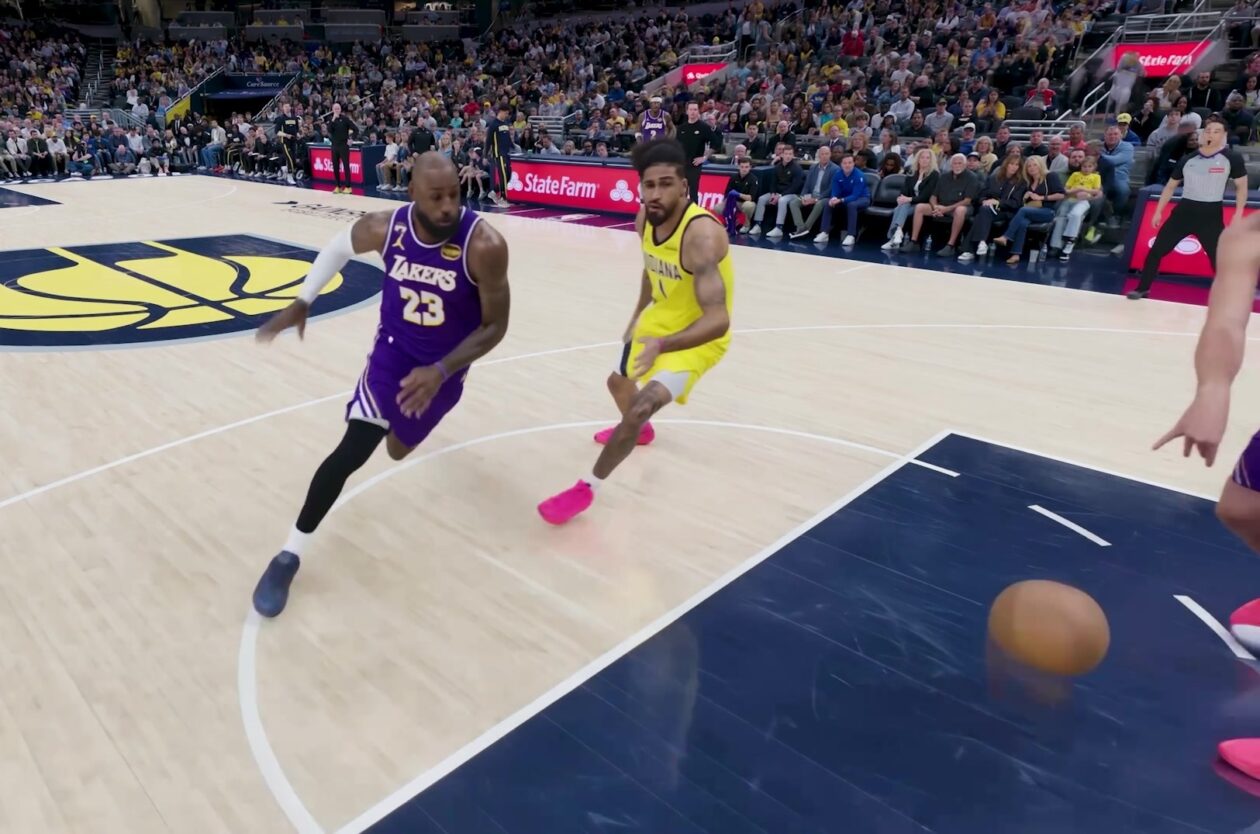
Amazon Prime Video Launches AI-Powered Prime 360 for NBA Coverage
Amazon Prime Video is elevating its NBA coverage with the introduction of Prime 360, an AI-powered replay system offering immersive, 'fly through' views of the action. Kicking off its second season, Prime Video also adds Yahoo fantasy integration and gains exclusive Eastern Conference Finals rights, expanding its tech-driven sports broadcast. The new features aim to deliver a unique and interactive viewing experience for basketball fans.
Ephemeral PR Preview Environments on GKE: A Deep Dive
Every development team eventually grapples with the limitations of shared staging environments. The familiar scenario: multiple features deployed simultaneously, database migrations clashing, and the phrase "it works on