
Unlock Advanced Customization: Enhance Your Samsung Home Screen with
Learn to transform Samsung's One UI Home into a powerful, customizable launcher with the official Good Lock and Home Up plug-in, enhancing grids, folders, and overall UI in a few steps.
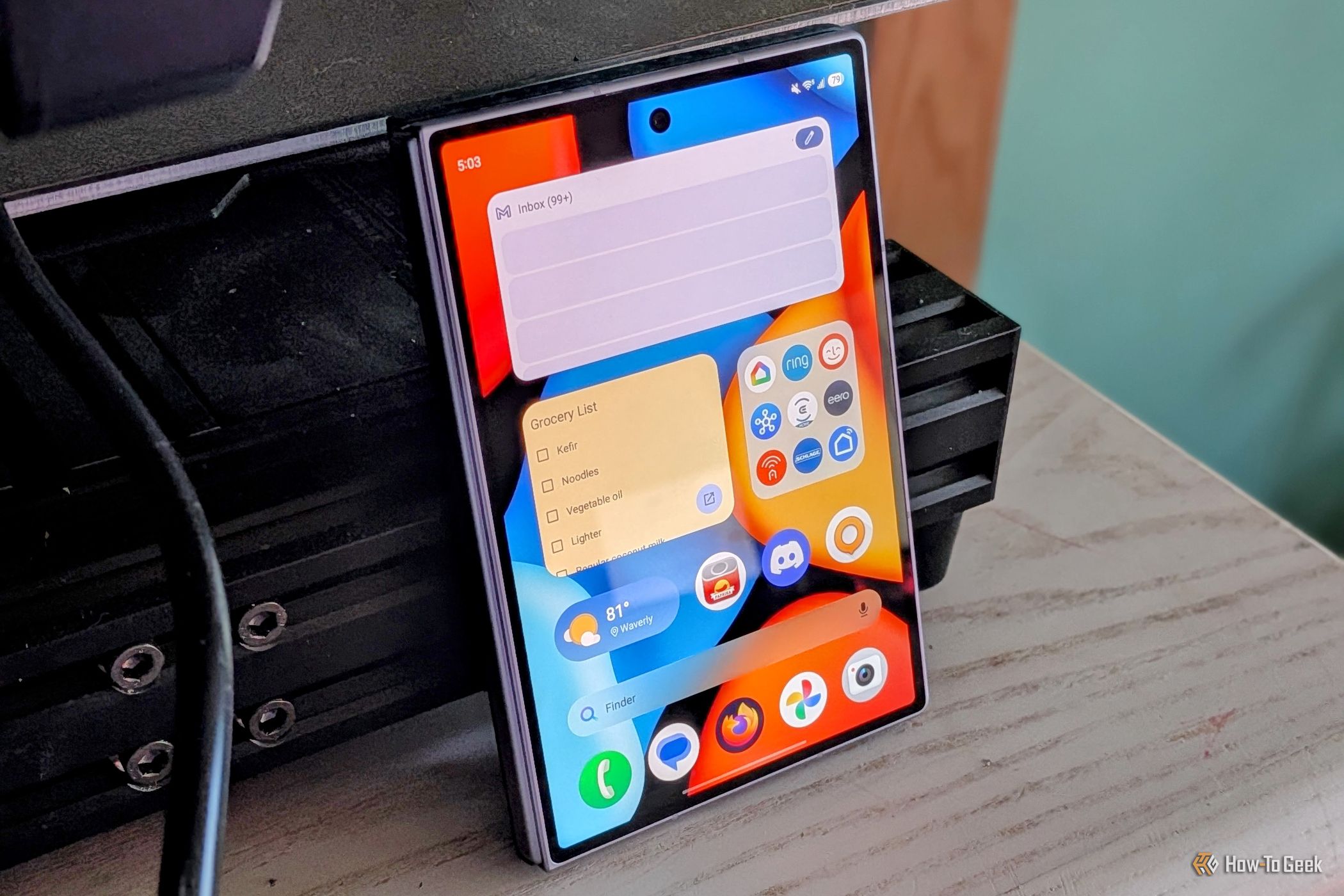
Many Samsung Galaxy users often seek third-party launchers for deeper customization. However, an official Samsung tool called Good Lock, specifically its "Home Up" plug-in, offers robust customization options that can completely transform your experience with Samsung's default "One UI Home" launcher. This guide will walk you through leveraging Home Up to fine-tune your grid layout, personalize folders, and gain creative freedom over your home screen, often replicating features typically found only in paid or complex third-party apps.
What You'll Accomplish
By following this guide, you will:
- Install and set up Good Lock and the Home Up plug-in.
- Customize your home screen and app drawer grid sizes.
- Modify your favorites dock or remove it entirely.
- Utilize "DIY" mode for advanced icon and widget manipulation.
- Enhance your folder experience with "Large Folder" and other settings.
- Discover One UI Home's hidden potential.
Prerequisites
Before you begin, ensure you have:
- A Samsung Galaxy smartphone.
- The Good Lock app installed from the Galaxy Store.
- The Home Up plug-in installed from within the Good Lock app.
Getting Started with Home Up
Step 1: Install Good Lock (If Not Already Installed) Good Lock is Samsung's official suite for advanced UI customization. If you don't have it, start by installing the main application.
- Open the Galaxy Store on your Samsung phone.
- Search for "Good Lock" and install the app.
Step 2: Install the Home Up Plug-in Good Lock acts as a hub for various modules. Home Up is the specific plug-in dedicated to enhancing your home screen launcher.
- Open the Good Lock app.
- Navigate to the "Life up" tab or find the list of available modules.
- Locate "Home Up" and tap on it to install the plug-in. If it's already installed, you'll see an option to open it.
Step 3: Access Home Up Settings Once Home Up is installed, you can dive into its customization options.
- Open the Good Lock app.
- Tap on the Home Up module to open its dedicated settings interface.
Key Customization Features of Home Up
The Home Up plug-in organizes its extensive customization options into several categories. For this guide, we'll focus primarily on the "Home Screen" section, where you'll find the most impactful changes for your launcher.
Customizing Your Home Screen & App Drawer Grid
One of the most fundamental customizations for any launcher is adjusting the grid size, which dictates how many rows and columns of icons and widgets can fit on your screen. Home Up significantly expands on One UI Home's basic grid adjustments.
- From the Home Up main screen, ensure "Home Screen" is selected.
- Locate options such as "Home Screen Grid" and "Apps Screen Grid."
- You can now independently adjust both the rows and columns for your home screen and app drawer, with a typical range from 4x4 up to 7x7. This flexibility is particularly useful on devices with unique aspect ratios, such as the Galaxy Z Fold series, allowing for more effective use of the wider display. This feature alone provides a level of personalization often expected in premium third-party launchers.
Personalizing Your Favorites Dock
The favorites dock, typically positioned at the bottom of your home screen, houses your most-used applications. Home Up offers enhanced control over its appearance and functionality.
- Within the Home Up "Home Screen" settings, find options related to the "Dock."
- You can choose to completely turn off the favorites dock if you prefer a minimalist aesthetic or wish to maximize screen real estate.
- Alternatively, you can customize its appearance with a custom background, helping it stand out or seamlessly blend with your overall theme. This aesthetic control goes far beyond the default settings offered by One UI Home.
Unleashing Creative Layouts with DIY Mode
For those who desire precise control over their home screen layout, Home Up's "DIY" mode is a powerful addition. It offers unprecedented flexibility for arranging elements.
- Enable "DIY Mode" within the Home Up settings (this may be a direct toggle or a sub-option).
- With DIY mode active, you gain the ability to resize, rotate, and move widgets and icons without the usual grid constraints. This means you can place items exactly where you want them, even with slight overlaps, enabling truly unique and personalized layouts.
- Beyond just icons and widgets, DIY mode also allows you to add custom text and stickers directly to your home screen. This opens up possibilities for artistic and expressive designs that are typically impossible with a stock launcher.
Mastering Advanced Folder Options
Folders are indispensable for organizing apps, and Home Up significantly elevates their utility and customization. The enhancements here are among the most praised features, allowing you to save space while maintaining quick access.
- In the Home Up "Home Screen" settings, locate the "Folders" options.
- You can independently set the grid size for the folder icon itself and the grid size for the apps displayed inside the folder when it's opened. This allows for a more organized view tailored to your preferences.
- A standout feature is the "Large Folder" option. Unlike traditional folders that require an extra tap to open, Large Folders allow you to access apps directly from an expanded folder icon on your home screen without opening a separate window. Home Up further enhances Large Folders by:
- Adjusting their size: Make them larger or smaller to fit your preferred layout.
- Modifying the icon size within the folder: Control how prominent the apps inside appear.
- Enabling scrolling within the folder: For folders containing many apps, you can scroll through them directly without needing to open the full folder view, similar to a widget. This effectively integrates powerful functionality directly into your stock launcher, potentially replacing the need for third-party folder widget apps.
Beyond the Home Screen: Other Home Up Features
While this guide focuses on home screen customization, Home Up extends its capabilities to other parts of One UI. It allows you to tweak the Recents screen (multitasking menu), the taskbar, the Edge Panel, the share sheet, and various gestures. Exploring these additional sections can further enhance your overall Samsung experience, providing a unified customization hub.
Tips for Optimizing Your Experience
- Experiment Freely: Don't hesitate to try different grid sizes, dock configurations, and DIY layouts. Home Up offers immense flexibility, allowing you to discover what truly suits your style and workflow.
- Leverage Large Folders: Integrate Large Folders into your daily routine to reduce home screen clutter while maintaining rapid access to groups of frequently used applications.
- Combine with Other Good Lock Modules: For a truly comprehensive personalized experience, explore other Good Lock modules. These can customize your lock screen, Quick Settings panel, and notification behavior, creating a cohesive and unique UI.
- Foldable Advantage: Users of Samsung's Galaxy Z Fold series will find Home Up particularly valuable for optimizing the unique and expansive screen real estate provided by their devices.
Next Steps
Now that you’ve transformed your Samsung home screen, take some time to fine-tune your setup. Continue exploring the other robust settings within Home Up and the broader Good Lock suite. You might find yourself pleasantly surprised at how much you can personalize your device without needing to switch to third-party launchers. Enjoy your newly optimized and personalized Samsung Galaxy experience!
FAQ
Q: What is Good Lock? A: Good Lock is an official Samsung application that serves as a central hub for a suite of plug-ins. Each plug-in is designed for deep customization of different aspects of your Samsung Galaxy phone's user interface, including the lock screen, Quick Settings, multitasking, and, through Home Up, the home screen.
Q: Why should I use Home Up instead of a popular third-party launcher? A: Home Up integrates directly with Samsung's One UI Home, offering a highly optimized and stable experience. It provides many advanced customization features (like flexible grid sizes, dock control, "DIY" mode, and "Large Folders") within the stock system. This integration often ensures better compatibility and performance compared to third-party launchers, and some features, like widget stacking, are often available directly in One UI Home without subscription fees that third-party launchers might impose. It is particularly beneficial for foldable phones, where stock launchers often deliver the best performance.
Q: Is Home Up only useful for foldable Samsung phones? A: While the source highlights Home Up's particular utility for foldable phones due to their unique screen dimensions, its robust customization options—such as adjustable grid sizes, dock personalization, "DIY" mode for widgets and icons, and advanced folder features—are beneficial for any Samsung Galaxy user seeking to significantly enhance their One UI Home experience beyond the default settings.
Related articles
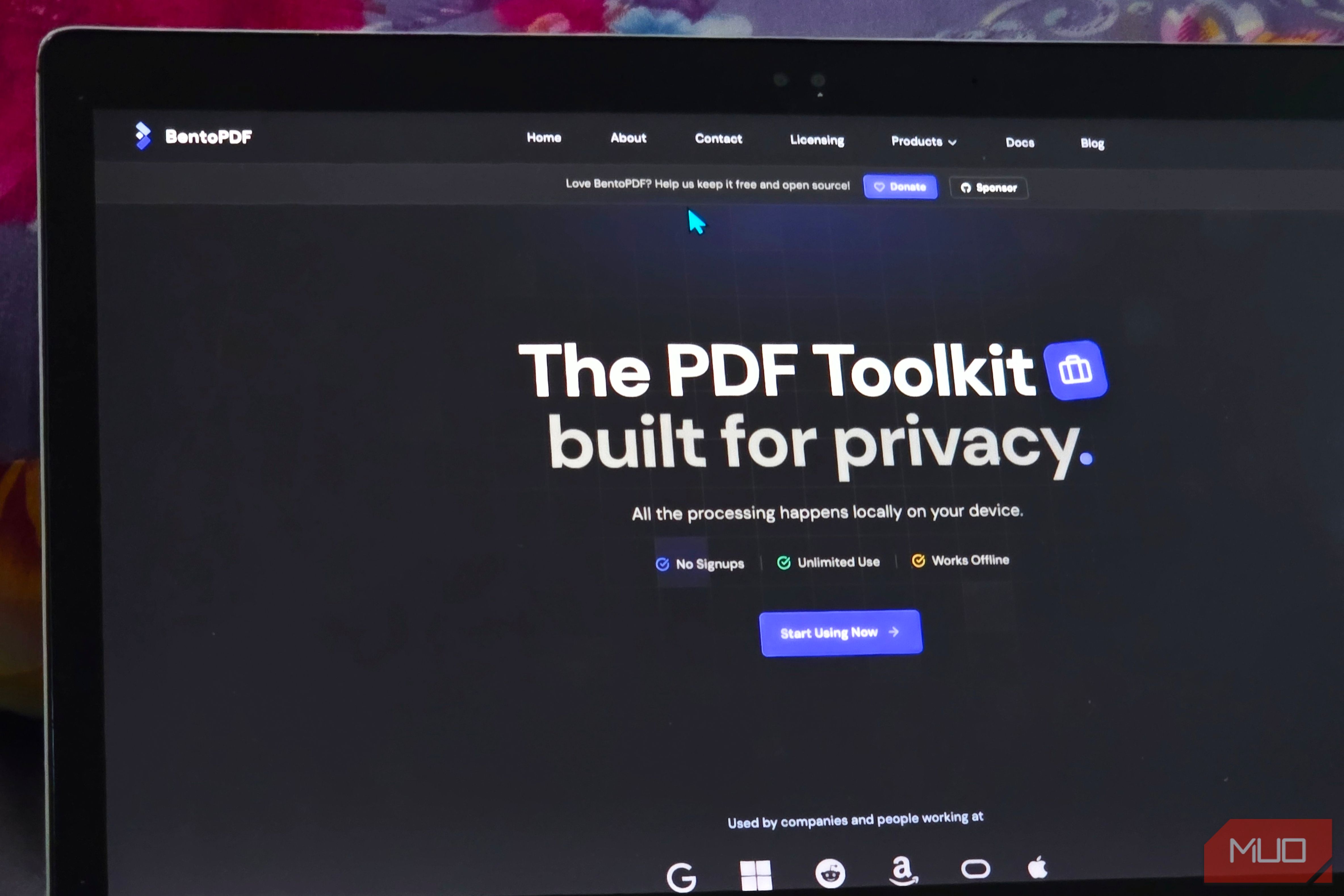
Solve Annoying PDF Problems Locally in Your Browser with BentoPDF
Dealing with PDFs can often feel like a never-ending series of small, annoying tasks. You might need to combine several documents, reduce the size of a bulky file, or even make an image-only scan searchable. Typically,

Your Guide to LG's 115-inch QNED evo TV: Features, Gaming & Price
Welcome to an exciting exploration of LG's latest innovation in home entertainment: the colossal 115-inch QNED evo AI Mini LED TV. This guide is designed to walk you through everything you need to know about this

The Super Mouse puts a touchscreen macro pad under your hand: Tech
Arctic Fox Technologies has launched the Super Mouse, an innovative peripheral featuring a 3.1-inch touchscreen for dynamic app controls, macros, and enhanced productivity. Available on Kickstarter for $199, this wired mouse aims to consolidate multiple desktop devices into one intuitive command center. Its contextual display and advanced features redefine user interaction.

How to Stop Google Using Your Gmail & Drive Data for Ads
Google's "Personal Intelligence" feature, designed to offer more tailored AI responses, may inadvertently lead to your personal data from apps like Gmail, Google Drive, and Google Photos being used for targeted
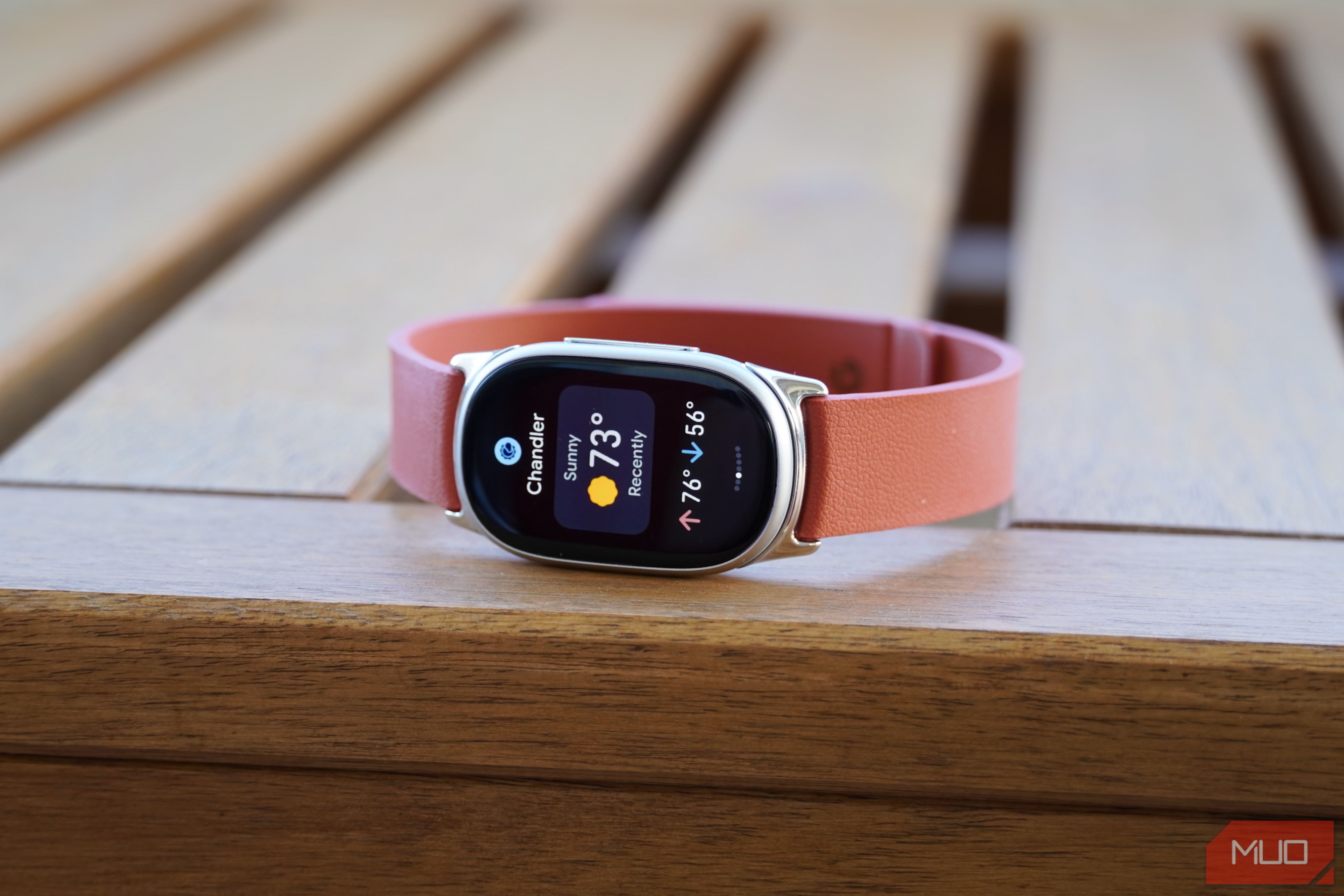
Google Fitbit Edge Review: Your Anti-Smartwatch Fitness Sweet Spot
Learn if the Google Fitbit Edge is the right fitness tracker for you, balancing core health features with a simplified experience. Discover its design, advanced tracking, and software insights to make an informed decision.

Apple OLED iPad Mini: A Premium Price for a Premium Portable
Quick Verdict Apple's 8th-generation iPad Mini arrives as a highly anticipated upgrade, finally bringing a stunning OLED display, a powerful A20 Pro chip, and advanced connectivity. It’s a compelling package for users