
Transform Your PowerPoint: Unleash Modern Presentation Power
Learn to modernize your PowerPoint presentations by leveraging AI design, advanced animations, live data linking, and camera embedding to create dynamic, engaging experiences, moving beyond outdated, text-heavy slides.
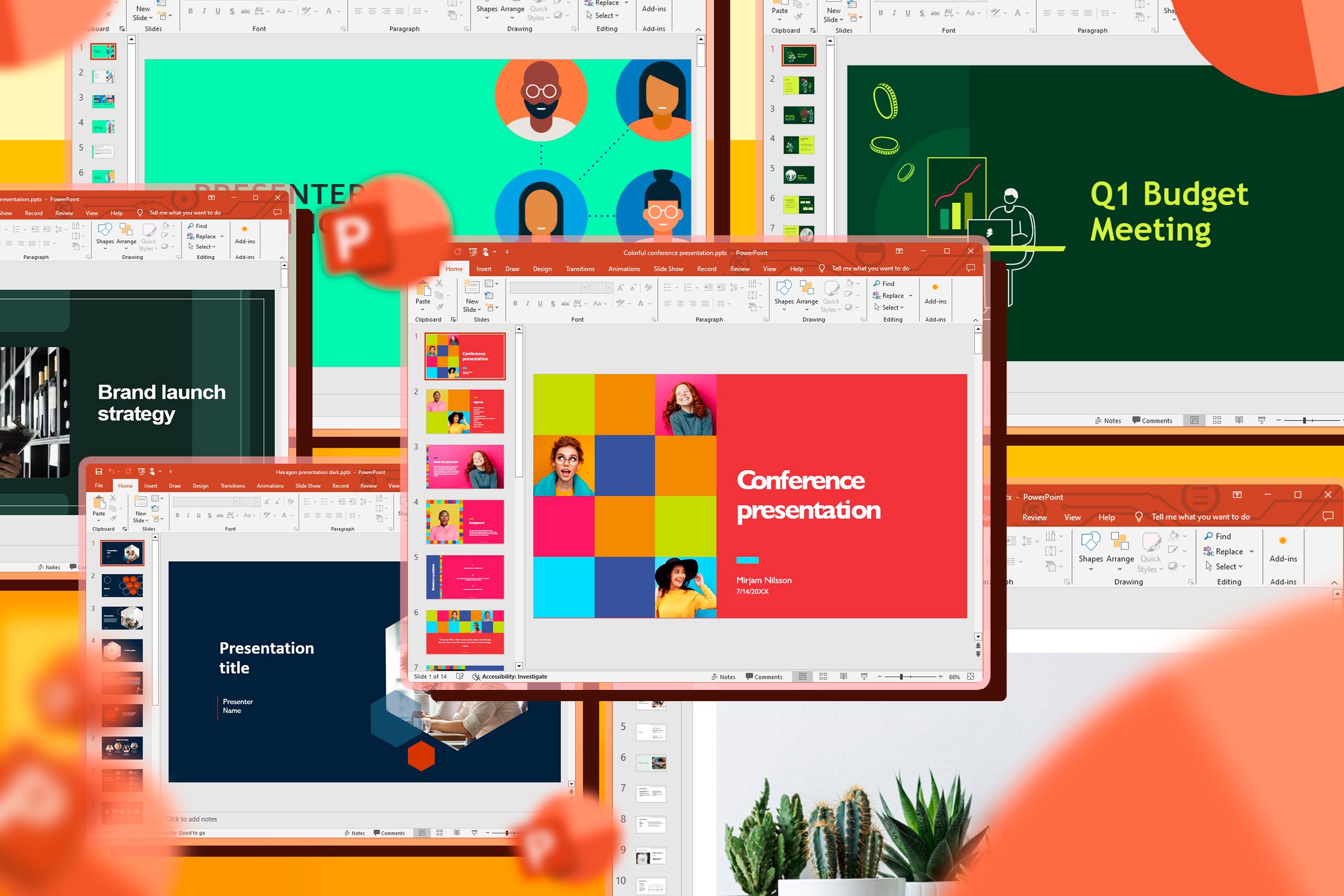
Many blame PowerPoint for boring presentations, but often, the real issue is an outdated approach. Microsoft has quietly evolved PowerPoint into a sophisticated design and motion graphics tool. If your presentations feel stuck in the past, it's time to update your workflow.
This guide will empower you to use PowerPoint's latest features to create engaging, dynamic, and professional presentations, moving beyond static, text-heavy slides.
Prerequisites: To access all features discussed:
- The latest desktop versions of PowerPoint.
- A Microsoft 365 Personal subscription.
Ditch the Document Trap: Design for Visual Impact
The biggest mistake users make is treating a slide like a horizontal Word document, stuffing it with paragraphs. This "document trap" overloads your audience, as reading and listening compete for brain regions, leading to disengagement.
Think like a billboard designer:
- Kill Your Bullet Points: Forget the 5/5/5 rule. Eliminate bullets. If a point needs more than a high-impact image and one declarative sentence, use more slides, not more text.
- Embrace Whitespace: Use whitespace (negative space) as a visual pointer, guiding audience eyes. Don't fear empty space; it's a design feature.
- Master the Selection Pane: Use the Selection Pane (
Home > Select > Selection Pane). This layers panel helps manage complex visual hierarchies by letting you hide, rename, and reorder elements without disturbing backgrounds.
Let AI Design and Enhance: Automate Layouts and Edit Photos
PowerPoint's built-in AI handles design and photo editing, saving time and reducing external software needs.
Automate Slide Layouts with Microsoft Designer
Microsoft Designer (formerly Design Ideas) analyzes slide content in real time, offering professional layout suggestions.
- Start Typing or Insert a Picture: As you add text or an image, Designer suggests relevant, high-quality layouts.
- Access Designer Manually: If suggestions don't appear, click
Designerin theHometab. - Select and Refine: Choose the best layout, focusing on content while AI handles aesthetics.
Edit Pictures Directly in PowerPoint
You no longer need external apps for image cleanup. PowerPoint features a dedicated AI-powered editing suite.
- Insert Picture: Paste or use
Insert > Pictures. - Open Editor: Select picture, then
Picture Formattab. ClickEdit ImageorEdit Picture. - Choose Tool: Select a tool (e.g., erase photobombers, move subjects, upscale). For text in a picture, hover and click
Edit Text. - Preview & Adjust: See real-time AI edits. Use back arrow for more tools,
Undofor last action. - Save Edits: Click
Updateto apply changes.
Note: This feature is available in the latest desktop versions and rolling out to PowerPoint for the web.
Bring Your Slides to Life: Dynamic Transitions and Navigation
Engage your audience with fluid animations and dynamic navigation, moving beyond static presentations.
Automate Animations with Morph
Morph transforms simple object movements into smooth, professional animations.
- Prepare Slides: Create a slide with an object (shape, image, text). Duplicate it.
- Modify Object: On the duplicated slide, move, resize, rotate (3D also), or change the object's color.
- Apply Morph: Select the duplicated slide. In
Transitionstab, clickMorph. PowerPoint animates the object's journey.
Navigate with Style Using Slide Zoom
Slide Zoom offers Prezi-like navigation: zoom into sections and back to an overview, maintaining structure.
- Design Overview: Create a main navigation slide.
- Create Section Slides: Design individual slides/sections to zoom into.
- Insert Slide Zoom: Go to
Insert > Zoom > Slide Zoom. - Select Thumbnails: Check your section slides (leave overview unchecked). Click
Insert. - Position Thumbnails: Arrange and resize inserted thumbnails on your overview slide.
- Enable Return to Zoom: Select each thumbnail on the overview slide. In
Zoomtab, checkReturn to Zoomto jump back to overview.
Present Like a Pro: Link Live Data and Embed Your Camera
Elevate presentations by integrating live data and your camera feed directly into slides.
Link Live Data from Excel
End manual updates and version control issues. Link Excel data directly for a "single source of truth."
- Copy Excel Chart: In Excel, copy your chart (
Ctrl+C). - Paste Special: In PowerPoint, go to
Home > Paste > Paste Special. - Select Link: In dialog, choose
Paste linkandMicrosoft Excel Chart Object. Confirm source file path. - Confirm: Click
OK. Your PowerPoint chart automatically updates with Excel changes.
Embed Your Live Camera Feed with Cameo
Transform virtual presentations into high-end broadcasts by embedding your live camera feed directly.
- Create Content: Ensure slides are complete.
- Insert Cameo: Go to
Inserttab, clickCameo. - Choose Placement: Select whether to show camera on active slide or all slides.
This hosts a production, not just a screen-share, fostering stronger audience connection.
Conclusion
PowerPoint is no longer a "digital typewriter." It can design, enhance photos, animate, link live data, and embed your camera. If presentations feel dated, it's your workflow. Embrace these modern capabilities to unlock countless uses for PowerPoint and transform presentations into truly engaging experiences.
FAQ
Q: Why should I avoid text-heavy slides?
A: They cause "cognitive overload." Reading text and listening compete for brain regions, hindering processing and leading to disengagement.
Q: Do I need a special subscription for these new features?
A: Many advanced features require the latest desktop PowerPoint, typically via a Microsoft 365 Personal subscription. Some are rolling out to web.
Q: How can I make my virtual presentations more engaging?
A: Use Cameo for camera feed, dynamic visuals (Morph, Slide Zoom), minimal text, linked live data, and a "billboard designer" mindset for compelling content.
Related articles
How to Use Kodi: The Simple, Server-Free Way to Watch Your Media
Learn to set up Kodi to watch your personal media library directly on your TV, bypassing complex servers and subscription fees, in just a few steps.

The Party's Back! Tales from '85 Unleashes Season 2 on Netflix
Stranger Things: Tales from '85, the animated spin-off, returns to Netflix on September 17th with 10 new episodes. Set between seasons 2 and 3 of the original live-action series, Season 2 sees The Party facing ghostly apparitions and strange creatures around Valentine's Day. While it received mixed reactions initially, it retains the 80s vibe and core characters.

Understanding the Anti-Woke Right's Challenge with Grand Theft Auto VI
Welcome to this guide on understanding the current cultural conversation surrounding the highly anticipated game, Grand Theft Auto VI. This resource is designed to help you navigate the specific challenges and

How to Quote Movies Accurately - Avoid Common Misquotes
Learn to identify and correct 10 frequently misquoted movie lines to impress your friends and become a true cinematic aficionado.

AI's Impact on Malware Detection: Next-Gen Protection Deep Dive
The landscape of cybersecurity has transformed dramatically. Gone are the days when a simple virus attached itself to a file, easily quarantined by an antivirus scanner. Today, malware is sophisticated, multifaceted,
Unofficial Sony Headphone PC Apps: Ditch Your Phone, Take Control
Tired of Sony's mobile app? These unofficial, open-source PC tools like Sony Device Center and SonyBridge offer desktop control over your Sony headphones' ANC, EQ, and more. A convenient, albeit unofficial, solution for Windows, Linux, and Mac users looking to ditch their phone for audio adjustments.