
Stop Fake Chrome Update Pop-Ups: Protect Your Browser from Malware
Have you recently seen an urgent pop-up in your browser demanding a “critical” security update for Chrome? Hold on a moment before clicking! What appears to be a legitimate browser update could actually be a cleverly

Have you recently seen an urgent pop-up in your browser demanding a “critical” security update for Chrome? Hold on a moment before clicking! What appears to be a legitimate browser update could actually be a cleverly disguised malware attack, designed to trick you into downloading malicious software.
These fake update alerts are a growing threat, using compromised browser extensions to distribute harmful scripts. This guide will walk you through how to identify these deceptive pop-ups, safely check for legitimate updates, and manage your browser extensions to keep your digital life secure. By following these steps, you’ll be able to protect your data and browse with confidence.
Before You Begin: What You'll Need
- A computer or device with a web browser (this guide is especially relevant for Chrome, Brave, and Opera users).
- Basic computer literacy and internet access.
- A few minutes to review your browser settings and extensions.
Understanding the Threat: How Fake Updates Spread Malware
Malicious actors are increasingly using a stealthy tactic to compromise your system: weaponizing seemingly harmless browser extensions. These extensions, which might initially appear benign or even useful, are later updated by hackers to fetch and serve malicious scripts. These scripts then generate urgent-looking pop-ups within your browser, mimicking official update notifications from Chrome (or other Chromium-based browsers like Brave and Opera).
The fake alerts often use aggressive language, claiming that "access to websites is temporarily blocked" or that your browser "will stop working" after a certain date if you don't update. They might even threaten the loss of your bookmarks, history, and saved passwords. If you click on the “Update Chrome” button in these fake pop-ups, you’ll unknowingly download a suspicious .vbs or .exe script directly to your device. This method is particularly effective for hackers because the threat often goes undetected by traditional antivirus software, as the browser itself isn't compromised; rather, a trusted extension is acting as the conduit for the malicious payload.
Step 1: Recognize a Malicious Pop-Up
The first line of defense is recognizing the deception. Fake browser update pop-ups often share common characteristics:
- Urgent and Threatening Language: They create a sense of panic, warning of immediate consequences like blocked access, data loss, or browser malfunction if you don't update right away.
- In-Browser Appearance: These pop-ups appear within your browser window, sometimes overlaying content, rather than as a system notification.
- Download Prompts: They specifically ask you to download a file, often a
.vbsor.exescript, by clicking a button like “Update Chrome.” Legitimate browser updates typically happen automatically in the background or are initiated directly through the browser's settings, not via a separate download prompt within a pop-up. - Convincing Branding (with subtle flaws): While they may incorporate Chrome branding, a copyright, or links to a privacy policy, look for inconsistencies or slight misspellings in URLs or text. The overall sense of urgency is a major red flag.
Step 2: Never Interact with Suspicious Pop-Ups
If you encounter a pop-up that fits the description above, do not click on any buttons, links, or download prompts within it. Even closing the pop-up by clicking an "X" button could sometimes trigger a malicious action, depending on how cleverly it's designed. The safest approach is to close the entire browser tab or window where the pop-up appeared. If you can't close the tab, close the browser application entirely through your operating system's task manager (Ctrl+Shift+Esc on Windows, Command+Option+Esc on Mac).
Step 3: Verify and Perform Legitimate Browser Updates
Your browser will inform you when an update is available, but it will do so subtly, usually through a small icon change or a notification within its settings menu, not a disruptive pop-up. To check for legitimate updates in Chrome (and similar Chromium browsers):
- Open Google Chrome.
- Click on the three vertical dots (or a similar menu icon) in the top-right corner of your browser window.
- Navigate to Settings.
- In the left-hand menu, scroll down and click on About Chrome.
- Chrome will automatically check for updates and download them if available. It will then prompt you to relaunch the browser to apply the update. This is the official and secure way to update your browser.
Always rely on your browser's internal update mechanism. If your browser is up to date, no action is needed, and any pop-ups claiming otherwise are fake.
Step 4: Audit and Manage Your Browser Extensions
Many of these fake update campaigns originate from compromised browser extensions. It's crucial to regularly review and remove any non-essential or suspicious extensions:
- Access Extension Management:
- Open Google Chrome.
- Click on the Extensions icon (often a puzzle piece or similar symbol) in the top-right corner of your browser window.
- Select Manage Extensions from the dropdown menu.
- Review and Remove:
- Carefully go through each extension listed. If you don't recognize an extension, no longer use it, or don't explicitly remember installing it, consider removing it.
- Pay attention to the permissions each extension has been granted. If an extension seems to have excessive permissions for its stated function (e.g., a simple utility needing access to all your browsing data), that's a red flag.
- Click the Remove button for any extensions you wish to delete.
- Identify Culprits: If you're still experiencing persistent pop-ups after removing obvious candidates, try removing utility apps one by one. Extensions like “Enable Right Click & Copy Smart Unlock + OCR” (which was noted for Chrome) or “QuickLens – Search Screen with Google Lens” (for Brave/Opera, though since removed) have been identified in past campaigns. Even highly-rated or 'Featured' extensions can become malicious over time if their developers' accounts are compromised.
Best Practices for Ongoing Protection
- Be Skeptical of Urgency: Legitimate software updates rarely demand immediate action under threat of data loss or system failure. Any pop-up creating a high sense of urgency should be treated with extreme caution.
- Keep Essential Extensions Only: The fewer extensions you have, the smaller your attack surface. Regularly prune your extension list.
- Install from Official Stores: While even official stores can host compromised extensions, they are still the safest place to download add-ons. Avoid installing extensions from third-party websites.
- Stay Informed: Keep an eye on tech news outlets for reports of new malware campaigns targeting browsers or extensions.
Next Steps
By following these steps, you significantly reduce your risk of falling victim to fake Chrome update malware. Always prioritize caution and verify any requests for updates through official channels. If you have concerns about existing malware on your system, consider running a full scan with reputable antivirus software after cleaning up your extensions.
FAQ
Q: Can my antivirus software detect this kind of malware?
A: Not always directly. Malicious extensions often evade detection because the browser itself isn't compromised. Instead, the extension acts as a gateway, pulling malicious scripts from a remote server. The threat is only fully detected when you download and execute these scripts on your device, which is why preventing the download is key.
Q: What should I do if I accidentally clicked on a fake update and downloaded a file?
A: If you suspect you've downloaded malware, immediately disconnect your device from the internet to prevent further compromise. Do not open or run the downloaded file. Run a full scan with a trusted antivirus or anti-malware program. You may also want to change important passwords from a clean device or after confirming your system is clear of threats.
Q: How do I know if a browser extension is safe before installing it?
A: While no method is foolproof, look for extensions with a large number of users, consistent positive reviews over time, and a clear, reputable developer. Check the permissions an extension requests; if they seem excessive for its function, be wary. Remember that even initially safe extensions can become malicious through later updates if their developer accounts are compromised. Regular review of installed extensions is a crucial ongoing security measure.
Related articles
Android 17 QPR2 Beta 7.1: The Performance Relief You've Been Waiting
Android 17 QPR2 Beta 7.1: Finally Fixing the QPR1 Performance Woes Verdict: Android 17 QPR2 Beta 7.1 is a crucial and highly anticipated software update for Google Pixel users, specifically targeting and resolving the

in-depth: Chicago-Area Cops Helped HSI Spy on Minnesota Anti-ICE
Chicago-area law enforcement, including local police and HSI agents, conducted undercover surveillance on Minnesota anti-ICE activists at an April 2, 2022, talk in Chicago. This operation was part of a federal conspiracy probe into 15 Minnesota activists facing felony charges related to immigration enforcement resistance. Civil liberties advocates have condemned the surveillance as a troubling intrusion into protected political activity.

TCG Pocket Responds: A Much-Needed Pace Shift for Pokémon Fans
Pokémon TCG Pocket is rolling out a major update for its second anniversary, primarily addressing player concerns about overwhelming content releases by shifting to a six-week set schedule. This aims to curb player decline and improve overall engagement by giving trainers more time to collect and strategize. The update also adds new collection methods, improved deck-building features, and enhanced trading functionality.

Ditch Merge & Center: The Better Way to Align Text in Excel
Learn to use Excel's "Center Across Selection" to align text across cells without merging, avoiding common data manipulation issues. This guide provides steps to utilize this newly accessible feature and add it to your Quick Access Toolbar.
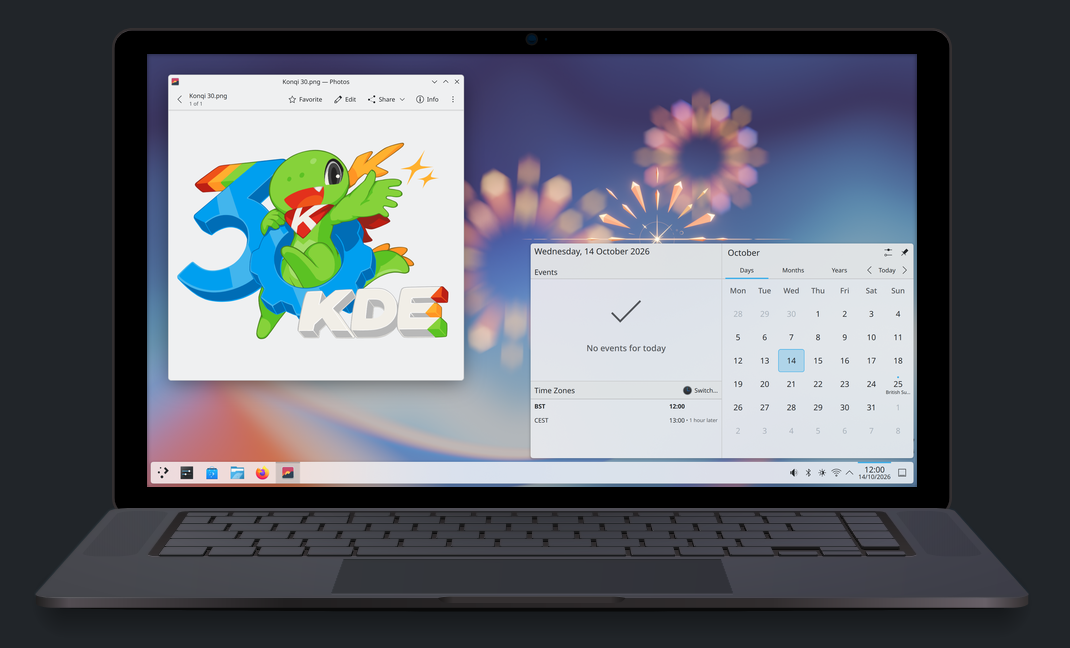
KDE Plasma 6.8: A Future-Focused 30th Anniversary Update
Quick Verdict KDE Plasma 6.8, arriving as the "30th Anniversary Edition," is a pivotal release that decisively pushes the desktop environment into the future. With a definitive farewell to native X11 sessions and a
%20102026%20top%20art%20SOURCE%20Govee.jpg)
in-depth: The Best Permanent Outdoor Lights (2026): Govee, Eufy
WIRED, a leading voice in technology journalism, has just released its updated guide for 2026 on the best permanent outdoor lights, spotlighting top contenders Govee, Eufy, and Cync. These innovative eave lights are