
Siri in CarPlay: Taming the Talkative Assistant for Quieter Drives
Quick Verdict Apple CarPlay's integration with Siri is designed for convenience and safety, but its default settings often lead to frustrating and distracting interruptions. This deep dive into managing Siri's vocal
Quick Verdict
Apple CarPlay's integration with Siri is designed for convenience and safety, but its default settings often lead to frustrating and distracting interruptions. This deep dive into managing Siri's vocal tendencies reveals that while a complete shutdown isn't possible (nor desirable for CarPlay's core functionality), a suite of accessible settings can dramatically improve your in-car experience. From robust Focus modes to granular control over notifications and navigation, Apple provides the tools to create a more serene and less distracting driving environment. It requires a bit of upfront setup, but the payoff in reduced annoyance and enhanced safety is well worth the effort.
Taming the Talkative Assistant: Why Siri Needs a Mute Button
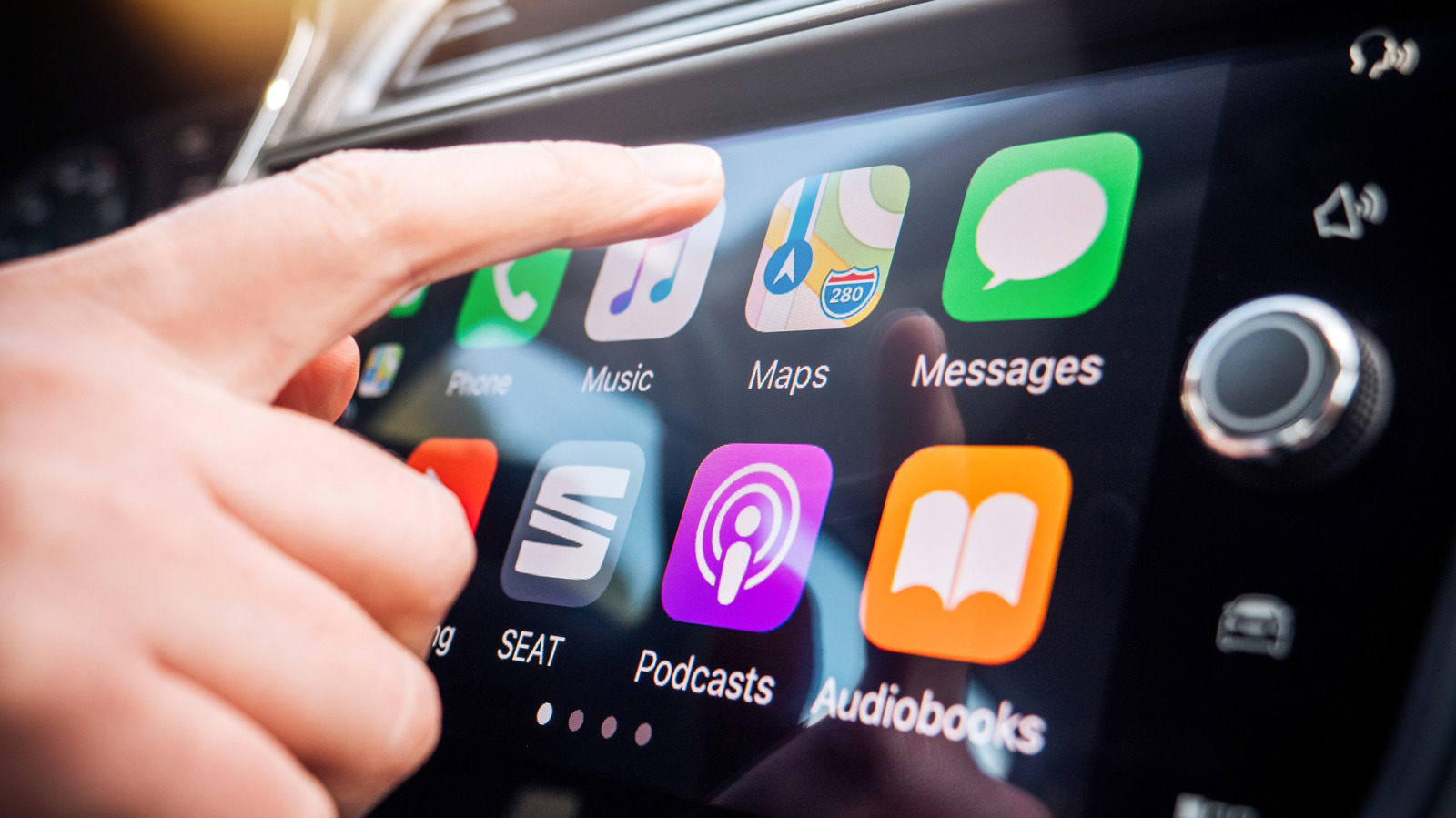
For many, Apple CarPlay is an indispensable driving companion, seamlessly bringing iPhone features to the dashboard. However, there's a common pain point: Siri's often overzealous announcements. Whether it's interrupting your favorite podcast to read a mundane group chat message or chiming in with navigation prompts at inconvenient moments, the digital assistant can quickly shift from helpful to hindrance. Such auditory intrusions aren't just annoying; they're potential safety hazards, diverting precious attention from the road. While completely disabling Siri would cripple CarPlay, the good news is that Apple offers several powerful ways to rein in its more chatty habits, transforming it back into a true assistant rather than a constant interruption.
The Core Defense: Driving Focus Mode
The most impactful tool in your arsenal against Siri's interjections is the 'Driving' Focus mode. An evolution of the classic 'Do Not Disturb,' Focus modes are designed to tailor notification delivery to your current activity. Activating Driving Focus specifically during CarPlay use is a game-changer for minimizing distractions.
Setting it up is straightforward: navigate to Settings > Focus on your iPhone. If 'Driving' isn't already listed, a simple tap on the 'Plus (+)' icon will add it. Within the Driving Focus settings, the 'People' section allows you to curate who can actually break through with alerts. For driving, it's highly recommended to limit this to a select few, ensuring only critical communications reach you. You can further refine this by choosing 'Contacts Only' or 'Allowed People Only' for incoming phone calls, effectively weeding out spam while you're behind the wheel.
Another thoughtful addition is the 'Auto-Reply' feature. You can craft a short, automated message that's sent to designated contacts if they text you while you're driving. This keeps them informed without requiring you to dictate a reply, maintaining your focus on the road. Finally, ensure the Focus mode automatically kicks in by enabling 'Activate With CarPlay' under the 'While Driving' options. Once active, a small car icon beneath your iPhone's clock confirms that Siri and notifications are operating under your specified rules, making for a significantly calmer drive.
Silencing the Announcer: Notification Controls
Beyond the comprehensive Driving Focus, you can fine-tune Siri's behavior regarding spoken notifications. Siri's habit of announcing every incoming alert can be particularly disruptive. To manage this, head to Settings > Notifications > Announce Notifications.
Here, you'll find a top toggle that controls the overall 'Announce Notifications' feature. If you want Siri to announce notifications in other contexts but not in the car, keep this top toggle on, then specifically access the 'CarPlay' menu and disable 'Announce Messages'. This simple adjustment prevents Siri from reading out texts and other alerts while CarPlay is active.
Another valuable setting on the main 'Announce Notifications' page is 'Reply Without Confirmation'. By default, Siri reads back your dictated reply for confirmation before sending it, adding an extra step and potential for interruption. Toggling this on streamlines the process, allowing your replies to be sent immediately, which is especially beneficial when driving.
Taking Command: Siri Activation & Interruption Settings
Accidental Siri activations or interruptions by background noise are common frustrations. Fortunately, there are settings to mitigate these annoyances. Go to Settings > Accessibility > Siri.
Enabling 'Require "Siri" for Interruptions' is a key fix. With this on, Siri will only pause its current speech or action if it hears the specific trigger phrase "Siri," rather than reacting to general road noise or conversations with passengers. This means fewer unintended stops and a smoother flow for your audio. For those who find Siri stops listening too quickly when formulating a response, adjusting 'Siri Pause Time' to 'Longer' or 'Longest' provides a much-needed buffer, giving you more time to think and speak your command.
If you prefer to summon Siri purely on demand, you can also disable the 'Hey Siri' command entirely. Navigate to Settings > Apple Intelligence & Siri > Talk to Siri and select 'Off'. This ensures Siri only activates when you intentionally press the voice command button on your steering wheel or hold your iPhone's Side button. An additional, vehicle-dependent tip: if Siri's volume is consistently too loud or quiet, try adjusting your car's volume knob (or your phone's volume buttons) while Siri is actively speaking. In many vehicles, this will adjust Siri's volume independently of music or other audio playback.
Navigating in Silence: Customizing Spoken Directions
Spoken turn-by-turn directions are a cornerstone of navigation, but their constant interruptions can be excessive. Luckily, popular GPS apps within CarPlay offer granular control over audio guidance.
For Apple Maps and Waze, the process is intuitive: simply tap the screen during active navigation to reveal controls, then tap the speaker icon. This typically offers options for 'Full Guidance,' 'Alerts Only,' or 'Complete Silence.' 'Alerts Only' often strikes the best balance, providing crucial warnings about traffic or route changes without narrating every single turn.
Google Maps requires a quick hop to your iPhone. Open the app, tap your profile picture, then Settings > Navigation. Here, you can enable 'Play alerts even while muted' to ensure critical warnings still come through, and crucially, adjust the 'Guidance volume' to your preference. Back in Apple Maps settings (on your phone under Settings > Apps > Maps > Spoken Directions), you can also fine-tune the 'Voice Volume' and, significantly, disable 'Directions Pause Spoken Audio'. This latter setting allows podcasts and audiobooks to continue playing uninterrupted even as directions are spoken aloud, a small but impactful change for uninterrupted listening.
User Experience & Overall Effectiveness
Implementing these settings requires a bit of patience, navigating through various menus on your iPhone, but the process is generally straightforward. Apple has distributed these controls across Focus, Accessibility, Notifications, and individual app settings, which can feel a little scattered at first. However, once configured, the impact on the CarPlay user experience is substantial. The reduction in unnecessary auditory cues and visual alerts transforms CarPlay from a potentially chaotic interface into a calmer, more predictable co-pilot. The ability to fine-tune notification delivery, Siri's responsiveness, and navigation prompts means drivers can truly personalize their experience to minimize distractions, fostering safer and more enjoyable journeys. The overall effectiveness is high, significantly mitigating the primary pain point of intrusive Siri behavior.
Pros and Cons
Pros:
- Enhanced Safety: Significantly reduces driving distractions by limiting auditory and visual interruptions.
- Customizable Experience: Offers granular control over various aspects of Siri's behavior and notification delivery.
- Improved Audio Flow: Prevents Siri and navigation from constantly talking over music, podcasts, or conversations.
- Reduced Annoyance: Eliminates repetitive or irrelevant spoken alerts, leading to a more pleasant driving environment.
- Streamlined Interactions: Features like 'Reply Without Confirmation' make interacting with Siri quicker and more efficient.
Cons:
- Initial Setup Effort: Settings are spread across different iPhone menus, requiring multiple steps to fully configure.
- Siri Cannot Be Fully Disabled: CarPlay's reliance on Siri means some level of interaction, and thus potential for interruption, will always exist.
- Vehicle-Dependent Features: Some controls, like independent Siri volume adjustment, may vary by car model.
- Ongoing Adjustments: Users might need to revisit navigation app settings for each trip depending on desired audio guidance levels.
Recommendation
For any CarPlay user experiencing frustration with Siri's interruptions, implementing these recommended settings is not just advised, it's essential. While it takes a few minutes to navigate through your iPhone's settings and customize your preferences, the resulting calm and focused driving experience is invaluable. Prioritize setting up the 'Driving Focus' mode, then move to refining notification announcements and Siri's activation behavior. Finally, familiarize yourself with your preferred navigation app's audio settings. These adjustments collectively transform Siri from a potential distraction into a genuinely helpful, unobtrusive assistant, making your time behind the wheel safer and far more enjoyable.
FAQ
Q: Can I completely turn off Siri when using CarPlay? A: No, Siri is an integral part of CarPlay's functionality and cannot be entirely disabled. However, you can significantly reduce its interruptions by adjusting settings for notifications, activation, and navigation guidance, making it much less intrusive.
Q: Will adjusting these Siri settings affect Siri's behavior outside of CarPlay? A: Some settings, like 'Require "Siri" for Interruptions' or 'Siri Pause Time' under Accessibility, are global and will affect Siri's behavior generally. However, specific settings like 'Announce Messages' under the CarPlay menu within Notifications, or those within individual navigation apps, are confined to the CarPlay experience or the app itself.
Q: What's the single most effective setting to reduce Siri interruptions? A: The 'Driving' Focus mode is arguably the most impactful single setting. When properly configured and activated with CarPlay, it comprehensively manages notifications and minimizes unsolicited alerts, creating a far less distracting environment on the road.
Related articles
Android 17 QPR2 Beta 7.1: The Performance Relief You've Been Waiting
Android 17 QPR2 Beta 7.1: Finally Fixing the QPR1 Performance Woes Verdict: Android 17 QPR2 Beta 7.1 is a crucial and highly anticipated software update for Google Pixel users, specifically targeting and resolving the

DJI Solo Video Setups: Smart Choices for Lone Creators
This review delves into DJI's recommended solo video setups, highlighting the Osmo Pocket 3 Creator Combo as a top pick for its integrated camera, gimbal, and mic. It also covers stabilizers like the Osmo Mobile 8 and RS 4, and the DJI Mic Mini series for enhanced audio, providing honest pros, cons, and clear buying advice.

Ars Technica's Rocket Report: Your Essential Space Industry Briefing
Quick Verdict Ars Technica's Rocket Report, presented by veteran space reporter Stephen Clark, offers an invaluable and meticulously organized weekly (or similar frequency, implied by "Edition 9.15") digest of the most
Apple iPhone Duo: A Daring Debut with Notable Compromises
Apple's highly anticipated iPhone Duo, priced at $2,000, has gone on pre-order. While hailed as "Apple's most exciting device in a decade" for its innovative foldable design and immersive display, it comes with significant drawbacks like the absence of FaceID and a premium camera.
KDE Plasma 6.8: A Future-Focused 30th Anniversary Update
Quick Verdict KDE Plasma 6.8, arriving as the "30th Anniversary Edition," is a pivotal release that decisively pushes the desktop environment into the future. With a definitive farewell to native X11 sessions and a
Galaxy Watch One UI 9 Beta: Promising Progress, But Patience Needed
Galaxy Watch 8, Watch Ultra, and Watch 7 are receiving a new One UI 9 Watch beta build with bug fixes and a security patch. Active development signals progress, but a stable release date remains elusive.