
Secure Your Smart Home: A Step-by-Step VLAN Setup Guide
Learn to set up a Virtual Local Area Network (VLAN) for your smart home to enhance security by isolating vulnerable IoT devices from your main network in a few structured steps.
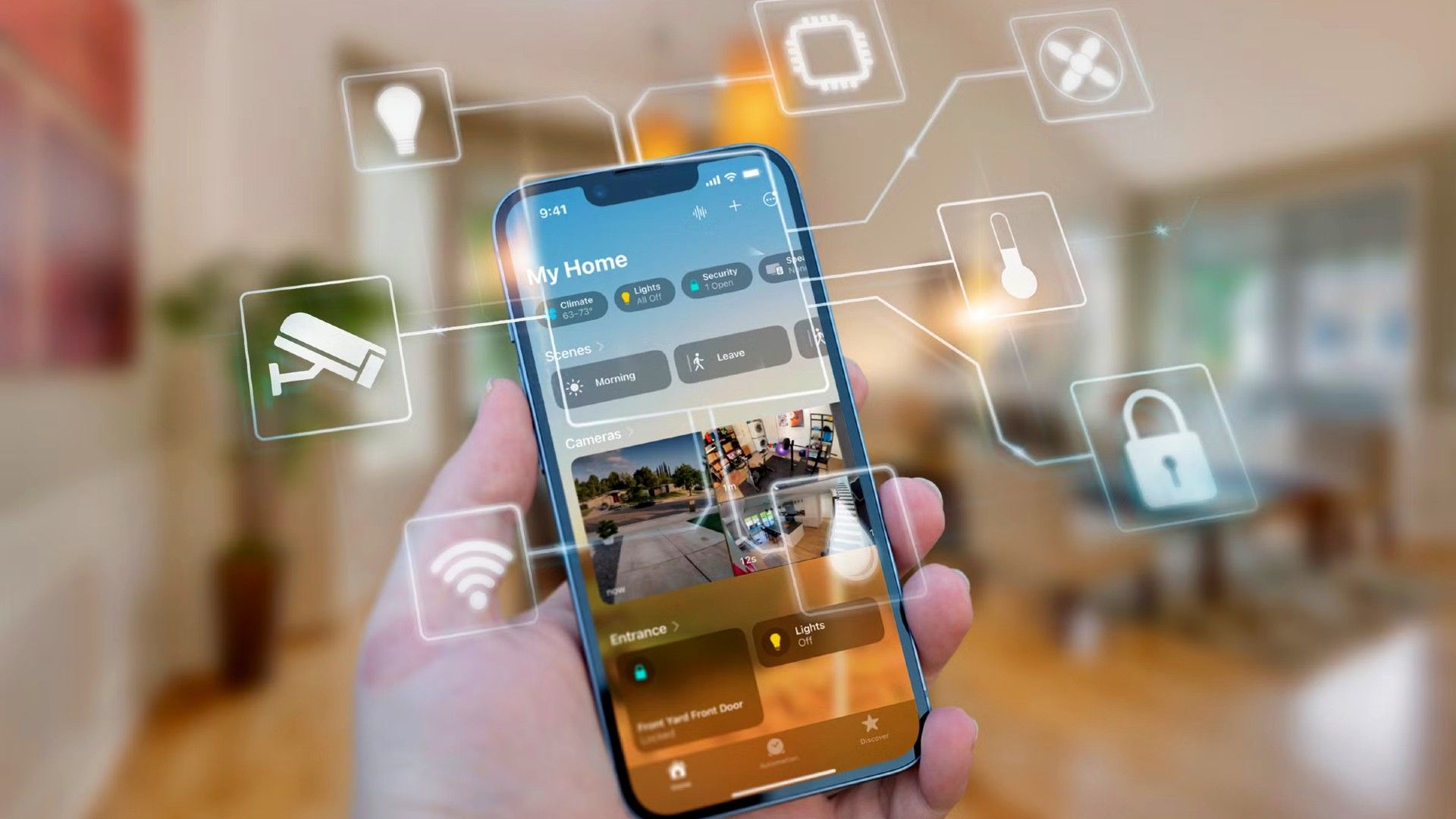
Smart homes offer incredible convenience, but the growing number of internet-connected devices also introduces potential security vulnerabilities. Many smart devices prioritize functionality over robust cybersecurity, creating weak points in your home network. By implementing a Virtual Local Area Network (VLAN), you can isolate your smart devices from your main network, significantly enhancing your home's security posture.
In this guide, you'll learn why a VLAN is crucial for your smart home and how to set one up, drawing from real-world experiences. We'll walk through the process, from understanding the benefits to tackling common challenges, so you can build a more secure smart home environment.
Why a VLAN is Essential for Smart Home Security
Most people operate their entire home on a single network, where all devices can freely communicate with each other. While this is simple, it poses a significant security risk, especially with Internet of Things (IoT) devices. Many smart devices frequently "phone home" to cloud servers, often sending more data than you might realize. This reliance on external servers can lead to issues, as demonstrated by past outages where smart devices became unresponsive because their cloud services were down. More critically, if a single IoT device is compromised, it could potentially grant an attacker access to your entire network.
This is where a VLAN becomes invaluable. A VLAN allows you to segment your network traffic into separate, isolated virtual networks. Imagine your home network as a highway: traditionally, it's a single, wide-open road. With VLANs, you create multiple lanes with strong barriers between them. For instance, you can set up a "Trusted" VLAN for your computers and personal devices, and a separate "IoT" VLAN for your smart gadgets.
The key benefit is isolation. Your computer on the Trusted VLAN can typically communicate with devices on both VLANs (if configured), but devices on the IoT VLAN can be restricted to only communicate within their own VLAN or with the external internet, not with your Trusted VLAN. This means if a smart plug or security camera on your IoT VLAN is hacked, the compromise is contained within that specific VLAN, preventing the attacker from accessing your sensitive personal data or other critical devices on your main network.
Prerequisites for Setting Up a Smart Home VLAN
Before you begin, you'll need the right networking hardware. Consumer-grade routers typically don't offer VLAN capabilities, so you'll need a managed network setup. Here are your primary options:
- Managed Router/Firewall: This is the core of your VLAN setup. Popular choices include:
- Ubiquiti Unifi: Systems like the Unifi Dream Router 7 offer integrated router, switch, and Wi-Fi access point functionality with easy-to-use software for VLAN creation and management.
- TP-Link Omada: A direct competitor to Unifi, offering similar managed networking solutions.
- Open-Source Solutions (DIY): You can build your own managed router using software like pfSense or OPNsense on a dedicated mini-PC. This offers maximum flexibility but requires more technical expertise.
- Managed Switches: If your router doesn't have enough managed ports, or if you want to extend your VLANs to wired devices, you'll need managed network switches that support VLAN tagging (e.g., Unifi switches).
- Managed Wi-Fi Access Points: For wireless smart devices, you'll need Wi-Fi access points that can broadcast multiple SSIDs (Wi-Fi networks) and tag them to specific VLANs (e.g., Unifi Access Points).
Ensure that all your chosen hardware is compatible and can communicate with each other, especially if you're mixing brands. Systems like Unifi are designed to work seamlessly together, simplifying management.
Step-by-Step: Setting Up Your Smart Home IoT VLAN
The following steps outline a general approach to setting up your IoT VLAN, based on common practices and the author's Unifi experience. Specific menu options and terminology may vary depending on your chosen hardware.
Step 1: Access Your Network Management Interface
Log in to the web interface or software controller for your managed router (e.g., Unifi Network Application, Omada Controller, pfSense web GUI). This is where you'll configure your VLANs and network settings.
Step 2: Create a New Network (VLAN)
Navigate to the network settings section and create a new network. Name it clearly, such as "IoT Devices" or "Smart Home VLAN." You'll typically assign it a unique VLAN ID (a number between 1 and 4094) and a separate IP subnet (e.g., 192.168.10.0/24, ensuring it doesn't conflict with your main network).
Step 3: Configure DHCP Settings for the IoT VLAN
Within your new IoT VLAN settings, configure the DHCP server. This server will automatically assign IP addresses to your smart devices. For example, you might set the network to support 253 IP addresses, with a pool of 205 addresses available for dynamic assignment. This leaves some addresses free for static assignments if needed for specific devices.
Step 4: Enable Essential Services: IGMP Snooping and mDNS
Many smart home devices rely on multicast communication and service discovery protocols. To ensure your devices can function correctly and be discovered by your control apps, enable:
- IGMP Snooping: Helps optimize multicast traffic, preventing it from flooding your network.
- mDNS (Multicast DNS) / Bonjour: Essential for devices to find each other and your control hubs (like Home Assistant or HomeKit) across different network segments. You might also need to add your IoT VLAN and your main "Trusted" VLAN to an mDNS proxy configuration to allow initial cross-VLAN communication for device setup and control.
Step 5: Create a Dedicated Wi-Fi Network for Your IoT VLAN
If your smart devices primarily connect wirelessly, create a new Wi-Fi SSID specifically for your IoT VLAN. This ensures that when a device connects to this Wi-Fi network, its traffic is automatically routed to the correct VLAN.
- Restrict to 2.4GHz: Many older or simpler smart home devices only support 2.4GHz Wi-Fi. Configuring this IoT Wi-Fi network to 2.4GHz only can improve compatibility and performance for these devices.
Step 6: Migrate Your Smart Devices
Begin connecting your smart home devices to the newly created IoT Wi-Fi network. Go through each device's setup process and ensure it's connecting to the correct, isolated network.
Step 7: Advanced: Implement Firewall Rules (Staged Approach)
This is a critical step for maximizing security and is often best done in stages. Initially, you might allow your Trusted VLAN to communicate with the IoT VLAN for easy setup and control (via mDNS proxy).
In the future, for enhanced security, you should configure firewall rules to:
- Block Cross-VLAN Traffic: Prevent devices on the IoT VLAN from initiating connections to your Trusted VLAN.
- Isolate IoT Devices: Prevent devices within the IoT VLAN from communicating with each other (if desired and compatible with your smart home system).
- Restrict Internet Access: Limit internet access for IoT devices to only essential cloud services they require, or even block it entirely for local-first devices (like those managed by Home Assistant or HomeKit without cloud reliance).
Consider creating an easy toggle to temporarily open up internet access for the IoT VLAN when you need to add new devices that require cloud registration, then close it off afterward.
Troubleshooting Tips
Setting up a VLAN can introduce some challenges. Here are common issues and workarounds:
- Device Setup Failures: When adding new smart devices, you might find that your phone (on your Trusted VLAN) struggles to discover or configure devices on the IoT VLAN. The most straightforward workaround is to temporarily connect your phone to the IoT Wi-Fi network during the setup process. Once the device is added and configured, you can switch your phone back to your Trusted network.
- Inter-VLAN Communication for Controllers: If you're running a smart home hub like Home Assistant or using Apple HomeKit on your Trusted VLAN, and your smart devices are on the IoT VLAN, you might encounter communication issues. This often requires specific firewall rules to allow necessary traffic (e.g., MQTT, API calls) between the controller and the devices while still maintaining overall isolation. This can be complex and may require trial and error with your firewall settings.
- General Headaches: Expect some initial frustration and troubleshooting. Networking with VLANs is a deeper dive than typical home network setups. Be patient, take notes on what you change, and be prepared to iterate.
Best Practices and Next Steps
- Start Slow: Don't try to implement all firewall rules at once. Begin by simply getting your devices on the isolated VLAN, then gradually tighten security with more restrictive firewall rules.
- Embrace Local Control: Prioritize smart home devices and platforms that support local-first control (e.g., Home Assistant, Apple HomeKit) over cloud-dependent ones. This allows you to block internet access for many IoT devices, dramatically improving security and reliability.
- Regular Review: Your smart home evolves. Periodically review your VLAN configuration and firewall rules to ensure they still meet your security needs as you add or remove devices.
Implementing a dedicated IoT VLAN is one of the most effective ways to secure your smart home. While it requires an initial investment in time and hardware, the peace of mind that comes from protecting your network from potential threats is well worth the effort.
FAQ
Q: Do I really need a VLAN for my smart home devices?
A: While not strictly mandatory, it's highly recommended for enhanced security. Many smart devices have weak security, and isolating them prevents a compromise of one device from affecting your entire network, including your personal computers and sensitive data.
Q: What's the minimum hardware I need to set up a VLAN?
A: At a minimum, you'll need a managed router or a router/firewall that supports VLANs (e.g., Unifi Dream Router, TP-Link Omada router, or a DIY pfSense/OPNSense box). If you have Wi-Fi-only smart devices, you'll also need a Wi-Fi access point that can broadcast multiple SSIDs tied to different VLANs.
Q: Will setting up a VLAN break my smart home devices or make them harder to use?
A: It might introduce some temporary setup challenges and require adjustments to how your devices communicate, especially with central hubs. However, once properly configured, your smart home should function normally, but with significantly improved security. The initial "pain" of setup is generally worth the long-term benefits of a more secure network.
Related articles

Apple Unveils iPhone Duo: Pricey Foldable Sees Soaring Demand
Apple has officially entered the foldable smartphone arena with the long-anticipated launch of the iPhone Duo. Priced starting at a hefty $1,999, the device features a 5.4-inch outer display and a larger 7.6-inch inner

DJI Solo Video Setups: Smart Choices for Lone Creators
This review delves into DJI's recommended solo video setups, highlighting the Osmo Pocket 3 Creator Combo as a top pick for its integrated camera, gimbal, and mic. It also covers stabilizers like the Osmo Mobile 8 and RS 4, and the DJI Mic Mini series for enhanced audio, providing honest pros, cons, and clear buying advice.

Ditch Merge & Center: The Better Way to Align Text in Excel
Learn to use Excel's "Center Across Selection" to align text across cells without merging, avoiding common data manipulation issues. This guide provides steps to utilize this newly accessible feature and add it to your Quick Access Toolbar.

Ars Technica's Rocket Report: Your Essential Space Industry Briefing
Quick Verdict Ars Technica's Rocket Report, presented by veteran space reporter Stephen Clark, offers an invaluable and meticulously organized weekly (or similar frequency, implied by "Edition 9.15") digest of the most

regional: A two-person Seattle startup lands $1M to reinvent
Seattle startup TriMagnetix has secured $1 million to develop semiconductor chips that consume 800 times less energy and are radiation-resistant. The two-person company, leveraging nanomagnetic technology, is targeting space applications and data centers. With new funding and key partnerships, TriMagnetix aims for commercial sales within a year.

Secure Internal API Access for AI Agents with MCP
AI agents accessing internal APIs directly pose significant risks, including identity loss, unrestricted queries, and security bypasses. The Model Context Protocol (MCP) offers a solution by defining explicit tools. A secure architecture involves an MCP server wrapping the API with strict input validation, coupled with a gateway that handles authentication, rate limiting, and audit logging, ensuring safe and accountable access.