
Remove Ads from Windows 11 Search for a Clearer Experience
Learn how to remove unwanted ads and promotional content from the Windows 11 search box by adjusting new privacy settings. This guide provides step-by-step instructions to achieve a cleaner, more focused search experience, part of Microsoft's broader effort to improve Windows 11 quality.
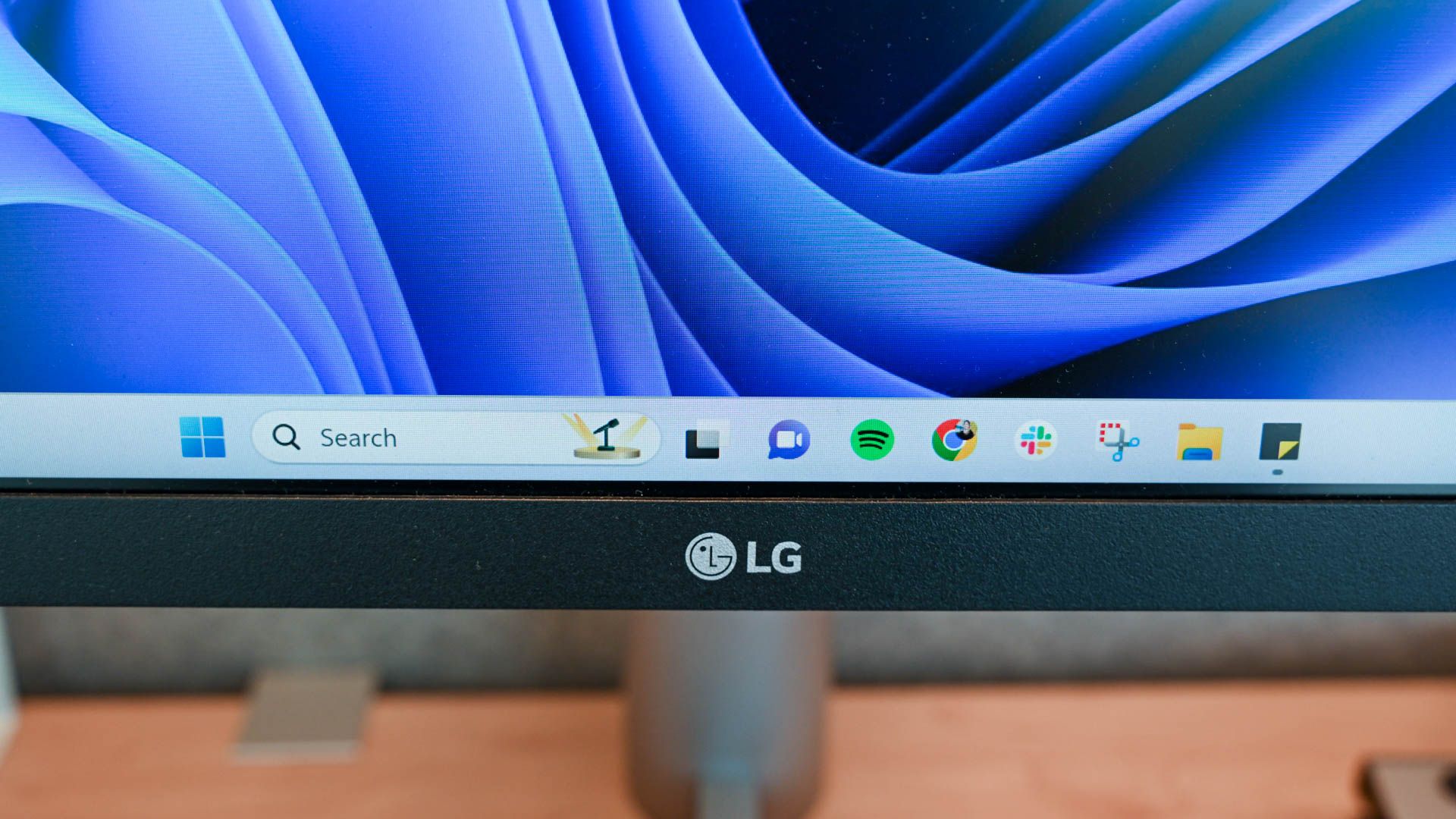
Windows 11 users, get ready for a significant improvement in your search experience! Microsoft is rolling out updates that promise a much less cluttered search box, focusing on helpful results rather than promotional content. While the core search experience is being refined, you'll still need to adjust a new setting to fully eliminate web and Microsoft Store suggestions. This guide will walk you through the simple steps to take back control of your Windows 11 search, making it more focused and efficient.
For too long, the Windows 11 search box has been criticized for its distracting elements, including trending topics, trivia, and advertisements for web content and the Microsoft Store. Microsoft has heard this feedback and is taking action. These changes aim to deliver a "calmer" search environment, prioritizing local files and relevant settings over unwanted recommendations.
What You'll Accomplish
By following this guide, you will:
- Disable unwanted promotional content and ads from your Windows 11 search results.
- Experience a cleaner, more focused search interface that highlights recent searches and organizes results clearly.
- Prioritize local files and system settings in your search outcomes, making it quicker to find what you need.
- Reduce distractions and improve the overall efficiency of searching within Windows 11.
This update is part of Microsoft's broader commitment to enhancing the quality and user experience of Windows 11, moving away from unnecessary bloat and towards more user-centric features.
Prerequisites
Before you begin, please note the following:
- Windows Insider Experimental Channel: The changes described here, including the new toggle to disable suggestions, are currently rolling out to users in the Windows Insider Experimental channel. This means not all Windows 11 users will see this option immediately.
- Windows 11 Updated: Ensure your Windows 11 installation is up-to-date. If you are in the Experimental channel, keep checking for new updates if you don't see the options yet.
If you don't find the "Show suggested search results" toggle after checking for updates, it likely means the feature has not yet rolled out to your specific Windows installation. Patience is key, as Microsoft will eventually release these improvements to all users.
Step-by-Step: Removing Search Ads and Suggestions
While the core search improvements will be applied automatically once you receive the update, you'll need to manually disable specific suggestions to fully clean up your search results. Here's how:
-
Open Windows Settings:
- Click the Start button (the Windows icon on your taskbar), then click the gear icon to open Settings.
- Alternatively, you can press Windows key + I on your keyboard to open Settings directly.
-
Navigate to Privacy & security:
- In the left-hand navigation pane of the Settings window, click on Privacy & security.
- This section manages various privacy controls and security settings for your device.
-
Select Search Settings:
- Within the "Privacy & security" section, scroll down and click on Search. This will open the specific settings related to how Windows Search operates on your system.
-
Disable Web and Microsoft Store Suggestions:
- Look for the heading "Show suggested search results."
- Under this heading, you will find two toggles:
- Web searches: Toggle this switch to Off to prevent search from suggesting web content and promotional items from the internet.
- Microsoft Store: Toggle this switch to Off to stop suggestions for apps and other content from the Microsoft Store from appearing in your search results.
Once both toggles are set to "Off," your Windows 11 search box will become significantly less intrusive, delivering results that are more pertinent to your actual query.
What Changes Will You See?
After disabling these suggestions, you should observe several improvements to your Windows 11 search experience:
- A Calmer Appearance: The search home screen will no longer be cluttered with trends, trivia, or other non-essential features. Instead, you'll see a cleaner layout with highlights for your recent searches.
- Clearer Organization: Results will be better organized, making it easier to distinguish between local files, system settings, and any remaining web results (which will be focused on relevance rather than promotion).
- Prioritized Local Results: Windows 11 will now prioritize results from your local device over web results, ensuring that searching for a file or application on your computer yields immediate, relevant answers.
- Improved Ranking: Microsoft has implemented initial ranking improvements to ensure useful settings and core applications appear higher in your search results.
- More Forgiving Searches: Even if you mistype a common application, such as "utlook" instead of "Outlook," the search function will be more intelligent in providing the correct result.
- Fewer Crashes: Overall stability improvements mean you should encounter fewer instances of the search function crashing.
Why Microsoft is Making These Changes
These updates are not arbitrary; they reflect Microsoft's renewed commitment to quality and user satisfaction for Windows 11. The company acknowledged in March 2026 its intention to implement significant OS changes throughout the year, recognizing that it had previously focused on services that users didn't necessarily want, leading to a neglected core experience.
The pushback against Windows 11, evidenced by slowing adoption rates and increasing market share for alternative operating systems like Linux and macOS, has spurred Microsoft to refine its offerings. By addressing core annoyances like search ads, reducing bloat, and improving fundamental features, Microsoft aims to keep existing users within the Windows ecosystem and encourage upgrades from those still on Windows 10, especially as normal support for Windows 10 is slated to end in October 2025.
Additional Tips for a Cleaner Windows Experience
While this guide focuses on the search box, Microsoft has been making other strides in reducing distractions:
- Disable Start Menu Ads: There are already existing settings in the Personalization section of Windows 11 Settings that allow you to disable ads and suggestions in the Start menu. Combining these with the search box adjustments will lead to a more streamlined user interface overall.
- Manage Widgets: Microsoft has also worked on making widgets "quieter," giving users more control over what content is displayed and how frequently.
- Control Copilot: While integrated across the ecosystem, Microsoft has toned down Copilot, offering users more control over its presence and recommendations.
Troubleshooting
"I don't see the 'Show suggested search results' toggle."
As mentioned in the prerequisites, this feature is currently rolling out to the Windows Insider Experimental channel. If you don't see the toggle:
- Check your Insider status: Verify if your system is enrolled in the Windows Insider Program and specifically in the Experimental channel.
- Update Windows: Ensure your Windows 11 is fully up to date. New features are delivered via updates.
- Be Patient: If you are not in the Insider program, or even if you are, it may take time for Microsoft to roll out this feature to all users. Keep an eye on future Windows updates.
Next Steps and Related Improvements
Microsoft's commitment to improving Windows 11 extends beyond the search box. You can look forward to:
- More Control over Windows Updates: Users are being given more granular control over how and when updates are applied.
- File Explorer Enhancements: Functional improvements have been made to File Explorer, enhancing navigation and usability.
- Taskbar Customization: Expanded options for personalizing the taskbar are being introduced.
- Streamlined Windows Insider Program: Efforts are underway to make the Insider program itself more efficient and user-friendly.
These ongoing changes signify a positive shift towards a more user-friendly and less intrusive Windows 11 experience.
FAQ
Q: What exactly is considered "promotional content" or "ads" in the Windows 11 search box? A: In the context of Windows 11's search box, "promotional content" or "ads" refer to suggestions for web content, products, and applications from the Microsoft Store that might not be directly related to your search query or were deemed as less helpful by users. This often included trending news, trivia, and commercial recommendations designed to appear alongside your search results, making the experience feel cluttered and distracting.
Q: I followed the steps, but I don't see the "Show suggested search results" toggle. What should I do? A: This new toggle is currently being rolled out to users in the Windows Insider Experimental channel. If you don't see it, it's likely because your system hasn't received this specific update yet. First, ensure your Windows 11 is completely up to date by checking for new updates in Settings > Windows Update. If the option is still missing, you may need to wait for Microsoft to release it more broadly, or consider joining the Windows Insider Program's Experimental channel to get early access to such features.
Q: Does disabling these search suggestions remove all ads from Windows 11? A: No, this specific guide focuses on removing promotional content and suggestions from the Windows 11 search box. While it significantly cleans up your search experience, Windows 11 might still display other forms of suggestions or promotional content in other areas, such as the Start menu. The source content notes that there are separate settings available under the Personalization section in Windows Settings to disable Start menu ads, which you can adjust independently for a more comprehensive ad-free experience.
Related articles

Ditch Merge & Center: The Better Way to Align Text in Excel
Learn to use Excel's "Center Across Selection" to align text across cells without merging, avoiding common data manipulation issues. This guide provides steps to utilize this newly accessible feature and add it to your Quick Access Toolbar.
Amazon Prime Video Launches AI-Powered Prime 360 for NBA Coverage
Amazon Prime Video is elevating its NBA coverage with the introduction of Prime 360, an AI-powered replay system offering immersive, 'fly through' views of the action. Kicking off its second season, Prime Video also adds Yahoo fantasy integration and gains exclusive Eastern Conference Finals rights, expanding its tech-driven sports broadcast. The new features aim to deliver a unique and interactive viewing experience for basketball fans.

Stop Android Auto Battery Drain: Essential Features to Disable and
Android Auto offers unparalleled convenience, bringing your phone's most useful features directly to your car's display. From navigation and calls to messages and music, it keeps you connected without distracting you
Google Gemini Task Update: Automation Just Got Smarter
Google Gemini Task Update: Automation Just Got Smarter Verdict: Google's latest update to Gemini, focused on its task automation capabilities, is a significant step forward in user experience. By rebranding 'Spark' as

Windows October Update: A Must-Have Security Overhaul
Microsoft's October 2026 Windows update delivers a critical security overhaul, patching over 1,400 vulnerabilities including two zero-days, one already exploited. It's essential for all users, especially with several Windows 11 versions reaching end of support.

SpaceX Starlink: Military Drone Service Hit by Unannounced Limits
Quick Verdict SpaceX's Starlink service, particularly the military-grade Starshield terminals, has experienced a significant and unannounced performance reduction for Ukraine's high-speed military drones. While