
Make Your Old Galaxy Phone Last Longer: A Week of Battery Life
Revitalize your old Samsung Galaxy phone's battery life with this step-by-step guide, potentially extending it to a week. Learn to assess battery health, identify draining apps, optimize settings, and manage wireless connections for lasting power.
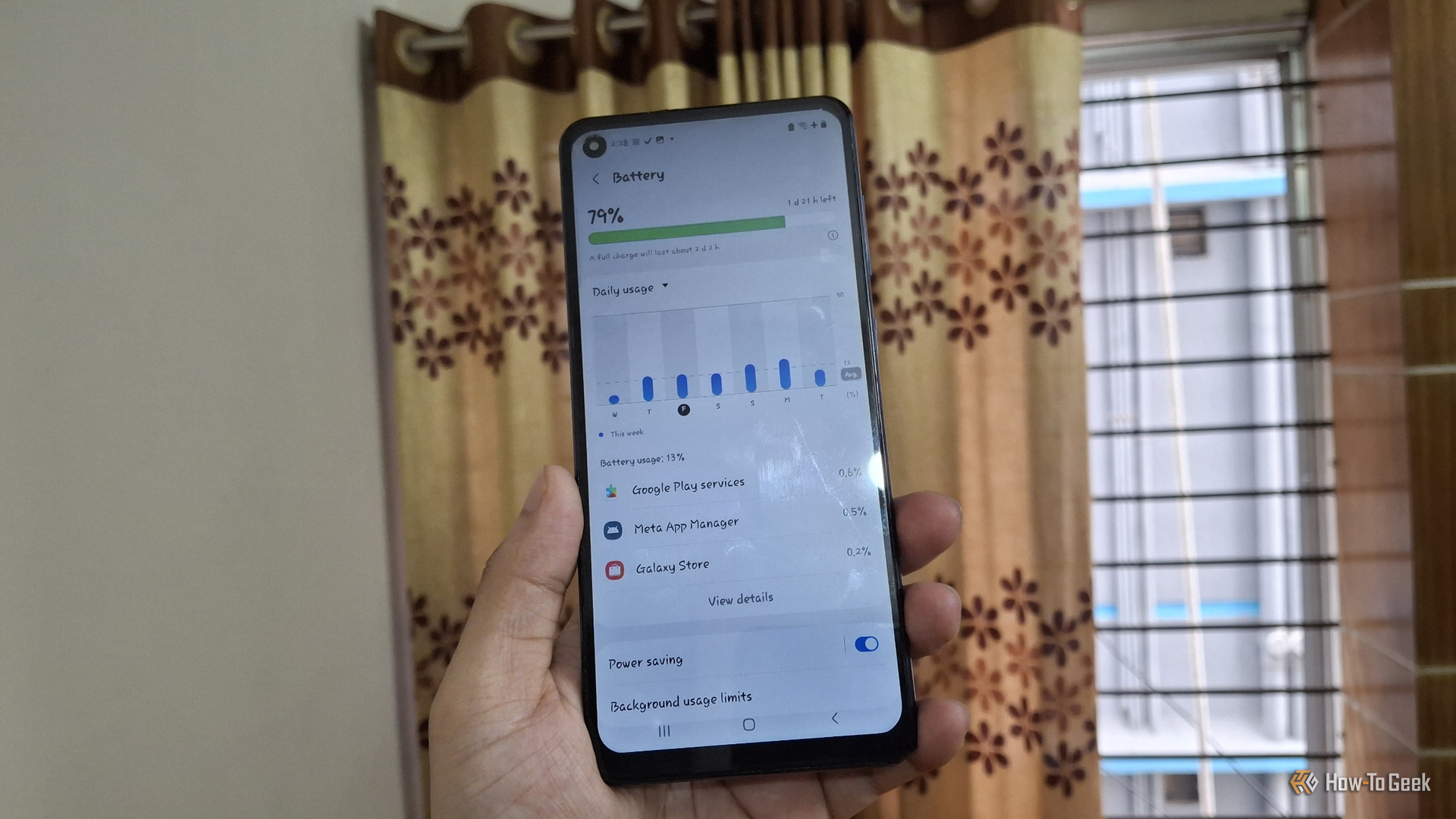
Is your trusty old Samsung Galaxy phone struggling to hold a charge? Don't rush to replace it just yet! You can significantly extend its battery life, potentially making it last for days, or even up to a week if used as a secondary device. This guide will walk you through a series of practical, actionable steps to breathe new life into your aging Galaxy phone, just like one user did with their 6-year-old Galaxy A21s.
Even with a seasoned battery, smart management and targeted tweaks can make a huge difference, transforming your phone from a daily charger to a multi-day companion. Let's get started on reclaiming your phone's endurance.
Prerequisites
Before you begin, ensure you have:
- A Samsung Galaxy smartphone (the steps are optimized for Samsung's One UI).
- The Samsung Members app installed (it usually comes pre-installed on Galaxy devices).
- Access to your phone's Settings menu.
1. Assess Your Battery's Health
Understanding your battery's physical condition is the first crucial step. No amount of software optimization will fix a truly worn-out battery. Samsung Galaxy phones make this straightforward with the built-in Samsung Members app.
- Open the Samsung Members app. You can find it in your app drawer.
- Tap on "Diagnostics". This section allows you to run various checks on your phone's hardware.
- Select "Phone diagnostics". This will present a list of components to test.
- Choose "Battery status". The app will perform a quick analysis.
- Review the result: The app will categorize your battery status as "Normal," "Weak," or "Bad."
- If the status is "Normal": Great news! Your battery's physical health is good, and most of your battery drain likely stems from software issues. Proceed with the following steps.
- If the status is "Weak" or "Bad": This indicates a significant degradation in your battery's capacity. While the software tweaks in this guide will still offer some improvement, a battery replacement might be necessary for optimal performance and longevity.
2. Uncover and Address Battery-Draining Apps
Once you've confirmed your battery's health, it's time to identify the culprits silently sipping away at your power. Your phone's battery usage statistics are your best tool here.
- Navigate to your phone's settings: Open
Settings. - Access battery information: Go to
Battery and device care > Battery. - Analyze app usage: Here, you'll see a list of apps and system services, ranked by their power consumption over a period (often the last 24 hours or since last charge). This list can vary daily based on your usage.
Pay close attention to apps you rarely open but still appear high on the list. Common offenders identified by one user included system services like Google Play Services, Meta App Manager, Galaxy Store, and Google Play Store, which often wake up in the background to sync data or update without your direct interaction.
Tip: For deeper insights into screen-off battery drain, consider using a third-party app like AccuBattery. It can provide more granular data on how quickly your battery drops when your screen is off, helping you pinpoint background processes that are particularly aggressive.
3. Optimize Background Processes and Data Collection
After identifying power-hungry apps, the next step is to rein them in. Many apps consume power in the background for syncing, notifications, or updates, even when you're not actively using them.
- Restrict background activity for non-essential apps: For any app you've identified as a high drainer but don't need constant real-time updates from, you can often limit its background activity. Navigate to an app's settings (usually by long-pressing its icon and tapping "App info" or finding it under
Settings > Apps), then look for options related to battery usage or background activity. You might find options to "Restrict background data," "Put app to sleep," or similar. Use these judiciously for apps that don't require instant notifications. - Disable unnecessary diagnostic data sharing: Samsung phones, like many modern devices, often collect diagnostic data in the background. This process, while seemingly innocuous, can contribute to battery drain. The source material notes that Samsung's own diagnostic data sharing can run quietly and impact battery life, and that disabling just two related settings can stop this. While specific steps are not detailed in the source, exploring your privacy or diagnostic settings for options to turn off data sharing can be beneficial if you suspect this is a major contributor to your phone's power consumption.
4. Leverage Power Saving Mode for Everyday Use
Samsung's Power Saving mode is a powerful, built-in tool designed to extend battery life by making minor compromises to performance and background activity. For an older phone, making this a regular setting can yield significant results.
- Quick activation: The fastest way to turn on Power Saving mode is through your phone's Quick Settings panel (swipe down from the top of your screen).
- Customized control: For more detailed management, go to
Settings > Battery and device care > Batteryand tapPower saving.
Here, you can fine-tune what Power Saving mode restricts. You can modify settings such as:
- CPU speed decrease: Limits the maximum processing power, reducing energy consumption.
- Brightness decrease: Automatically lowers your screen brightness, which is a major power consumer.
- Other restrictions: It also stops background apps from using the network and trims other settings that quietly consume power.
Important Note: While Power Saving mode is excellent for general use, remember to disable it for tasks that require full performance, such as taking photos or shooting videos. Keeping it on during these activities can make your camera sluggish and potentially impact the quality of your captures.
5. Master Wireless Connection Management
Even if your old Galaxy phone no longer has a SIM card and functions primarily on Wi-Fi, its cellular radio might still be actively searching for cell towers for emergency calls, silently draining battery. Proactively managing your wireless features can drastically cut down on this hidden power consumption.
- Activate Airplane Mode (and re-enable Wi-Fi): If your phone is Wi-Fi only, turning on Airplane mode from the Quick Settings panel is a simple yet effective trick. This immediately disables all wireless radios, including cellular. Crucially, after activating Airplane Mode, simply turn Wi-Fi back on. This ensures your phone operates on Wi-Fi without the constant search for a non-existent cellular signal.
- Turn off Bluetooth and Location when not in use: These radios constantly scan for devices or pinpoint your location, consuming power in the process. Get into the habit of toggling them off from your Quick Settings panel when you don't need them.
- Disable Nearby device scanning: This feature continuously searches for nearby devices to connect to, even if you don't use it. To turn it off, go to
Settings > Connections > More connection settingsand disable "Nearby device scanning."
Conclusion: Small Changes, Big Impact
Individually, these tweaks might seem minor, but their cumulative effect on an older Samsung Galaxy phone's battery life is significant. By consistently applying these steps—from checking battery health and optimizing apps to using Power Saving mode and managing wireless connections—you can extend your phone's charge from a single day to several days, or even a full week under light, idle conditions.
Your old Galaxy phone can continue to be a reliable device when given the right care and attention to its power management. Consistent application of these practices will ensure it's ready whenever you need it, minimizing the time it spends tethered to a charger.
FAQ
Q: My Samsung Members app reported my battery health as "Weak" or "Bad." Will these tips still help? A: Yes, these tips can still help improve battery life by reducing software-related drain. However, a "Weak" or "Bad" status indicates physical degradation, meaning a battery replacement might be the most effective long-term solution for restoring full capacity.
Q: Will constantly using Power Saving Mode slow down my phone too much? A: Power Saving Mode does involve some trade-offs, such as reduced CPU speed and background activity. For everyday tasks like browsing, messaging, or light app use, the performance difference is often negligible. You can customize the settings to find a balance you're comfortable with, and remember to disable it for performance-intensive tasks like gaming or using the camera.
Q: I rarely use my old phone and don't have a SIM card. Why does its battery still drain so fast? A: Even without a SIM card, your phone's cellular radio may still be active, scanning for cell towers to handle potential emergency calls. This constant searching consumes power. Activating Airplane Mode (and then re-enabling Wi-Fi if needed) will disable this cellular radio and significantly reduce battery drain for Wi-Fi-only devices.
Related articles

Apple Unveils iPhone Duo: Pricey Foldable Sees Soaring Demand
Apple has officially entered the foldable smartphone arena with the long-anticipated launch of the iPhone Duo. Priced starting at a hefty $1,999, the device features a 5.4-inch outer display and a larger 7.6-inch inner
Android 17 QPR2 Beta 7.1: The Performance Relief You've Been Waiting
Android 17 QPR2 Beta 7.1: Finally Fixing the QPR1 Performance Woes Verdict: Android 17 QPR2 Beta 7.1 is a crucial and highly anticipated software update for Google Pixel users, specifically targeting and resolving the

Ditch Merge & Center: The Better Way to Align Text in Excel
Learn to use Excel's "Center Across Selection" to align text across cells without merging, avoiding common data manipulation issues. This guide provides steps to utilize this newly accessible feature and add it to your Quick Access Toolbar.

Ars Technica's Rocket Report: Your Essential Space Industry Briefing
Quick Verdict Ars Technica's Rocket Report, presented by veteran space reporter Stephen Clark, offers an invaluable and meticulously organized weekly (or similar frequency, implied by "Edition 9.15") digest of the most
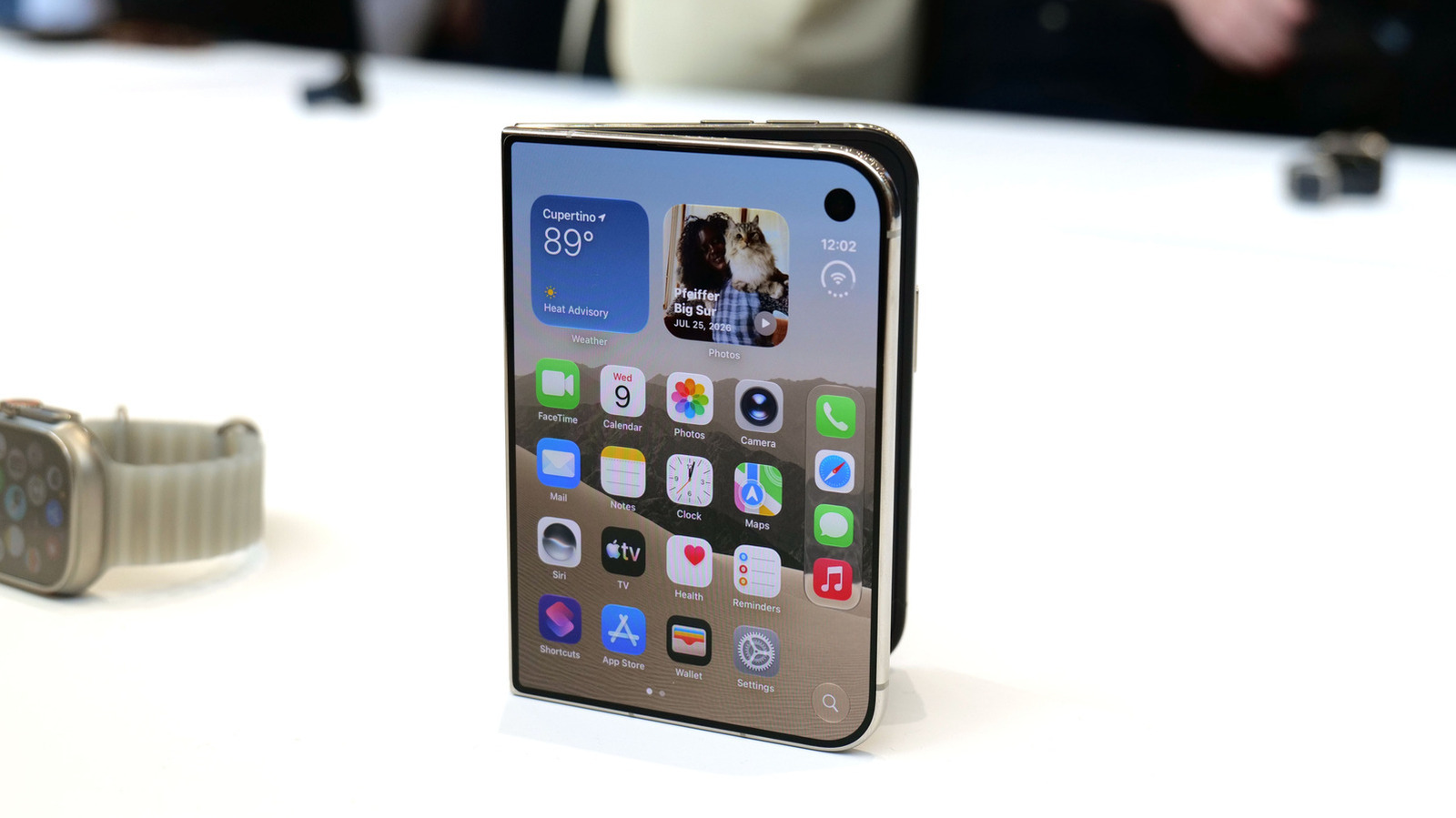
Apple iPhone Duo: A Daring Debut with Notable Compromises
Apple's highly anticipated iPhone Duo, priced at $2,000, has gone on pre-order. While hailed as "Apple's most exciting device in a decade" for its innovative foldable design and immersive display, it comes with significant drawbacks like the absence of FaceID and a premium camera.

AI's Confidence vs. Formal Methods' Rigor: Design Flaws & Verification
While AI accelerates code generation, formal methods remain critical for ensuring system correctness. Languages like TLA+ and tools like Quint enable developers to model and verify system designs before coding, catching subtle flaws. Quint makes formal methods more accessible with developer-friendly syntax and executability. This approach is vital for verifying AI-generated code through trace validation and model-based testing, ensuring reliability against real-world data.