
iPhone Liquid Glass Adjustment in iOS 27: Finally in Control
iOS 27 introduces a much-needed slider to adjust the controversial Liquid Glass effect on iPhones, providing users with granular control over opacity and contrast. This update, compatible with iPhone 11 and newer, addresses long-standing readability concerns and enhances user customization.
Quick Verdict
Apple's iOS 27 delivers a long-awaited and much-needed update to the controversial Liquid Glass interface effect, providing users with a dedicated slider for granular control. This change, arriving after several iterations of less satisfying adjustments, puts the power squarely in the user's hands to customize their iPhone's aesthetic and improve readability. For anyone who has been frustrated by the glossy, sometimes distracting Liquid Glass look, this update is a significant win.
The Polarity of Liquid Glass: A Design Evolution
Apple's design philosophy, particularly with interfaces like Liquid Glass, has always been a subject of intense debate. While some users appreciate the modern, glossy aesthetic and the depth it adds to the UI, a significant portion has voiced concerns, primarily regarding its impact on readability. The highly reflective and translucent nature of Liquid Glass, while visually striking, could often make text and icons harder to discern, leading to a less comfortable user experience.
Apple wasn't entirely oblivious to these complaints. With iOS 26.1, the company introduced "Tinted Mode," an initial attempt to mitigate the issue. This feature aimed to reduce the opacity of Liquid Glass while simultaneously increasing its contrast, offering a slightly less distracting experience. However, this early adjustment, relying on rigid "Tinted" or "Clear" options, proved insufficient for many. Users continued to express dissatisfaction, highlighting a clear demand for more refined control over their device's visual presentation.
Granular Control Arrives with iOS 27
Fast forward to iOS 27, and Apple has finally addressed these long-standing concerns with a more robust solution: a customizable slider. This isn't just another toggle; it's a fundamental shift, empowering users to fine-tune the Liquid Glass effect to their precise preferences. This highly requested feature acknowledges the diverse needs of Apple's user base, moving away from a one-size-fits-all approach to interface design.
How to Master Your Liquid Glass Effect
Adjusting the Liquid Glass effect in iOS 27 is a straightforward process, deeply integrated into the iPhone's settings, ensuring accessibility for all users:
- Access Settings: Begin by opening the familiar Settings app on your iPhone.
- Navigate to Appearance: Scroll down and locate the Appearance section.
- Enter Liquid Glass Menu: Within Appearance, select the Liquid Glass menu.
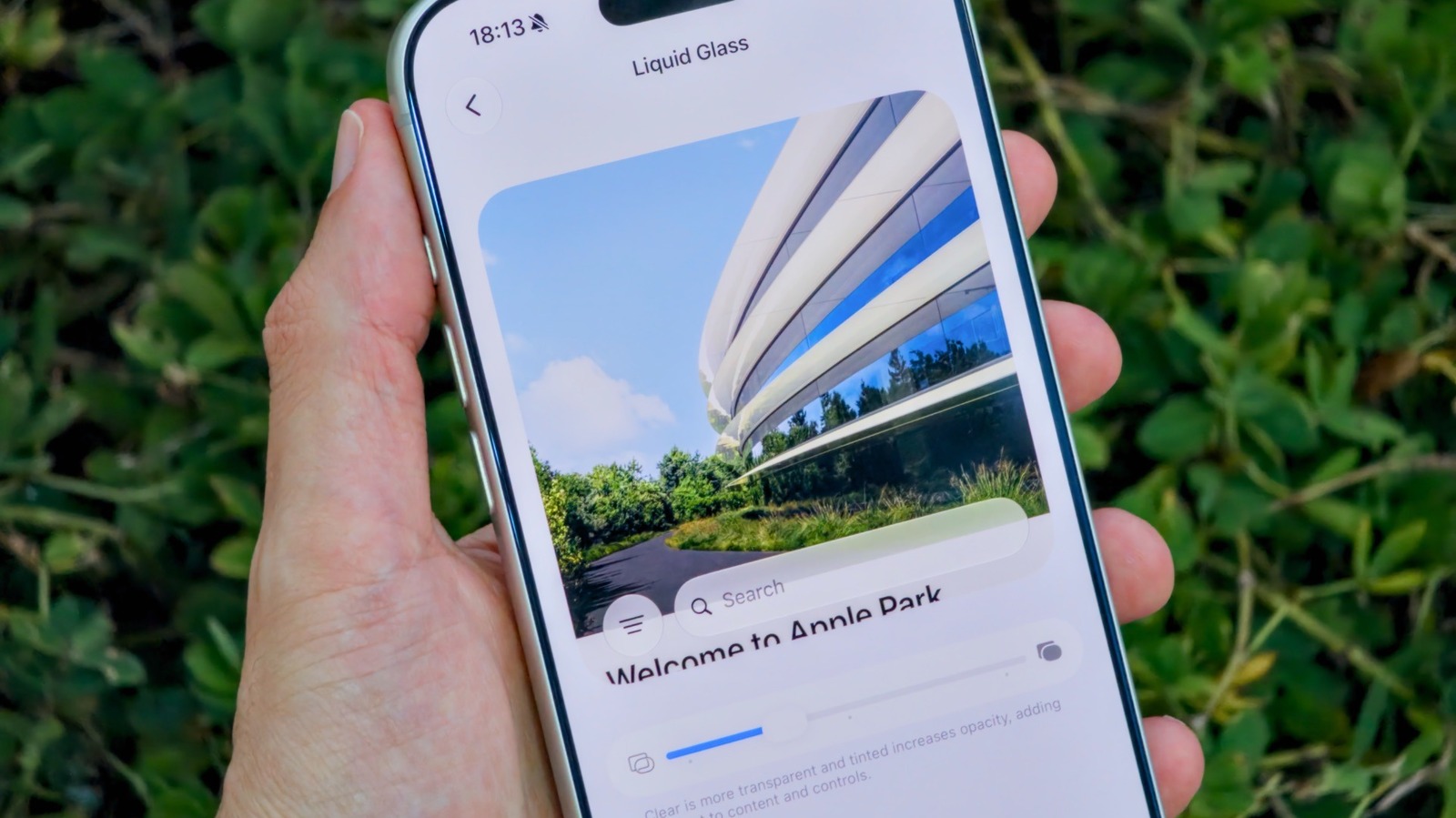
Here, you'll find the star of the show: the new slider. Gone are the restrictive toggles of previous versions. This intuitive slider offers a spectrum of customization:
- Sliding Left: Moving the slider towards the left will enhance the classic "glass-like" transparency, giving you that original, highly glossy effect.
- Sliding Right: Pushing the slider to the right will increase the opacity, resulting in a more solid, less transparent look reminiscent of earlier, less glassy iOS versions. This is ideal for those prioritizing readability.
- Center Position: For users seeking a balance between the modern aesthetic and practical readability, simply leaving the slider in the center offers a harmonious blend of both.
A significant advantage of this new system is the real-time preview. As you adjust the slider, a quick visual sample of the effect is displayed directly on the screen. This eliminates the tedious need to switch between the Settings app and other applications just to observe the changes, streamlining the customization process and making it genuinely user-friendly.
It's important to note a minor distinction: the option to adjust the intensity of the Liquid Glass effect on the Lock Screen remains a separate control from this general UI slider. While not a major impediment, it's a detail worth remembering for comprehensive customization.
Beyond Adjustment: Disabling Liquid Glass Completely
For users who find even the most minimal Liquid Glass effect unappealing, iOS 27 still offers a more aggressive solution for nearly complete disabling. This option is found within the Accessibility settings, catering to those with strong preferences or specific visual needs:
- Access Accessibility: Go to Settings > Accessibility.
- Display & Text Size: Within Accessibility, find and select Display & Text Size.
- Reduce Transparency: Enable the Reduce Transparency toggle.
This setting is designed to be much more impactful than the Liquid Glass slider, effectively minimizing the glassy and transparent effects across iOS. It's the go-to option for users who prioritize a flat, solid interface above all else.
Compatibility and Availability
To take advantage of these new Liquid Glass customization options, your iPhone must be running iOS 27. Fortunately, Apple has ensured broad compatibility, making iOS 27 available for iPhone 11 models and all subsequent generations. This means a substantial portion of existing iPhone users won't be left behind with a limited UI and can upgrade to benefit from these enhancements.
For those eager to get their hands on new features early, iOS 27 updates were first rolled out to developers and beta testers. The public release officially began in September. If you're comfortable with the potential for minor bugs, joining the Apple Beta Program allows you to experience future iOS features, including Liquid Glass updates, ahead of their general availability.
User Experience: A Welcome Change
The introduction of the Liquid Glass slider in iOS 27 marks a significant improvement in user experience. It transforms a source of frustration into an opportunity for personalization. The ability to finely tune visual elements speaks to a more mature and responsive design philosophy from Apple. Users no longer have to simply tolerate a design choice; they can actively participate in shaping it. The live preview is a thoughtful touch, making the customization process efficient and enjoyable. While the separate Lock Screen control is a minor quibble, the overall impact of this update is overwhelmingly positive, delivering enhanced readability and a greater sense of control.
Buying Recommendation
If you own an iPhone 11 or newer and have ever felt that Apple's Liquid Glass effect hindered your readability or simply didn't align with your visual preferences, upgrading to iOS 27 is a highly recommended move. This update specifically addresses those concerns, offering a simple yet powerful tool to tailor your iPhone's interface. It's a quality-of-life improvement that can significantly enhance your daily interaction with your device, making it feel more truly yours.
FAQ
Q: Is the Liquid Glass adjustment slider available on all iPhones?
A: No, the new Liquid Glass slider and related customization options require your iPhone to be running iOS 27. iOS 27 is compatible with iPhone 11 models and all newer iPhones.
Q: Can I completely disable the Liquid Glass effect if I don't like it at all?
A: Yes, for those who prefer to turn off the glassy effects almost entirely, you can go to Settings > Accessibility > Display & Text Size and enable the Reduce Transparency toggle. This option is more aggressive than the new slider.
Q: How does the new iOS 27 slider improve upon previous Liquid Glass adjustment options?
A: The iOS 27 slider offers a much more granular and continuous range of adjustment for the Liquid Glass effect's opacity and contrast. This is a significant improvement over previous, more rigid options like "Tinted Mode" introduced in iOS 26.1, which only offered limited predefined settings.
Related articles

Samsung Wallet Perks & Cash Card: A Convenient Catch
As an experienced tech reviewer, I've seen countless apps promise to revolutionize our financial lives, only to gather digital dust in the dreaded "cash-back app graveyard." Samsung, with its latest offering, aims to

Netflix's PUBG Show: A Bold Gamble with Donald Glover
Verdict: An Unpredictable High-Stakes Adaptation Netflix's announcement of a live-action series based on the massively popular battle royale game PUBG, with none other than Donald Glover at the helm, is certainly one of

GitHub's AI Code Surge: Infrastructure Under Pressure
Quick Verdict GitHub’s recent report on the colossal influx of AI-generated code is nothing short of a seismic event in the tech world. The numbers are staggering, revealing an unprecedented demand for computational
MacBook Pro OLED Touch: Apple's Bold (and Pricey) New Direction
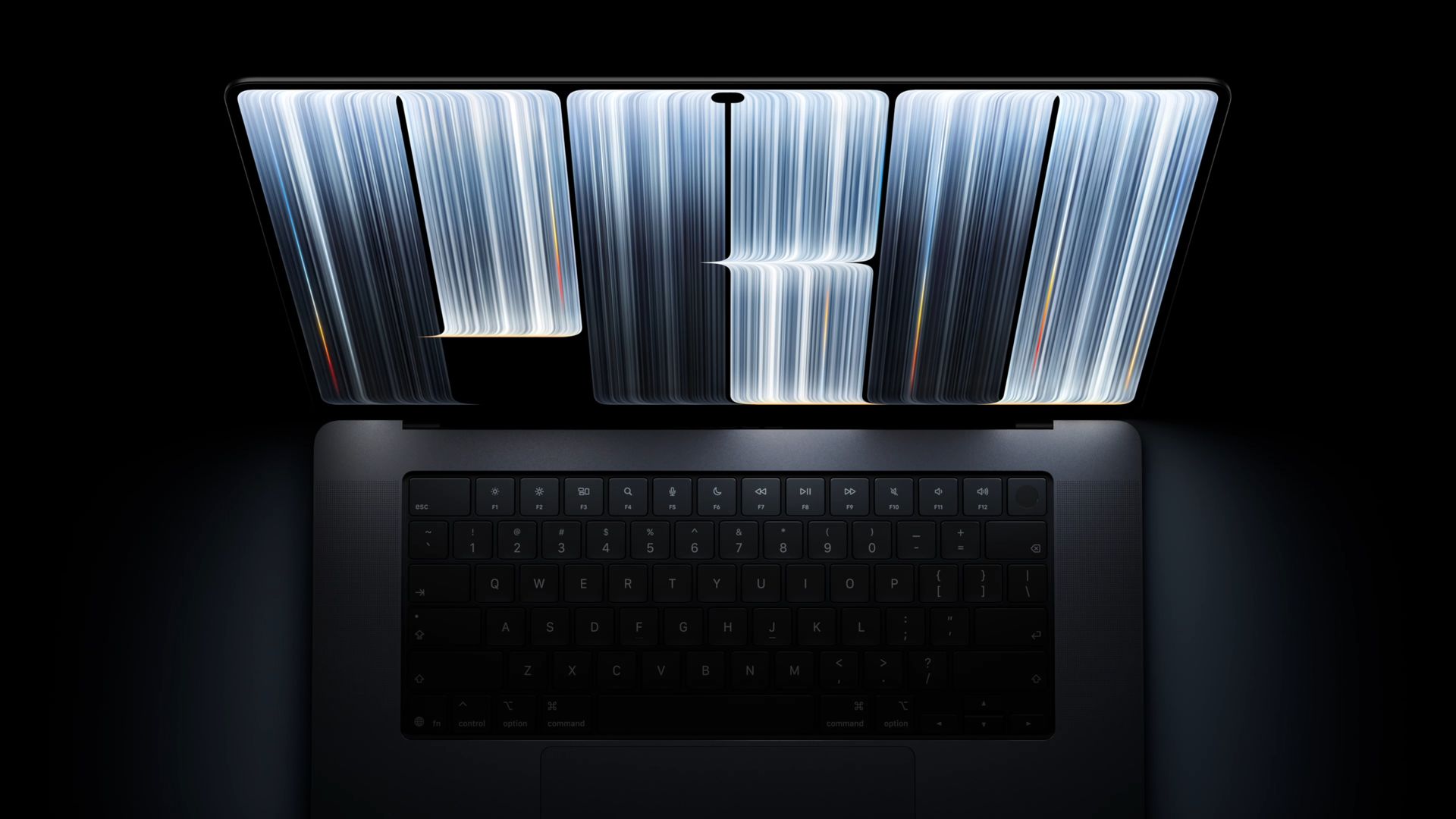
Verdict: A Premium Powerhouse Finally Embraces Touch Apple's latest MacBook Pro, featuring a long-anticipated OLED touchscreen and driven by the formidable M5 Pro and M5 Max chips, marks a significant departure from the

Xreal Unveils Aura Wired Smart Glasses Running Android XR
At the Android Dev Summit on Wednesday, Xreal, Google's smart glasses collaborator, officially introduced its new Xreal Aura wired smart glasses. The device, which had been teased earlier in the year at Google's I/O
Nothing CMF Clip Pro Review: Open-Ear Awareness at a Steal
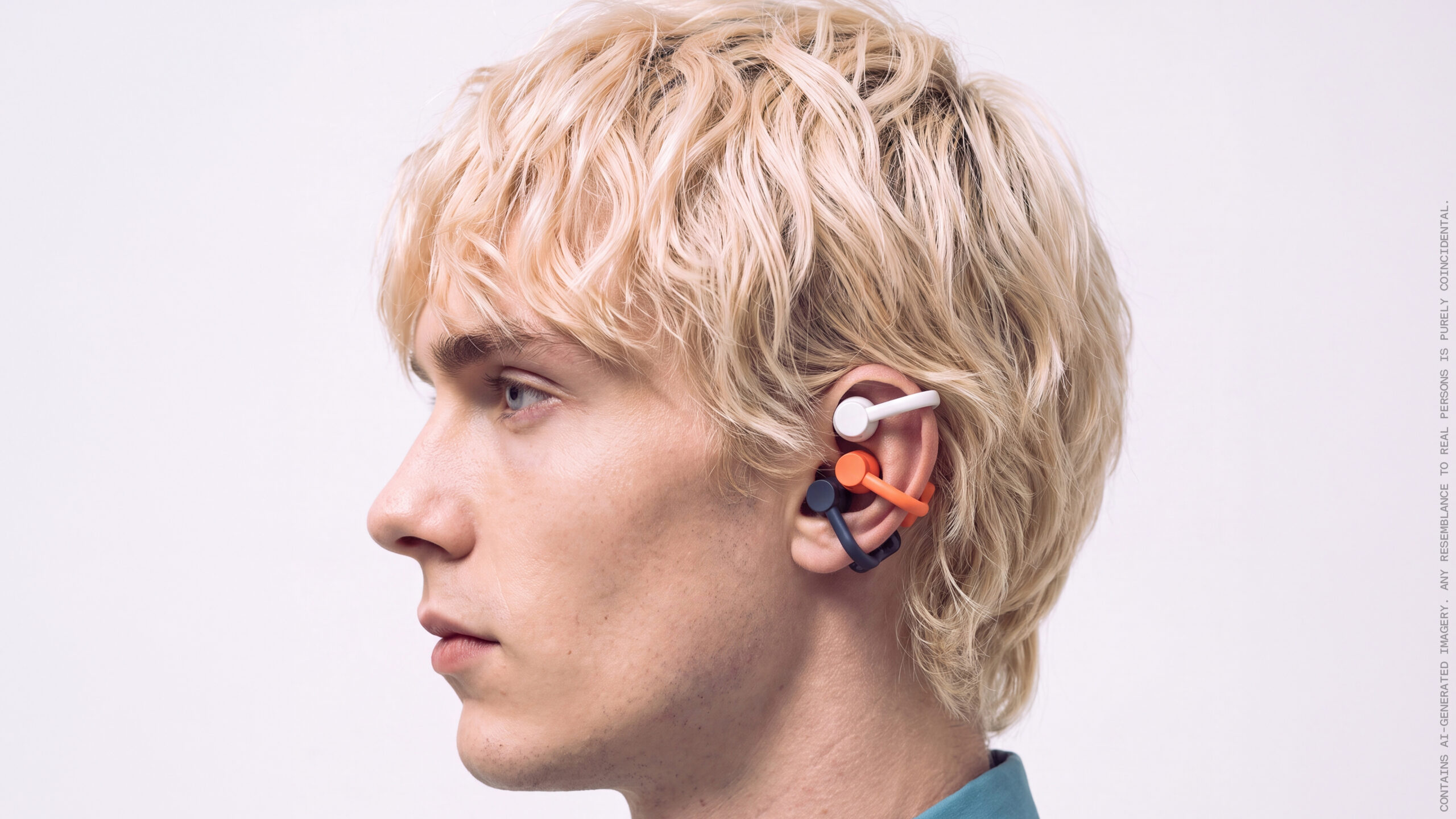
The Nothing CMF Clip Pro offers a unique open-ear listening experience, designed for situational awareness and comfort. Now $30 off at $69, it's an appealing option for those seeking spacious sound without sealing off the world.