
in-depth: Make the Most of Chrome's Toolbar by Customizing It to Your
Google Chrome users can now extensively customize their browser toolbar with recently enhanced options. These new features allow quick access to essential tools, from pinning extensions and toggling key functions like Incognito mode to adding advanced features like the Task Manager and Google Lens, significantly streamlining the browsing experience.

Google Chrome users can now take greater control over their browsing experience with enhanced and revamped customization options for the browser's toolbar. What was once a static default is transforming into a dynamic, personalized control center, allowing individuals to quickly access essential features, discover new tools, and streamline their web navigation, significantly improving efficiency on the desktop.
The core of these new capabilities lies within Chrome’s recently updated toolbar customization panel. Accessible by clicking the three-dot menu in the top right corner, then navigating to Settings > Appearance > Customize your toolbar, users will find toggle switches for displaying or hiding various core browser functions. This includes familiar buttons like Home and Forward, the Bookmarks icon, and even a quick shortcut to open a new Incognito window, putting frequently used actions right at your fingertips.
Beyond standard navigation, the panel offers access to advanced features that many users might not have encountered previously. These include Search with Google Lens for visual searches based on screen content, and Create QR Code to instantly generate a shareable QR code for the current webpage. Other productivity-boosting additions include quick links for the Reading List, browser History, a Reading mode for distraction-free content consumption, and a Copy link button to send URLs directly to the clipboard.
Essential Tools at Your Fingertips
One particularly valuable addition for power users is the Task Manager button. Placing this on the toolbar provides immediate access to a dialog displaying all open tabs and processes, detailing their memory and processor usage. This is an indispensable tool for identifying and troubleshooting tabs or web applications that might be slowing down the browser or draining battery life, empowering users to maintain optimal performance.
Further personalizing the toolbar involves managing browser extensions, which are always readily available. By clicking the jigsaw piece icon in the top right, users can view their installed extensions and "pin" their most-used add-ons directly to the toolbar. This keeps favored tools within easy reach, preventing the need to delve into menus for every interaction.
Once pinned, these extension icons can be reorganized to suit individual workflows. A simple click and drag allows users to arrange them in any preferred order. Should an extension icon no longer be needed on the toolbar, it can be easily removed by right-clicking it and selecting "Unpin," without uninstalling the extension itself. The main extensions panel, however, remains fixed in its position.
Reorganize and Refresh
The flexibility extends to all toolbar buttons. Users can click and drag most visible icons to adjust their placement, creating a truly bespoke interface. For those who wish to revert changes or start over, the customization pane includes a "Reset to default" option, restoring the toolbar to its original configuration.
Beyond functional buttons, Chrome also allows for a complete aesthetic overhaul through themes and color schemes, affecting the entire browser interface, including the toolbar. By opening a new tab and selecting "Customize Chrome" in the bottom left, users can explore a gallery of themes. These comprehensive changes modify the new tab background, the toolbar's appearance, and the colors of menus and dialogs, reflecting personal style across the browser.
For a less dramatic shift, users can select from various color combinations offered below the theme gallery. These lighter touches allow for subtle customization of the browser's palette. To return to Chrome's original visual identity, simply choose "Change theme > Default Chrome."
Optimize Your Browsing Experience
The thrust of these new customization features is to transform Chrome from a generic web window into a highly personalized and efficient browsing machine. By bringing frequently used functions and diagnostic tools directly to the toolbar, users can save clicks, reduce distractions, and quickly address performance issues. This empowers a more intuitive and productive online experience tailored precisely to individual needs and preferences.
FAQ
Q: How do I access the main toolbar customization panel in Chrome?
A: You can access it by clicking the three dots in the top right corner of your Chrome browser, then navigating to Settings > Appearance > Customize your toolbar.
Q: Can I add the Chrome Task Manager to my toolbar for quick access?
A: Yes, the Task Manager is one of the useful features you can choose to display on your toolbar through the Customize your toolbar panel, providing quick access to monitor tab and process performance.
Q: How do I change the overall look and color scheme of my Chrome browser and toolbar?
A: Open a new tab, click "Customize Chrome" in the bottom left, then select "Change theme" to browse full themes or choose from various color combinations to modify the browser's appearance.
Related articles

Apple Unveils iPhone Duo: Pricey Foldable Sees Soaring Demand
Apple has officially entered the foldable smartphone arena with the long-anticipated launch of the iPhone Duo. Priced starting at a hefty $1,999, the device features a 5.4-inch outer display and a larger 7.6-inch inner

in-depth: Chicago-Area Cops Helped HSI Spy on Minnesota Anti-ICE
Chicago-area law enforcement, including local police and HSI agents, conducted undercover surveillance on Minnesota anti-ICE activists at an April 2, 2022, talk in Chicago. This operation was part of a federal conspiracy probe into 15 Minnesota activists facing felony charges related to immigration enforcement resistance. Civil liberties advocates have condemned the surveillance as a troubling intrusion into protected political activity.

Ditch Merge & Center: The Better Way to Align Text in Excel
Learn to use Excel's "Center Across Selection" to align text across cells without merging, avoiding common data manipulation issues. This guide provides steps to utilize this newly accessible feature and add it to your Quick Access Toolbar.

Mark Wahlberg on using AI in film ‘the right way’ and being open to
Actor Mark Wahlberg believes AI has a place in filmmaking if used responsibly for enhancement, not script generation or actor replacement. At TechCrunch Disrupt, he expressed openness to an AI likeness carrying on his legacy, managed by his family, and emphasized storytelling.

Ars Technica's Rocket Report: Your Essential Space Industry Briefing
Quick Verdict Ars Technica's Rocket Report, presented by veteran space reporter Stephen Clark, offers an invaluable and meticulously organized weekly (or similar frequency, implied by "Edition 9.15") digest of the most
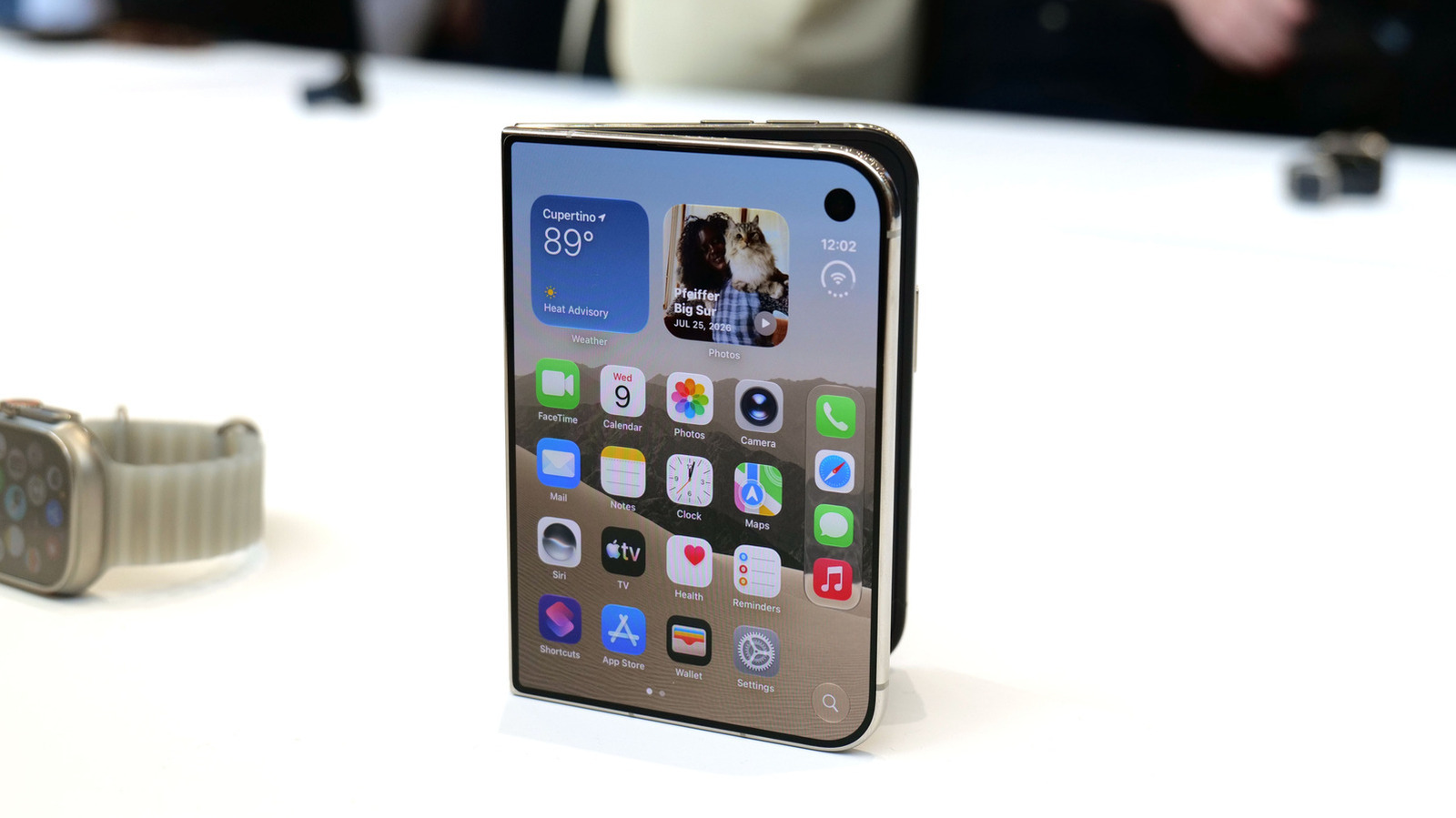
Apple iPhone Duo: A Daring Debut with Notable Compromises
Apple's highly anticipated iPhone Duo, priced at $2,000, has gone on pre-order. While hailed as "Apple's most exciting device in a decade" for its innovative foldable design and immersive display, it comes with significant drawbacks like the absence of FaceID and a premium camera.