
How to Secure Your Smart Home: Repurpose Your Guest Wi-Fi
Learn to protect your main home network by moving vulnerable smart devices to your guest Wi-Fi, enhancing security with easy, actionable steps.
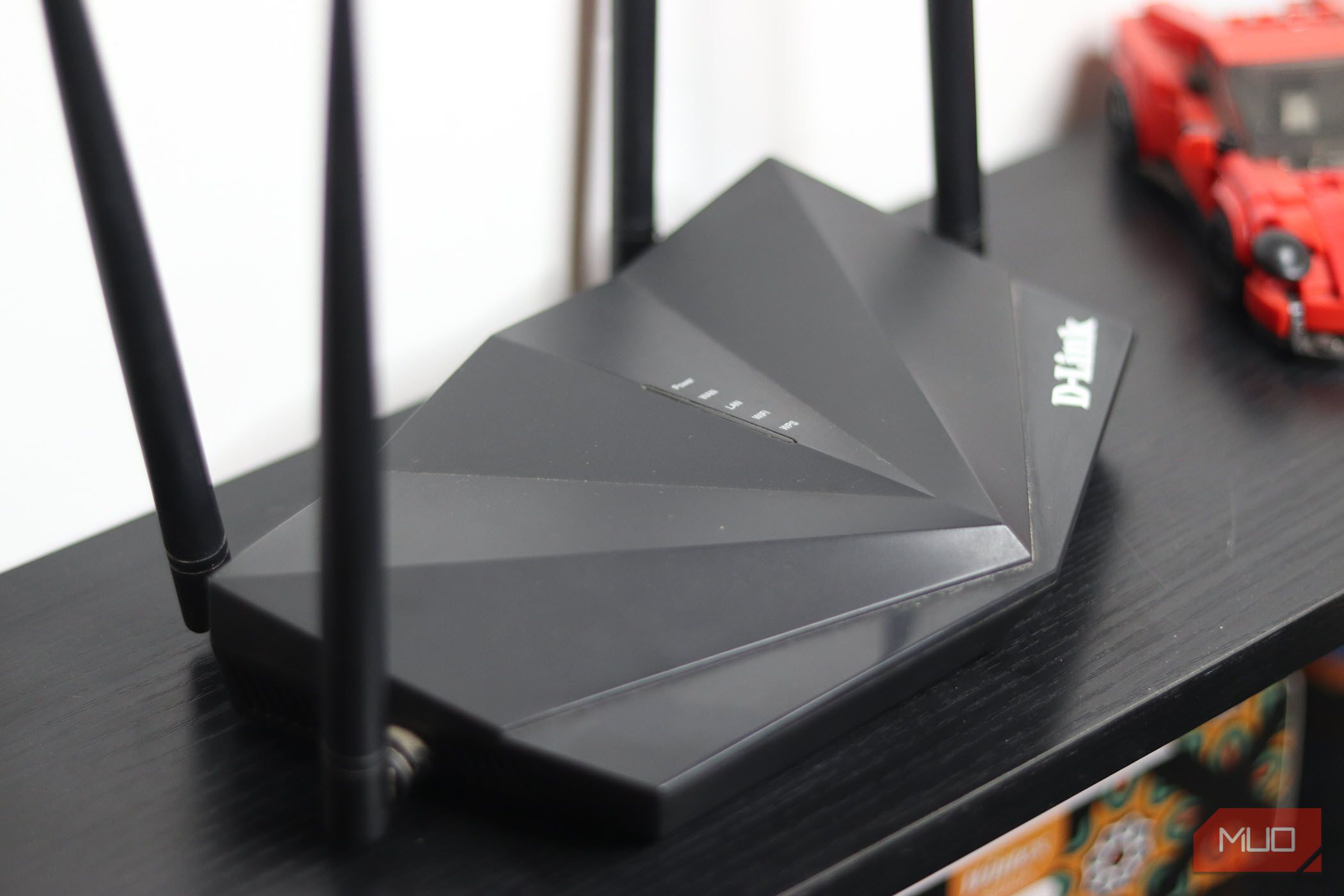
Your home network is a bustling hub, connecting everything from your personal computer to smart bulbs and security cameras. While convenient, this interconnectedness can pose a hidden security risk. The good news? The guest Wi-Fi network you rarely use is a powerful, ready-made solution to bolster your home's digital defenses.
This guide will walk you through how to transform your guest network into a dedicated, isolated zone for your smart home devices, dramatically improving your overall network security without needing complex equipment or technical expertise. You'll learn how to set up this vital separation, understand its benefits, and easily manage your connected gadgets.
Why Your Main Network Needs Protection
Imagine all your home devices, from your laptop holding sensitive documents to a smart plug, being able to “see” and potentially “talk” to each other. This is how many primary Wi-Fi networks operate, enabling features like file sharing and printer discovery. However, this convenience comes with a significant security vulnerability.
Many smart home gadgets – such as thermostats, doorbell cameras, and budget-friendly IoT (Internet of Things) devices – are often less secure than your computers or smartphones. They frequently run on older firmware that may not receive regular security updates. If one of these less-secure devices is compromised, an attacker could potentially use it as a springboard to access other devices on your main network, including your network-attached storage (NAS) drives, work laptop, or personal photo collection.
By moving these devices to a separate, isolated network, you create a "quarantine zone." This means that if a smart plug or camera were to be breached, the malware would be contained, unable to reach your more sensitive devices and data.
Understanding How Guest Networks Provide Isolation
A guest Wi-Fi network isn't just a courtesy for visitors; it's a fundamental security feature. It operates with its own unique network name (SSID) and creates a logical barrier between any devices connected to it and those on your primary network.
Here’s what that means in practice:
- Separate Access: Devices on the guest network can access the internet, allowing them to function as intended (e.g., smart bulbs communicating with their cloud servers).
- Invisible Infrastructure: Crucially, devices on the guest network cannot discover, browse, or communicate with your laptops, personal computers, network printers, or shared storage drives that are connected to your main network.
This separation ensures that while your smart gadgets remain connected and functional, your core home infrastructure and valuable data remain invisible and inaccessible to potential threats originating from a compromised IoT device. This mirrors the network segmentation strategies used by enterprise IT teams to secure critical assets.
Before You Begin: What You'll Need
To implement this security upgrade, you'll only need a few things:
- A Wi-Fi Router with Guest Network Functionality: Most modern routers include this feature. If yours doesn't, it might be time for an upgrade.
- Access to Your Router's Administration Interface: This is typically accessed via a web browser using your router’s IP address (e.g., 192.168.1.1 or 192.168.0.1) and your administrator username and password.
- Your Smart Home Devices: Be ready to reconnect these devices to your new guest network.
Step-by-Step: Moving Your Smart Devices to the Guest Network
Follow these steps to set up your dedicated IoT network:
Step 1: Access Your Router Settings
Open a web browser on a device connected to your main Wi-Fi network. Type your router's IP address (often found on a sticker on the router itself, or in its manual) into the address bar and press Enter. You'll then be prompted to enter your router's administrator username and password.
Step 2: Enable and Configure Your Guest Wi-Fi
Once logged in, navigate to the Wi-Fi or Wireless settings. Look for an option related to "Guest Network" or "Guest Wi-Fi."
- Enable the Guest Network: Toggle the feature on.
- Create a Unique SSID: Give your guest network a clear, descriptive name (e.g., "MyHome_IoT" or "SmartHome_Guest"). This makes it easy to identify.
- Set a Strong Password: Choose a new, complex password that is different from your main Wi-Fi password. This password can be changed independently later without affecting your primary network.
Step 3: Activate Client Isolation (If Available)
Within the guest network settings, look for an option called "Client Isolation" or "AP Isolation." If present, enable it. This setting adds an extra layer of security by preventing devices connected to the guest network from communicating with each other. This means a compromised smart camera wouldn't be able to scan for other smart devices on the same guest network, further containing any potential breach. Keep in mind that some specific smart home hubs or devices might require local communication to function fully, so you may need to test this feature with your setup.
Step 4: Connect Your Smart Devices to the Guest Network
Now, one by one, reconnect your smart home devices (smart bulbs, plugs, cameras, sensors, voice assistants, etc.) to your newly configured guest Wi-Fi network.
- Factory Reset (if necessary): Some devices might require a factory reset to forget their old network and connect to a new one.
- Use Device Apps: Follow the instructions within each device's respective mobile app to connect it to your new guest SSID using the password you set.
Step 5: Verify Network Isolation
To confirm your setup is working, perform a quick test:
- Attempt Main Network Discovery: From a computer or phone connected to your main Wi-Fi network, try to discover a smart device (like a smart speaker or camera) that is now on the guest network. You should not be able to find it or directly communicate with it.
- Confirm Cloud Functionality: Ensure your smart devices are still controllable via their apps on your phone (which is likely on your main network). Since most smart devices communicate through cloud servers, this functionality should remain unimpeded.
Troubleshooting Common Issues
Encountering a snag? Here are some solutions:
-
"My device won't connect to the guest network!"
- Check Credentials: Double-check that you're entering the correct guest network SSID and password. Typos are common.
- Wi-Fi Band: Many smart devices only support 2.4GHz Wi-Fi. Ensure your guest network is broadcasting on 2.4GHz, or that the device is connecting to the correct band if your router uses a single SSID for both (band steering).
- Reboot: Try rebooting both the smart device and your router.
-
"My devices are on the guest network but my app can't control them!"
- Control Device Network: Ensure the phone or tablet you're using to control your smart devices is connected to your main Wi-Fi network (or simply has internet access). Most smart devices communicate with their control apps via the internet and their manufacturer's cloud services, not directly across your local network.
- Client Isolation Impact: If you enabled Client Isolation in Step 3, and you have specific devices that need to communicate locally with each other (e.g., a smart home hub that needs to discover local devices directly), this setting might interfere. Most simple IoT devices don't require this, but some advanced setups might. Temporarily disable client isolation to see if that resolves the issue; if so, you'll need to weigh the security benefit against the functionality requirement.
Bonus Perks of a Dedicated IoT Guest Network
Beyond enhanced security, repurposing your guest network offers some unexpected advantages:
- Easy Password Management: You can change the guest network password anytime without needing to update the Wi-Fi credentials for your primary devices like laptops, phones, or streaming boxes. This is a significant convenience if you often share your Wi-Fi or simply want to refresh security regularly.
- Bandwidth Control: Many routers allow you to cap bandwidth or apply Quality of Service (QoS) rules specifically to the guest SSID. This can be useful for preventing a particularly "chatty" smart device or a cheap sensor from consuming excessive network resources and impacting the performance of your main network.
FAQ
Q: Will moving my smart devices to the guest network make them slower? A: Not typically. Guest networks generally provide the same underlying network speed as your main network. Any perceived slowness would more likely be due to overall network congestion, device limitations, or if you've specifically configured bandwidth limits on the guest network. For most smart devices, the minimal data they transmit means you won't notice a difference in performance.
Q: Can I still control my smart devices from my main phone/laptop if they're on the guest network? A: Yes, absolutely. Most smart home devices rely on cloud services to operate. As long as your control app (on your phone/laptop) has internet access to reach the device's cloud server, and the smart device itself can reach the internet via the guest network, you will maintain full control. Direct local communication between your phone and the smart device is generally not required for these cloud-based operations.
Q: What if my router doesn't have a guest network feature or client isolation? A: If your current router lacks a guest network feature, it's a good indicator that an upgrade would significantly benefit your home network's security and functionality. For users with more advanced technical skills and compatible network hardware, setting up a separate VLAN (Virtual Local Area Network) is an even more robust and granular alternative, though it requires a deeper dive into network configuration.
Next Steps: Elevate Your Network Security Further
Implementing a guest network for your smart devices is a significant step towards a more secure home. To continue enhancing your network's resilience:
- Explore Advanced Segmentation: If you're comfortable with more complex networking, researching VLANs can provide even more granular control over different device groups.
- Regular Firmware Updates: Keep all your network devices, including your router and smart home gadgets, updated with the latest firmware to patch known vulnerabilities.
- Strong Passwords Everywhere: Use unique, complex passwords for every device and online service. Consider a password manager to help.
Your guest network is a potent, underutilized tool for safeguarding your digital home. By dedicating it to your smart devices, you're leveraging existing infrastructure for a substantial security upgrade that requires minimal effort.
Related articles

Apple Unveils iPhone Duo: Pricey Foldable Sees Soaring Demand
Apple has officially entered the foldable smartphone arena with the long-anticipated launch of the iPhone Duo. Priced starting at a hefty $1,999, the device features a 5.4-inch outer display and a larger 7.6-inch inner

DJI Solo Video Setups: Smart Choices for Lone Creators
This review delves into DJI's recommended solo video setups, highlighting the Osmo Pocket 3 Creator Combo as a top pick for its integrated camera, gimbal, and mic. It also covers stabilizers like the Osmo Mobile 8 and RS 4, and the DJI Mic Mini series for enhanced audio, providing honest pros, cons, and clear buying advice.

Ditch Merge & Center: The Better Way to Align Text in Excel
Learn to use Excel's "Center Across Selection" to align text across cells without merging, avoiding common data manipulation issues. This guide provides steps to utilize this newly accessible feature and add it to your Quick Access Toolbar.

Ars Technica's Rocket Report: Your Essential Space Industry Briefing
Quick Verdict Ars Technica's Rocket Report, presented by veteran space reporter Stephen Clark, offers an invaluable and meticulously organized weekly (or similar frequency, implied by "Edition 9.15") digest of the most

regional: A two-person Seattle startup lands $1M to reinvent
Seattle startup TriMagnetix has secured $1 million to develop semiconductor chips that consume 800 times less energy and are radiation-resistant. The two-person company, leveraging nanomagnetic technology, is targeting space applications and data centers. With new funding and key partnerships, TriMagnetix aims for commercial sales within a year.

Secure Internal API Access for AI Agents with MCP
AI agents accessing internal APIs directly pose significant risks, including identity loss, unrestricted queries, and security bypasses. The Model Context Protocol (MCP) offers a solution by defining explicit tools. A secure architecture involves an MCP server wrapping the API with strict input validation, coupled with a gateway that handles authentication, rate limiting, and audit logging, ensuring safe and accountable access.