
How to Reclaim 22GB on Your Samsung Phone Without Deleting Important
Learn to effectively free up significant storage space on your Samsung phone by emptying trash, removing duplicates, archiving apps, clearing caches, and managing offline files in just a few steps, without sacrificing your essential data.
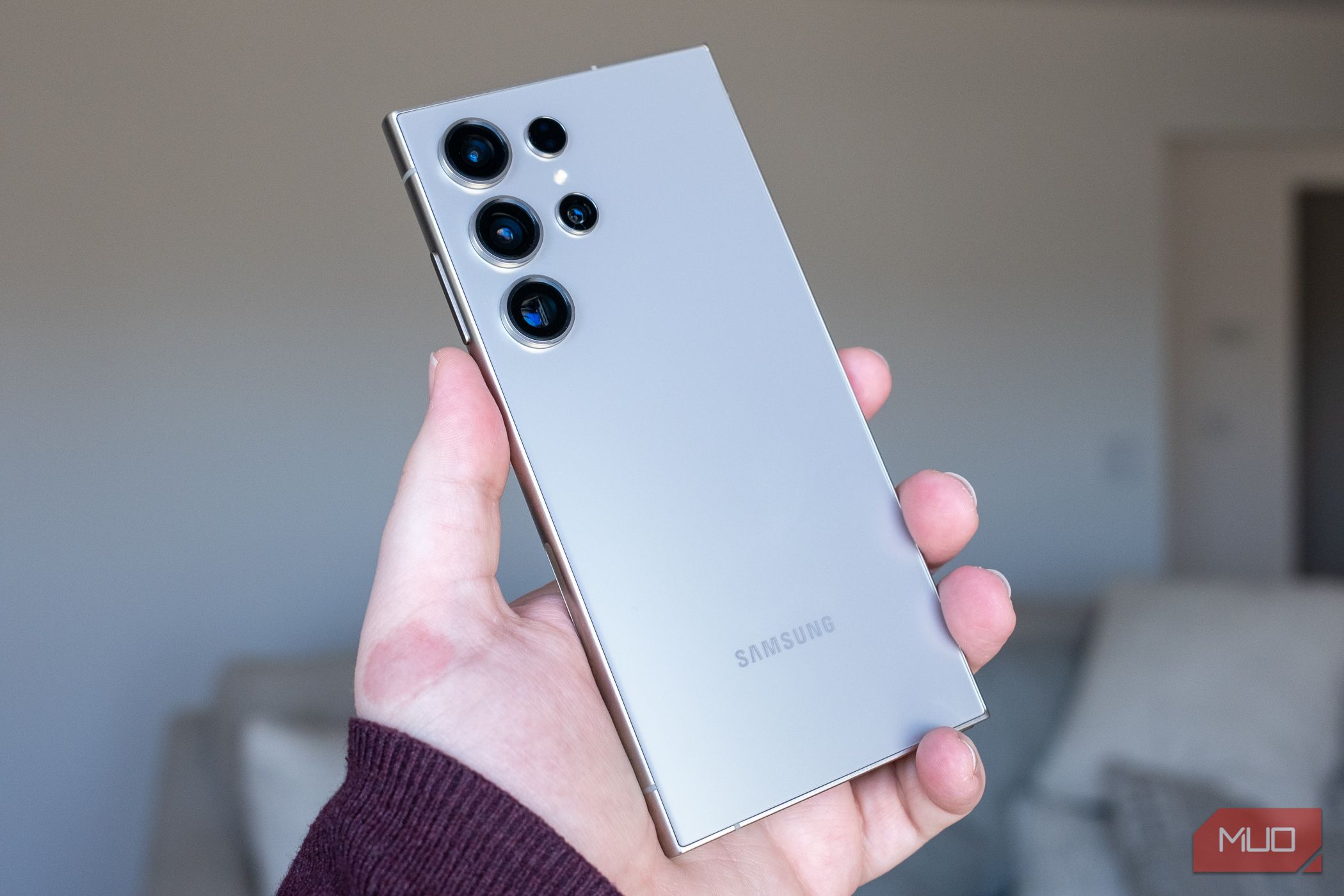
Is your Samsung phone constantly running low on storage, displaying those dreaded "storage full" warnings? You don't have to sacrifice precious photos or essential apps to free up space. Samsung's One UI offers a suite of powerful, built-in tools that can help you reclaim significant gigabytes – much like getting back 22GB – all without deleting anything important. This guide will walk you through a clear, step-by-step process to optimize your phone's storage, improve its performance, and make room for what truly matters.
Prerequisites:
- A Samsung Galaxy phone running One UI.
- An internet connection for cloud storage and app archiving (where applicable).
Step 1: Empty Your Digital Trash Bins
When you delete photos, videos, or documents, they're not immediately gone. They sit in a "Trash" folder for 30 days, acting as a safety net. To truly free up space, you need to empty these bins.
- Clear Gallery Trash:
- Go to Settings > Device Care > Storage > Trash.
- Tap on Gallery.
- Review the deleted items. If you need to restore anything, do so now.
- To clear all, tap the three-dot menu (usually top-right) and select Empty. Confirm your action.
- Clear Files App Trash:
- Open your Files app (or My Files).
- Navigate to its menu to find and clear the "Trash" or "Recycle Bin" folder. Be aware that items cleared here are permanently deleted.
Step 2: Eliminate Duplicate Files
Your phone can accumulate duplicate photos, videos, and documents from repeated downloads or sharing across apps. These can silently consume a surprising amount of storage.
- Find Duplicates: Go to Settings > Device Care > Storage > Duplicate files.
- Select & Delete: Tap All (top-left) to automatically select redundant copies, leaving originals untouched.
- Tap Delete to remove them.
- Tip: These files typically move to the Trash folder. Remember to empty your phone's trash (as in Step 1) afterward for full space recovery.
Step 3: Declutter with Unused App Management
Forgotten apps and games often sit idly, taking up valuable space. Identifying and managing these can free up space faster than you'd expect.
- Identify Unused Apps:
- Go to Settings > Device Care > Storage > Unused apps.
- Your phone lists apps not opened in the last 30 days.
- Uninstall or Archive Manually:
- Select apps you don't need.
- Tap Uninstall to remove them completely.
- Alternatively, choose Archive (if available) to remove the app but keep its data, so reinstallation later restores everything as you left it.
- Enable Auto-Archiving:
- For automatic management, open the Play Store.
- Go to Settings > General.
- Enable the Automatically archive apps toggle. This feature offloads unused apps without deleting their data, making space quietly.
Step 4: Clear Out Accumulated App Cache
Every app stores temporary data called "cache" to speed up operations. While helpful, this data can build up significantly over time. Samsung's One UI provides a quick way to clear all app caches simultaneously.
- Access Cache Cleaner: Go to Settings > Device Care > Storage > App cache.
- Select & Clear: Tap All (top-left) to select every app's cache.
- Hit Clear caches to remove these temporary files. You can deselect crucial apps if you prefer.
- Note: Clearing cache won't delete personal data, login info, or settings. Apps might load slightly slower temporarily as they rebuild cache.
Step 5: Prune Unneeded Offline Content
Apps like Google Maps, Spotify, Netflix, and YouTube allow offline downloads for convenience. However, old playlists, maps, or videos you no longer need can consume substantial storage.
You'll need to check within each app:
- Spotify: In your Library, find downloaded songs or playlists and remove those you don't need offline.
- YouTube: Go to Settings > Downloads and clear old, watched videos.
- Netflix: Navigate to the Downloads tab within the app to delete finished content.
- Google Maps: Access Settings > Offline maps to manage and delete maps from past trips.
Step 6: Offload Large Media to Cloud Storage
Your Samsung phone's 4K videos are beautiful but storage-intensive. If deletion isn't an option, moving them to the cloud can free up considerable space.
- Locate Large Videos: In the Storage menu (under Device Care), tap Large files, then use the filter to select Videos.
- Use Cloud Services:
- OneDrive: Samsung Gallery integrates with OneDrive (5 GB free, more with Microsoft 365 Basic). Select videos and use "Share" or "Move to OneDrive."
- Google Photos: Use the Google Photos app to back up large video files individually.
- Alternative Transfers:
- To PC: Connect your phone to a computer and manually transfer large files.
- USB-C Flash Drive: Use a compatible USB-C flash drive to directly offload videos from your phone.
- Best Practice: After ensuring files are successfully transferred and backed up (ideally in two locations), you can safely delete them from your phone's local storage.
Step 7: Tackle the Mysterious "Other Files" (Advanced)
The "Other files" category in your storage breakdown often mystifies users, quietly hogging gigabytes. It's a catch-all for system files, app remnants, and deep caches. If it's unusually large, a factory reset is the most effective solution.
- Backup with Samsung Cloud: Samsung offers a free, temporary cloud backup for up to 30 days. This backs up apps, settings, messages, call history, and home screen layout. Crucially, ensure your backup is complete before proceeding.
- Perform Factory Reset: Go to Settings > General management > Reset > Factory data reset. Follow prompts.
- Restore: After the reset, restore your data using the Samsung Cloud backup. You'll find the "Other files" category significantly reduced, and your phone will feel refreshed.
Conclusion: Running out of storage on your Samsung phone impacts more than just how many photos you can keep; it also affects overall performance. The good news is that Samsung's One UI provides all the necessary tools to intelligently manage your space. By consistently applying these methods – from emptying digital trash to strategically offloading large files and even resetting to clear "Other files" – you can reclaim valuable gigabytes and ensure your phone remains fast and responsive, all without deleting your important content.
FAQ
Q: Will clearing app caches delete my login information or saved game progress?
A: No, clearing app caches only removes temporary files designed for speed. Your personal data, login credentials, and saved settings/progress within apps remain untouched. Apps might take a moment longer to load certain content initially as they rebuild their cache.
Q: How often should I perform these storage cleanup steps?
A: For most users, a monthly check of trash and duplicate files, and a quarterly clearing of app caches, is a good routine. Managing unused apps and offline content can be done as needed, perhaps every few months. The factory reset for "Other files" is typically a last resort for significant storage issues.
Q: Is it safe to use the Samsung Cloud backup for a factory reset?
A: Yes, Samsung Cloud provides a secure, temporary backup solution for up to 30 days, covering apps, settings, messages, and more. Always ensure your backup is fully completed before initiating a factory reset to minimize any data loss risk.
Related articles

Apple Unveils iPhone Duo: Pricey Foldable Sees Soaring Demand
Apple has officially entered the foldable smartphone arena with the long-anticipated launch of the iPhone Duo. Priced starting at a hefty $1,999, the device features a 5.4-inch outer display and a larger 7.6-inch inner

Ditch Merge & Center: The Better Way to Align Text in Excel
Learn to use Excel's "Center Across Selection" to align text across cells without merging, avoiding common data manipulation issues. This guide provides steps to utilize this newly accessible feature and add it to your Quick Access Toolbar.

Ars Technica's Rocket Report: Your Essential Space Industry Briefing
Quick Verdict Ars Technica's Rocket Report, presented by veteran space reporter Stephen Clark, offers an invaluable and meticulously organized weekly (or similar frequency, implied by "Edition 9.15") digest of the most
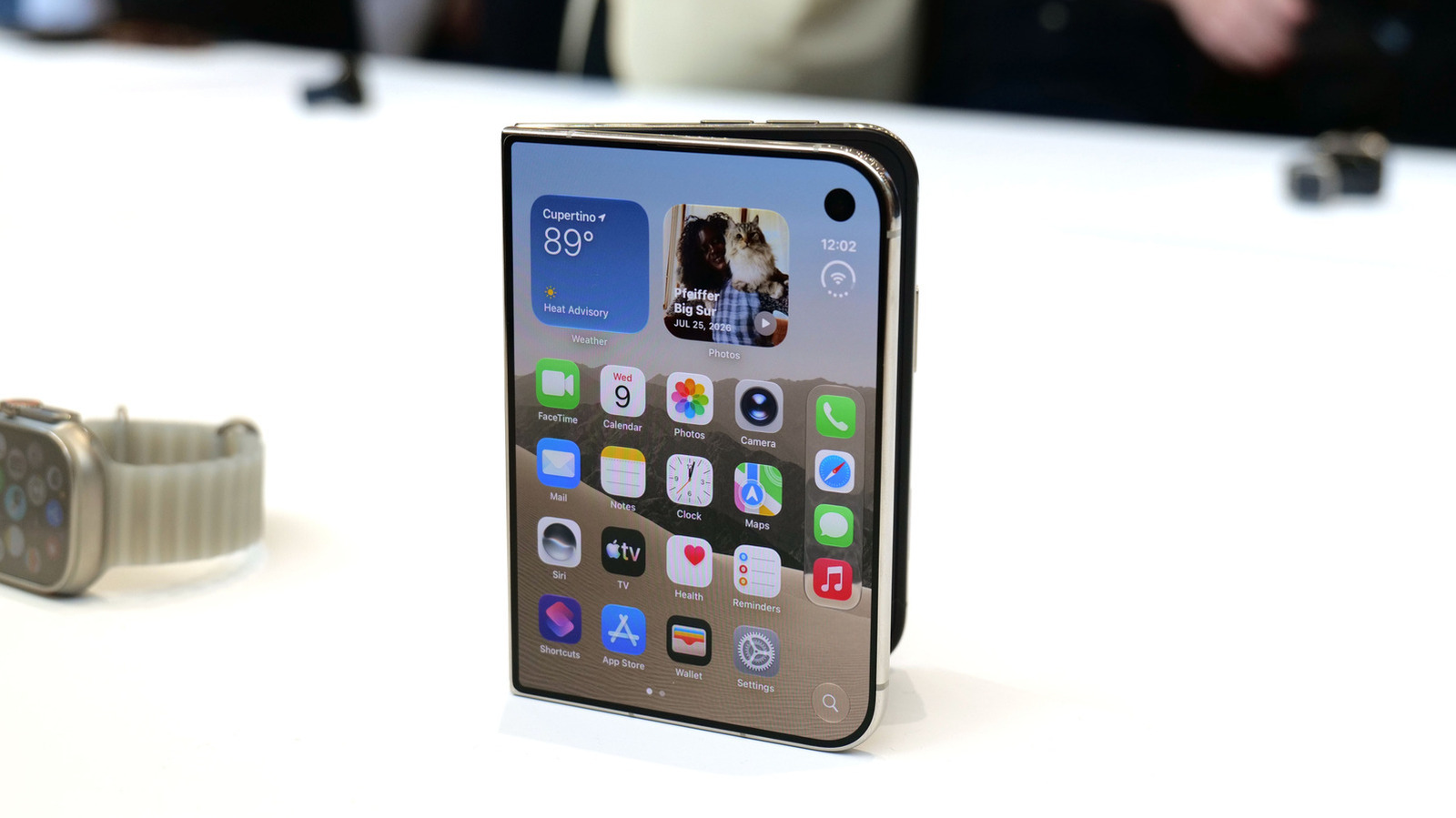
Apple iPhone Duo: A Daring Debut with Notable Compromises
Apple's highly anticipated iPhone Duo, priced at $2,000, has gone on pre-order. While hailed as "Apple's most exciting device in a decade" for its innovative foldable design and immersive display, it comes with significant drawbacks like the absence of FaceID and a premium camera.
Galaxy Watch One UI 9 Beta: Promising Progress, But Patience Needed
Galaxy Watch 8, Watch Ultra, and Watch 7 are receiving a new One UI 9 Watch beta build with bug fixes and a security patch. Active development signals progress, but a stable release date remains elusive.

Stop Android Auto Battery Drain: Essential Features to Disable and
Android Auto offers unparalleled convenience, bringing your phone's most useful features directly to your car's display. From navigation and calls to messages and music, it keeps you connected without distracting you