
How to Master Your Samsung Galaxy - 10 Essential Hacks
Learn to customize, automate, and optimize your Samsung Galaxy in 10 easy steps, from dynamic wallpapers to hidden Wi-Fi diagnostics.

Your Samsung Galaxy phone offers a wealth of features, many of which can significantly enhance your daily experience. This guide will walk you through 10 powerful hacks, helping you customize, automate, and optimize your device for maximum efficiency and personalization.
Prerequisites: To follow this guide, you'll need a Samsung Galaxy smartphone running a recent version of One UI. While core functionalities are consistent, minor menu variations might occur based on your specific model and software.
1. Automate Your Life with Routines
Let your Galaxy handle routine tasks automatically based on triggers like time, location, or connected devices, simplifying your daily interactions.
Steps:
- Go to Settings > Modes and Routines.
- Switch to the Routines tab.
- Tap + Add routine.
- Define your 'If' condition (trigger).
- Define your 'Then' actions (what happens).
- Save your routine. Tip: Explore various triggers like specific apps opening or battery levels for tailored automations.
2. Get to Your Favorite Contacts from the Edge Panel
Access your most important contacts instantly. The Edge Panel allows you to pin frequently used contacts for quick calls or messages, enhancing communication speed.
Steps:
- Navigate to Settings > Display > Edge Panels.
- Ensure Edge Panels is toggled On.
- Tap Panels, then select the People panel.
- Use Edit to add favorite contacts.
- Tap three dots > Reorder to position the People panel first. Tip: Customize the Edge Panel's position and transparency to suit your usage.
3. Create an Ambient Photo Wallpaper
Transform your lock screen into a dynamic display that adapts your chosen photo based on the time of day and local weather conditions, offering a unique visual experience.
Steps:
- Open Settings > Wallpaper and style > Change wallpapers.
- Select Create with AI > Weather.
- Choose an image from your gallery.
- Grant location access.
- The dynamic wallpaper will be applied to your lock screen.
- Press and hold the locked screen to adjust widgets. Tip: Landscape photos work best for dramatic weather effects like digital rain.
4. Enhance Streaming Videos with Extra Brightness
Boost the visual quality of your video content. Your Galaxy can provide an extra brightness and vibrancy kick specifically for video playback in selected apps.
Steps:
- Go to Settings > Advanced features > Video brightness.
- Select Bright.
- Toggle the switch for apps you want to enhance. Tip: Ideal for bright environments, but extended use may slightly impact battery life.
5. Add Light Effects to Notifications
Make incoming notifications visually distinctive. Your Galaxy can display customizable lighting effects around the screen edge, providing a subtle yet noticeable alert.
Steps:
- Head to Settings > Notifications > Notification pop-up style.
- Tap Add lighting effect (or Edge lighting style).
- Choose a style, color, and duration.
- Use Lighting effect color by keyword to assign specific colors to contacts. Tip: Assign unique colors to priority contacts for instant visual identification of important alerts.
6. Change What the Side Button Does
Repurpose your phone's side button for quick access. Customize its double-tap and long-press actions to launch apps or specific functions efficiently.
Steps:
- Open Settings > Advanced features > Side button.
- Under 'Double press,' select an action (e.g., camera, flashlight, specific app).
- Under 'Press and hold,' choose Wake Bixby (or assistant) or Power off menu. Tip: Assign the double-tap to your most-used app for instant access.
7. Switch to One-Handed Mode
Easily operate your large Galaxy display with one hand. This mode temporarily shrinks the entire interface, making all elements conveniently reachable.
Steps:
- Go to Settings > Advanced features > One-handed mode.
- Toggle the feature On.
- Activate by swiping down from the bottom center of the screen.
- Repeat the gesture or tap outside the area to revert. Tip: Essential for larger Galaxy models, making them more manageable on the go.
8. Multitask Better with Two Apps on Screen Together
Maximize productivity by simultaneously running two applications in a split-screen view, perfect for comparing info or messaging while watching videos.
Steps:
- Swipe up from bottom to center for the Recents screen.
- Tap the app icon at the top of the first app's preview.
- Select Open in split screen view.
- Choose your second app from the bottom half of the screen.
- Adjust window sizes by dragging the divider. Tip: Best utilized on larger Galaxy displays for optimal viewing.
9. Adjust the Screen Resolution
Balance visual sharpness and battery longevity by fine-tuning your Galaxy's display resolution. Higher resolution means sharper visuals but quicker battery drain.
Steps:
- Open Settings > Display > Screen resolution.
- Select your desired resolution (e.g., HD+, FHD+, WQHD+).
- Review the preview and tap Apply. Tip: Lowering resolution can extend battery life, useful for long days away from a charger.
10. Check the Wi-Fi Coverage Around Your Home
Unlock a hidden diagnostic toolkit called Connectivity Labs to analyze your home network. Check signal strength and troubleshoot connectivity issues.
Steps:
- Go to Settings > Connections > Wi-Fi.
- Tap the three dots (More options).
- Select Intelligent Wi-Fi.
- Tap 'Intelligent Wi-Fi' text at the bottom of the screen seven times rapidly to reveal Connectivity Labs.
- Open Connectivity Labs.
- Use Home Wi-Fi inspection to measure signal strength. Troubleshooting: Ensure you tap the specific 'Intelligent Wi-Fi' text seven times. Tip: Use this to find weak spots and optimize router placement.
Conclusion: By applying these 10 hacks, you've gained deeper control and convenience over your Samsung Galaxy. These personalized features will streamline your daily tasks and enrich your mobile experience. Continue exploring and enjoy a smarter, more efficient device!
FAQ
Q: Will these features work on all Samsung Galaxy models?
A: Most modern Galaxy phones with recent One UI versions support these features. However, minor differences in menu names or availability might occur depending on your specific model and software.
Q: Do any of these hacks significantly affect battery life?
A: Features like higher screen resolution or continuous video brightness boosts can increase battery consumption. Routines are generally efficient. Monitor your battery usage if you notice significant changes after enabling new features.
Q: I can't find the 'Intelligent Wi-Fi' option to unlock Connectivity Labs. What should I do?
A: Ensure you're in Settings > Connections > Wi-Fi, then tap the three dots (More options), and choose Intelligent Wi-Fi. If it's still missing, your specific device or software version might not include this hidden menu.
Related articles
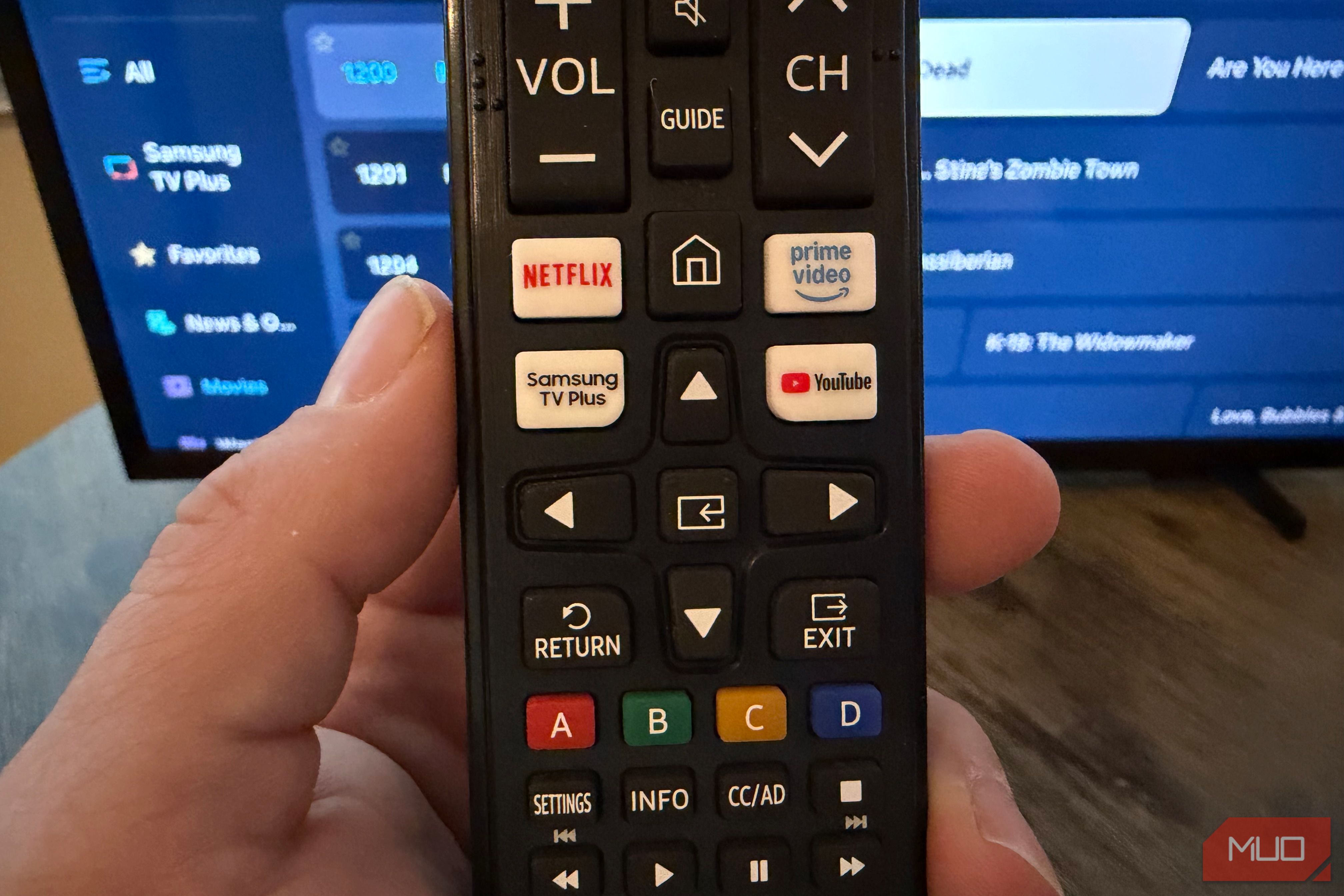
Unlock 650+ Free Channels on Your Samsung TV with One Button
Learn to instantly access over 650 free, ad-supported channels and movies on your Samsung TV with a single button press, requiring no logins or subscriptions.

GeekWire Week in Review: A Curated Dose of PNW Tech News
Verdict: Your Weekly Dose of Pacific Northwest Tech Insights GeekWire's "Week in Review" for October 25, 2026, serves as a highly efficient digest for anyone looking to stay abreast of the significant tech and startup
How to Pick the Best Firefox for Your Android: A Guide to All 5
Explore the five distinct versions of Firefox for Android to find the perfect browser for your privacy, extension needs, or everyday use.
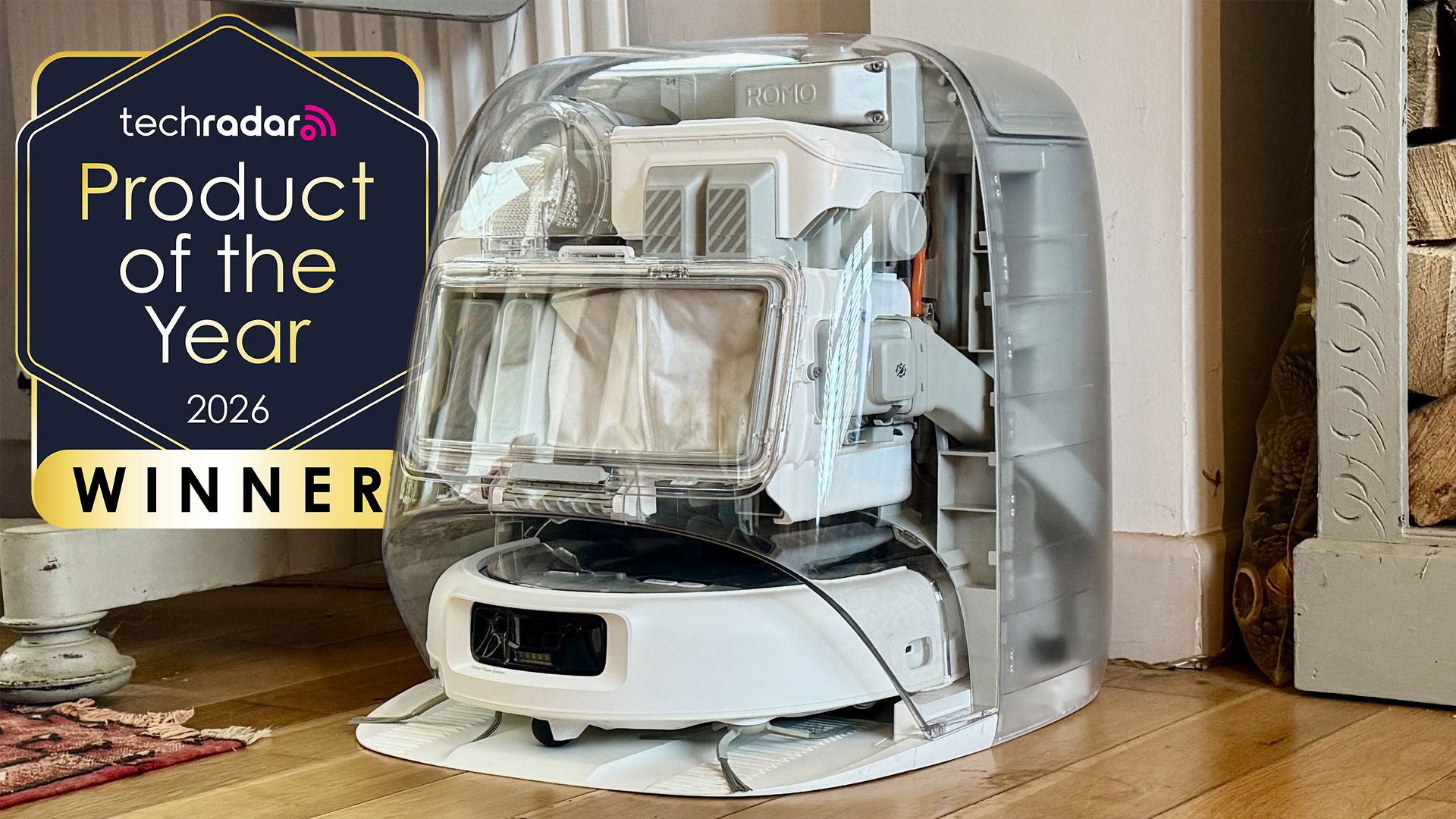
DJI Romo P Review: Drone Navigation Hits Your Floors with Impressive
Quick Verdict The DJI Romo P, our Home Device of the Year for 2026, marks an astonishing debut for DJI in the robot vacuum market. Leveraging its unparalleled drone-navigation technology, the Romo P offers class-leading

November 2026 Skywatching Guide: Your Stellar Companion for Autumn
The "November 2026 Skywatching Guide: Meteors, Planets, Stars and a Full Moon" from CNET positions itself as an essential companion for celestial enthusiasts. This comprehensive guide delivers a detailed roadmap to the
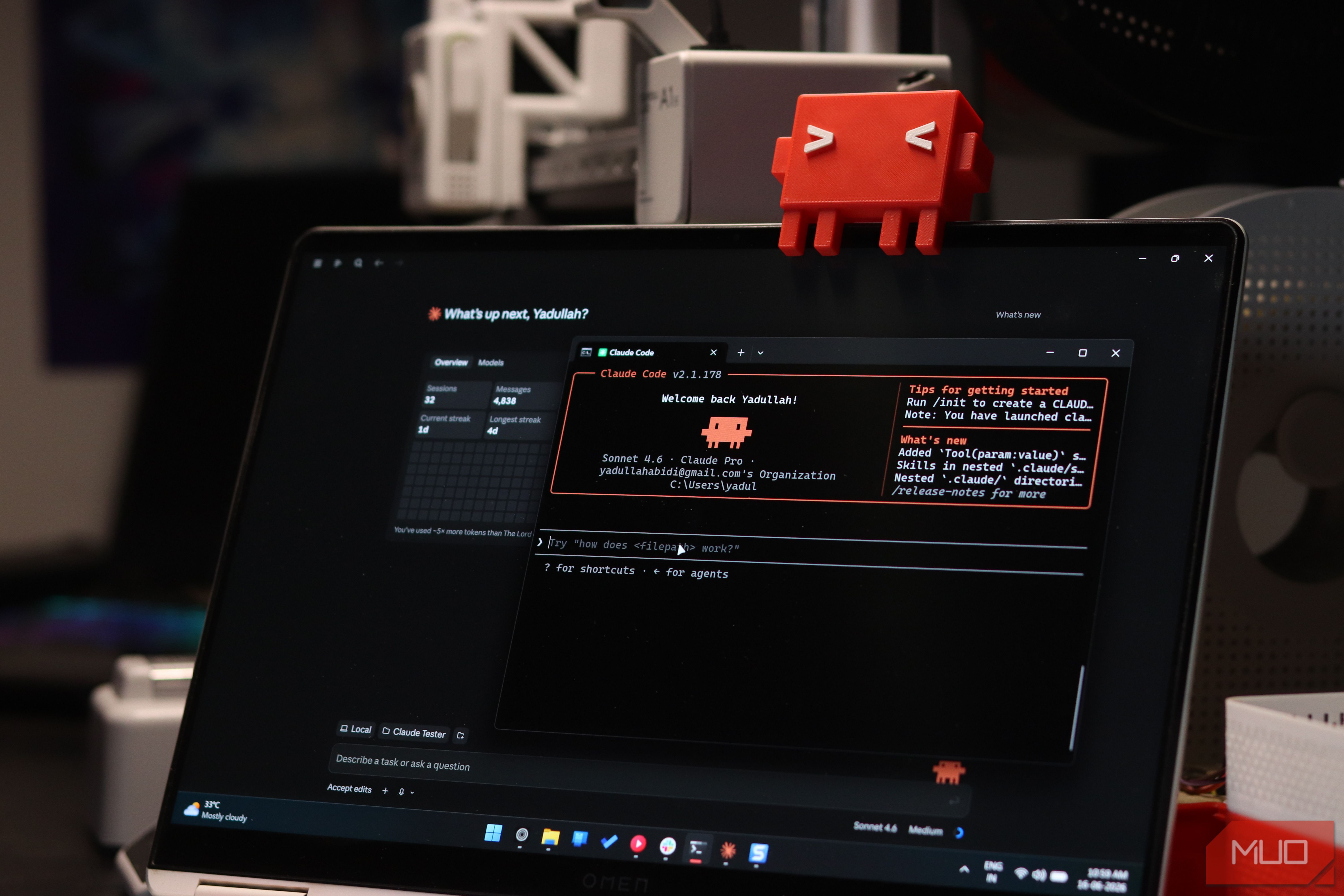
Securely Empower Your Smart Home: Integrating Claude Code with Home
Learn to integrate Claude Code with Home Assistant to automate and manage your smart home devices, focusing on secure practices for token usage and deployment.