
How to Master Your Laptop's USB-C Port: Unlock Its True Potential
Your laptop's USB-C port might seem like just another connector, but it's a powerhouse capable of far more than you realize. While its identical appearance across different devices can be confusing, understanding its
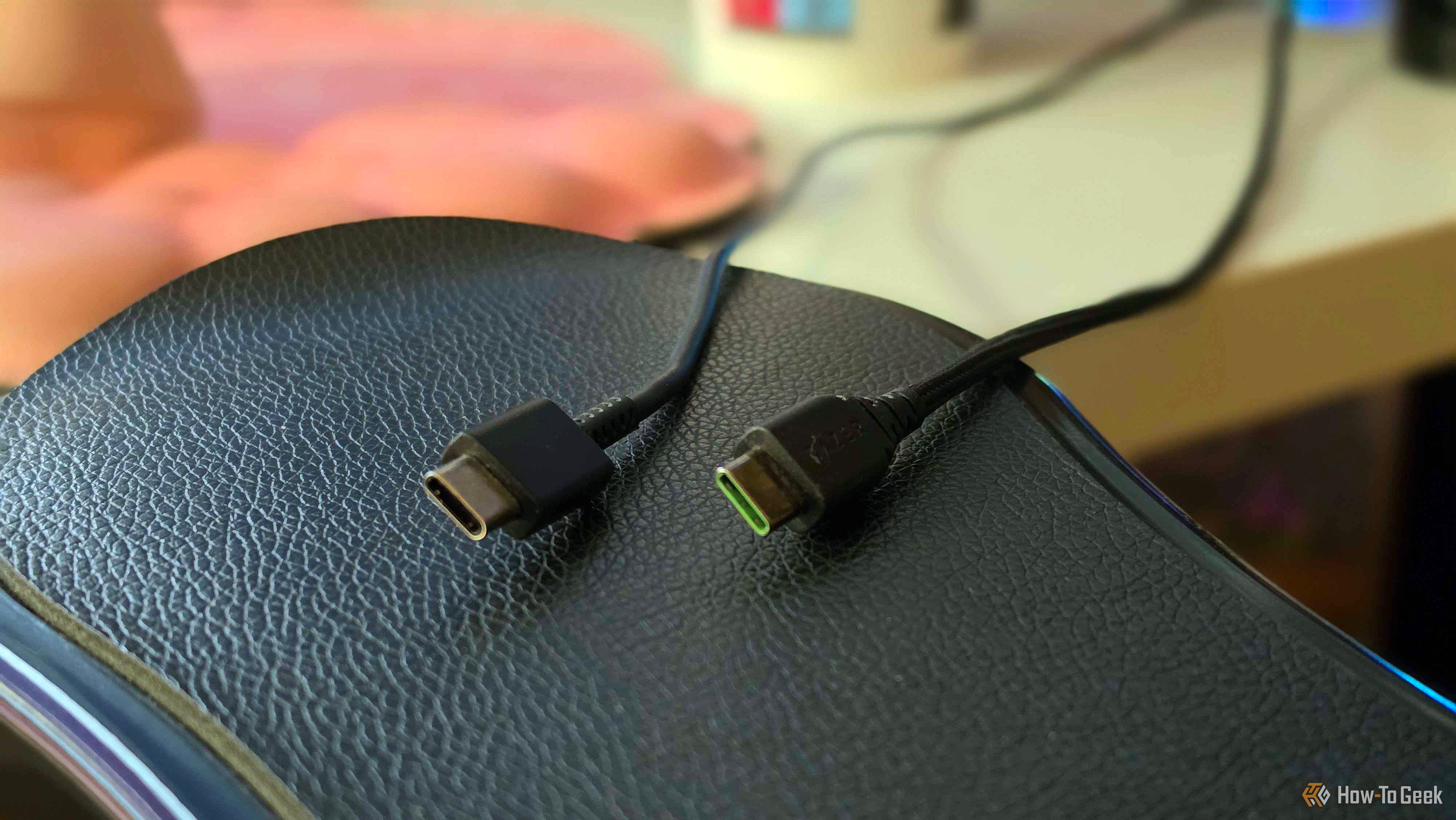
Your laptop's USB-C port might seem like just another connector, but it's a powerhouse capable of far more than you realize. While its identical appearance across different devices can be confusing, understanding its true capabilities will transform how you power, connect, and manage your tech.
This guide will help you demystify your USB-C port, showing you how to harness its full potential for universal charging, connecting external displays, achieving lightning-fast data transfers, and creating a streamlined, single-cable desk setup. Say goodbye to a tangle of cables and welcome a new era of simplicity and power.
What You'll Accomplish
By following this guide, you will:
- Consolidate Your Chargers: Use one USB-C charger for nearly all your devices, from earbuds to high-powered laptops.
- Connect External Monitors: Drive external displays directly from your laptop's USB-C port, even with limited port availability.
- Achieve Blazing-Fast Data Transfers: Experience speeds so fast that external drives feel like internal storage.
- Declutter Your Workspace: Power your laptop, connect monitors, peripherals, and Ethernet all through a single USB-C cable to a dock or hub.
Prerequisites and Requirements
Before you begin, ensure you have the following:
- USB-C Enabled Laptop: Your laptop must have at least one USB-C port.
- Compatible USB-C Accessories: This includes a USB-C charger, external monitor with USB-C input or adapter, external hard drive/NVMe enclosure, and/or a USB-C dock/hub, depending on the functionality you want to use.
- Specific USB-C Cables: Not all USB-C cables are created equal. You'll need:
- High-Wattage Charging Cable: For charging above 100W (up to 240W), look for cables rated for 240W with an EPR e-marker chip.
- DisplayPort Alt Mode Compatible Cable: For video output, ensure your cable supports DisplayPort Alt Mode; charge-only cables often lack the necessary wiring.
- High-Speed Data Cable: For USB4 speeds, use a cable rated for those speeds.
- Understanding Port Capabilities: Always check your laptop's specifications to understand what capabilities (e.g., Power Delivery, DisplayPort Alt Mode, USB4) each specific USB-C port supports.
Step-by-Step Guide to Maximizing Your USB-C Port
1. Unlock Universal Charging Power
One of the most significant advantages of USB-C is its ability to power a wide range of devices with a single charger. Thanks to USB Power Delivery (PD) 3.1, the power ceiling for USB-C has been pushed to 240W, a substantial increase from the previous 100W.
How to Do It:
- Invest in a High-Wattage Charger: To power everything from earbuds to power-hungry laptops, acquire a USB-C charger that supports USB Power Delivery 3.1 and can deliver up to 240W.
- Use the Right Cable: This is crucial. For any charging above 100W, you must use a USB-C cable that is rated for 240W and contains an EPR e-marker chip. Standard 5A USB-C cables are limited to 100W, regardless of your charger's capability.
- Connect Your Devices: Plug your devices into the high-wattage charger using the appropriate cable. Don't worry about frying smaller devices; a phone rated for 18W will only pull 18W, even from a 240W charger.
2. Connect External Monitors with Ease
For laptop users, connecting an external monitor can sometimes be a challenge with limited ports. USB-C, through a feature called DisplayPort Alt Mode, simplifies this by allowing a single port to transmit video.
How to Do It:
- Confirm DisplayPort Alt Mode Support: Check your laptop's specifications to ensure your USB-C port supports DisplayPort Alt Mode. This is the key feature that enables video output.
- Choose a Compatible Cable: Not all USB-C cables can carry video. Ensure you're using a USB-C cable that is specifically designed or rated to support DisplayPort Alt Mode. Charge-only cables often lack the necessary internal wiring for video transmission.
- Connect to Your Monitor: Use the compatible USB-C cable to connect your laptop's USB-C port directly to a monitor with a USB-C input. If your monitor uses HDMI or DisplayPort, you may need a USB-C to HDMI/DisplayPort adapter or a dock.
3. Experience Blazing-Fast Data Transfers
USB-C has ushered in genuinely absurd data speeds, making external storage feel almost as fast as internal drives. USB4 Version 2.0, for example, boasts a maximum bandwidth of 80Gbps, theoretically translating to about 10GB per second.
How to Do It:
- Acquire High-Speed Storage: To take advantage of these speeds, use an NVMe drive housed in a good USB-C enclosure.
- Ensure USB4 Support: Confirm that your laptop's USB-C port supports USB4 (or Thunderbolt 3/4/5, which leverage similar foundations). While USB4 is backward compatible with older USB 3.2 and USB 2.0 devices, you need USB4 for the highest speeds.
- Use a High-Speed Cable: Connect your high-speed external drive with a USB-C cable rated for USB4 speeds.
Tip: Be aware that a port labeled, for example, 40Gbps, may share its bandwidth with other functions like display or PCIe traffic. So, the entire 40Gbps might not be exclusively available for data transfer to your drive.
4. Transform Your Desk with a Single-Cable Dock
For many, the ultimate perk of USB-C is the ability to connect to an entire desk setup with just one cable. A USB-C dock or hub allows you to consolidate power, video, Ethernet, and all your peripherals through a single upstream connection to your laptop.
How to Do It:
- Choose a Feature-Rich Dock: Select a USB-C dock or hub that offers the ports you need (e.g., multiple USB-A, HDMI, DisplayPort, Ethernet, SD card readers, power delivery).
- Connect Your Peripherals to the Dock: Plug in your external monitor(s), keyboard, mouse, external drives, Ethernet cable, and power adapter (if the dock is powered) into the dock itself.
- Connect the Dock to Your Laptop: Use a single USB-C cable to connect the dock to your laptop's USB-C port. This one connection will now handle power delivery to your laptop, video output to your monitors, network access, and all connected peripherals.
Troubleshooting Tip: If your dock seems to be slowing down or certain ports aren't working as expected, remember that all devices on the dock share a single upstream bandwidth link to your laptop. Running multiple 4K displays, a fast SSD, and a network adapter simultaneously can overwhelm the dock's bandwidth, causing performance issues.
Best Practices for USB-C Usage
- Always Check Specifications: The golden rule for USB-C. Always verify what specific capabilities your laptop's USB-C ports (and your cables and accessories) actually support.
- Invest in Quality Cables: Cheap or generic cables are a common source of problems. Spend a bit more on certified cables to ensure full functionality, especially for high-wattage charging and video output.
- Understand Bandwidth Limitations: Especially with docks, be mindful that the overall performance is shared. Don't expect peak performance from every port simultaneously if the total demand exceeds the dock's upstream bandwidth.
Conclusion
While the diverse capabilities behind identical-looking USB-C ports can initially seem confusing, its universal format offers unparalleled convenience and power. By understanding and utilizing features like Power Delivery 3.1, DisplayPort Alt Mode, and USB4, you can simplify your charging, enhance your display setup, accelerate your data transfers, and create a truly streamlined workspace with a single cable. Embrace the versatility of USB-C and unlock the full potential of your laptop.
FAQ
Q: Why do two USB-C ports look identical but behave differently?
A: USB-C is a universal connector shape. The underlying capabilities (like Power Delivery wattage, support for DisplayPort Alt Mode, or USB4 data speeds) are determined by the internal wiring and chipset of the port itself, which isn't visible from the outside. Always check your device's specifications.
Q: Can a high-wattage USB-C charger (e.g., 240W) damage my low-power phone?
A: No, USB Power Delivery is designed to be smart. Your phone will only draw the amount of power it needs and is rated for (e.g., 18W) from the charger, regardless of the charger's maximum output. It's safe to use a high-wattage charger with smaller devices.
Q: My external monitor isn't working when connected via my USB-C cable. What could be the issue?
A: The most common reason is the cable. Many USB-C cables are designed only for charging and lack the necessary internal wiring to support DisplayPort Alt Mode for video transmission. Ensure you are using a USB-C cable specifically rated or designed for video output.
Related articles

Ditch Merge & Center: The Better Way to Align Text in Excel
Learn to use Excel's "Center Across Selection" to align text across cells without merging, avoiding common data manipulation issues. This guide provides steps to utilize this newly accessible feature and add it to your Quick Access Toolbar.

Ars Technica's Rocket Report: Your Essential Space Industry Briefing
Quick Verdict Ars Technica's Rocket Report, presented by veteran space reporter Stephen Clark, offers an invaluable and meticulously organized weekly (or similar frequency, implied by "Edition 9.15") digest of the most

Tesla Unveils Thruster-Equipped Roadster, 2028 Production Targeted
Tesla has unveiled its second-generation Roadster, featuring cold-gas thrusters co-developed with SpaceX, enabling it to jump and flip. The electric sports car demonstrated 0-60mph in an astonishing 0.81 seconds, with production targeted for 2028. This highly anticipated reveal also serves as a key recruitment tool for Tesla's ambitious AI and robotics initiatives.
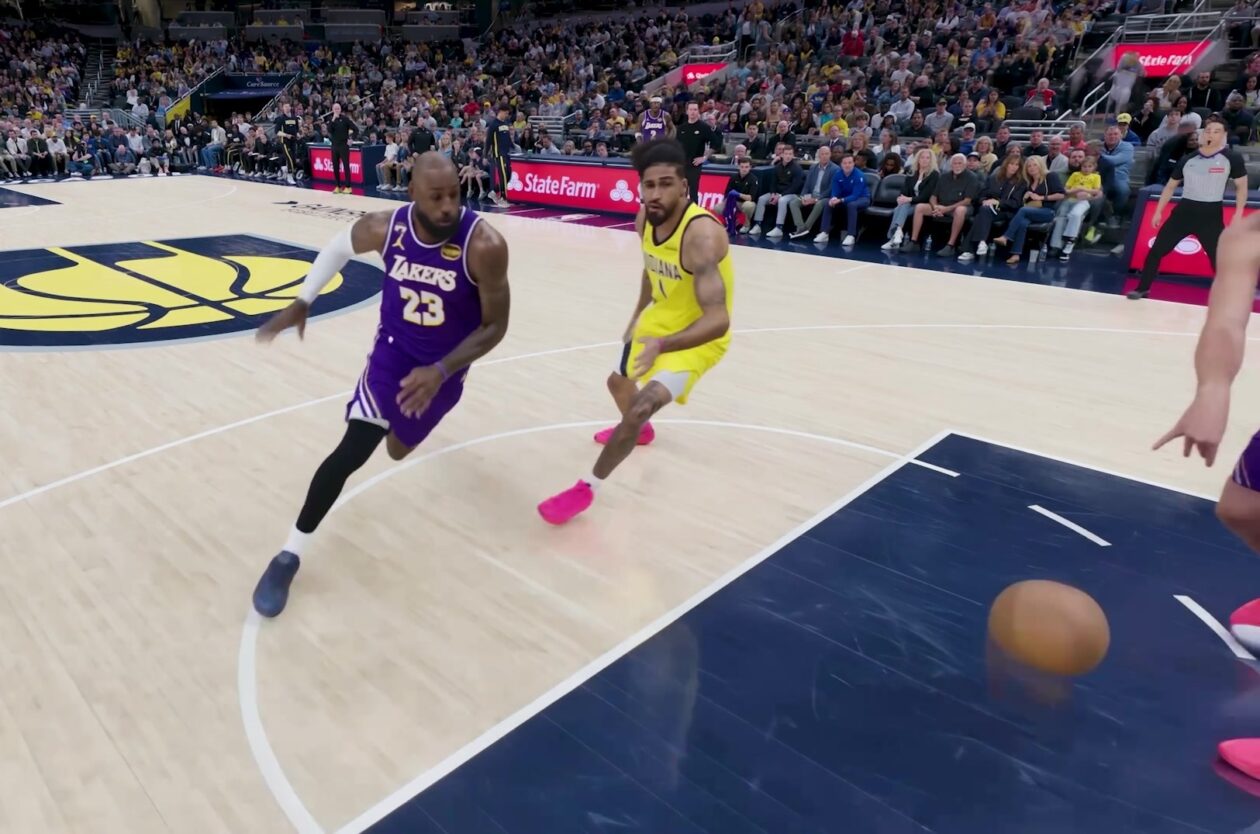
Amazon Prime Video Launches AI-Powered Prime 360 for NBA Coverage
Amazon Prime Video is elevating its NBA coverage with the introduction of Prime 360, an AI-powered replay system offering immersive, 'fly through' views of the action. Kicking off its second season, Prime Video also adds Yahoo fantasy integration and gains exclusive Eastern Conference Finals rights, expanding its tech-driven sports broadcast. The new features aim to deliver a unique and interactive viewing experience for basketball fans.

Stop Android Auto Battery Drain: Essential Features to Disable and
Android Auto offers unparalleled convenience, bringing your phone's most useful features directly to your car's display. From navigation and calls to messages and music, it keeps you connected without distracting you

Windows October Update: A Must-Have Security Overhaul
Microsoft's October 2026 Windows update delivers a critical security overhaul, patching over 1,400 vulnerabilities including two zero-days, one already exploited. It's essential for all users, especially with several Windows 11 versions reaching end of support.