
How to Manage Google Play Services Location Accuracy on Android 17
Learn how to disable the 'Improve Location Accuracy' feature within Google Play Services on Android 17. This guide shows you how to reduce the precision of location tracking without impacting the core functionality of your everyday apps, offering a practical step towards managing your digital footprint.
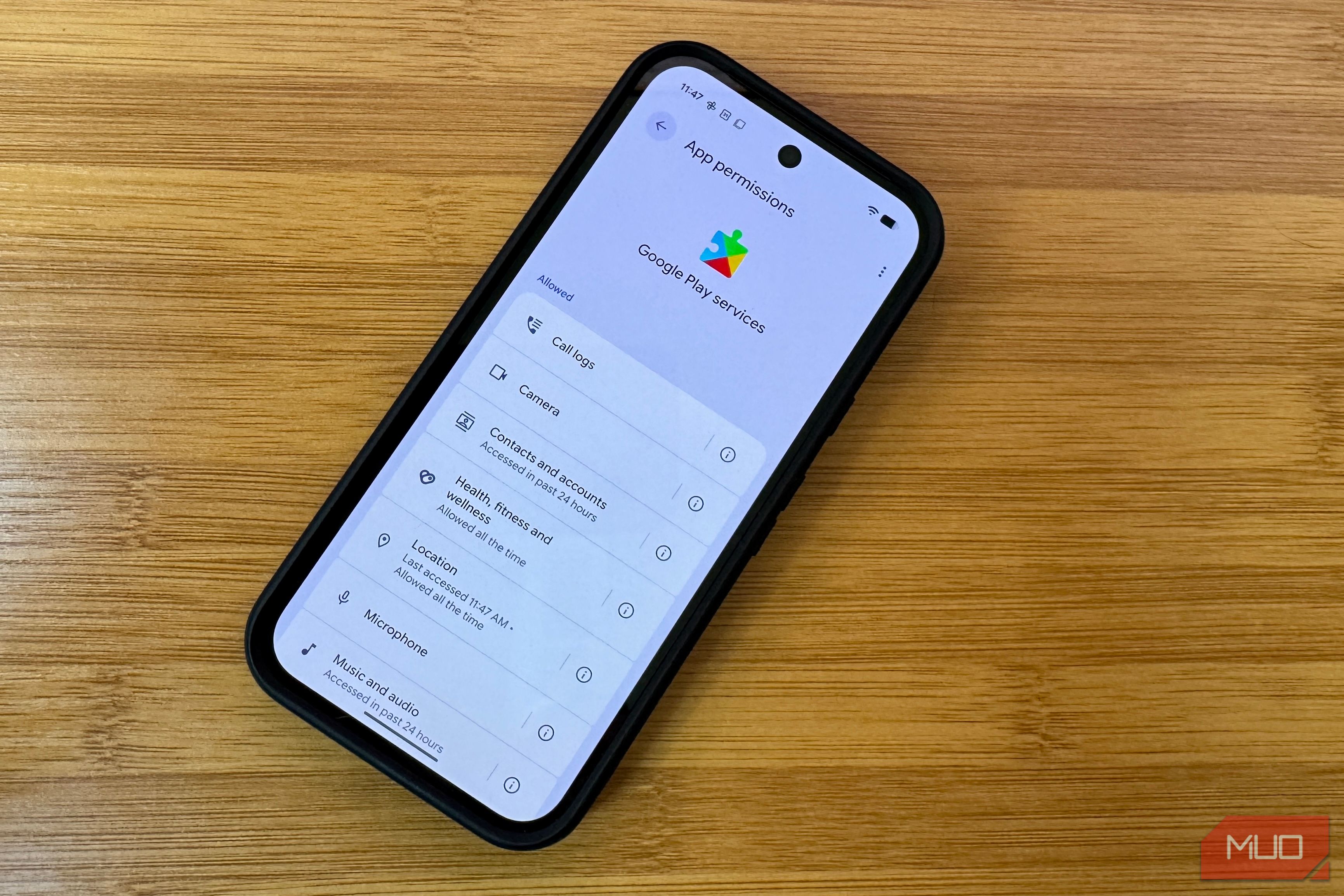
Privacy concerns around location tracking are common, and for Android users, Google Play Services often comes to mind. If you're running Android 17, you might expect a simple toggle to disable Google Play Services' access to your location, similar to other apps. However, Android 17 has integrated Play Services differently, making the process a bit less straightforward than before.
This guide will walk you through disabling a key Google Play Services feature called "Improve Location Accuracy." This action helps reduce the precision of the location data collected by Google Play Services, relying more on basic GPS and sensors rather than a broader crowdsourced network. The good news? Our tests show that essential apps continue to function normally, allowing you to reclaim some privacy without sacrificing daily convenience.
What You'll Accomplish
By following this guide, you will disable the "Improve Location Accuracy" feature. This means your device will primarily use GPS and its internal sensors for location data, rather than combining it with Wi-Fi, cell tower, and other crowdsourced information for ultra-precise positioning. This narrows Google's location footprint from your device, particularly regarding background data feeds.
Prerequisites
To follow this guide, you'll need:
- An Android device running Android 17 (the instructions are based on a Pixel phone with this version, so menus might vary slightly on other devices or older Android builds).
- Basic familiarity with navigating your device's Settings menu.
Step-by-Step: Disabling Improve Location Accuracy
Unlike other applications, Google Play Services no longer has a direct location permission toggle under its app settings in Android 17. Instead, you need to adjust a system-wide setting that specifically controls a Play Services feature. Here's how:
- Open Settings: From your home screen or app drawer, tap on the Settings icon (usually a gear).
- Navigate to Location: Scroll down and tap on Location.
- Access Location Services: Within the Location screen, look for and tap on Location Services.
- Find and Disable Improve Location Accuracy: Here, you will find the Improve Location Accuracy setting. Tap on this option.
- Toggle Off: You will see a toggle switch. Tap it to set Improve Location Accuracy to OFF.
You might notice a dialog box if you try to modify Google Play Services' location permissions directly (e.g., Settings > Apps > Google Play services > Permissions > Location). It will inform you that "Google Play Services is a provider of location services for this device. Location access can be modified from location settings," and then redirect you to the system-wide Location screen. This confirms that the "Improve Location Accuracy" setting is the correct control point for this specific aspect of Play Services' location behavior.
What to Expect with Improve Location Accuracy Off
After disabling "Improve Location Accuracy," you might wonder how your daily apps will fare. Based on practical tests, the impact on essential functionality is minimal, primarily affecting the precision of certain location-dependent data. Here's a breakdown:
- Google Maps: Navigation remains robust and locks in instantly. The home location dot might settle immediately without the brief wobble observed when accuracy improvement was active, though this difference is anecdotal based on a single test.
- Weather Apps: Your local weather app (e.g., Pixel Weather) may change its display from your exact neighborhood name to a more general "Current Location" label. The actual temperature and forecast information remain unaffected.
- Camera and Photos: This is where the most noticeable change occurs. Photos geotagged with "Improve Location Accuracy" enabled would pinpoint your precise home address. With it off, geotags will show only the city level, losing street-level precision.
- Find Hub (or Find My Device): The ability to locate your phone or other Android devices remains just as precise as before. Disabling this setting does not hinder your ability to find lost devices.
- WhatsApp: Location sharing in WhatsApp continues to function with comparable accuracy. Any minor variance in precision (e.g., a few meters difference) is well within the normal range of GPS accuracy.
In essence, disabling this feature makes your device rely solely on traditional GPS and internal sensors for location data, bypassing the supplemental data from Wi-Fi, cell towers, and other sensors that Google Play Services uses to enhance precision. The primary trade-off is a slight loss of fine-grained location data for specific functions like photo geotagging.
Troubleshooting and Important Considerations
- Not a Full Privacy Solution: It's crucial to understand that disabling "Improve Location Accuracy" does not stop all Google location tracking. Features like Google Timeline, Location Sharing, and individual app location permissions (which you grant to apps like Maps or weather apps) will still operate as usual.
- Other Tracking: Google's extensive location services go beyond just accuracy. For a more comprehensive understanding of what apps are accessing your location in real-time, consider utilizing Android 17's new persistent location indicator, which flags non-system apps using your location.
- Device and Android Version Variation: While these steps are accurate for a Pixel running Android 17, menu names and behavior can differ slightly across various Android phone manufacturers (e.g., Samsung, OnePlus) and older Android versions. If you can't find a specific option, search for "Location" or "Location Services" in your phone's main Settings search bar.
Tips for Best Practices
- Balance Privacy and Functionality: Disabling "Improve Location Accuracy" offers a good balance. It reduces one layer of background location data collection without disrupting the apps you rely on daily. Consider if the loss of ultra-precise photo geotagging is a worthwhile trade-off for enhanced privacy.
- Review App Permissions Regularly: Even with this setting off, routinely check the location permissions for individual apps. Many apps don't need continuous or precise location access.
FAQ
Q: Will disabling "Improve Location Accuracy" break essential apps like Google Maps or WhatsApp? A: No, based on our tests, essential apps like Google Maps for navigation and WhatsApp for location sharing continue to work fine. The primary impact is a reduction in the precision of location data for certain functions, such as photo geotagging.
Q: Does turning off "Improve Location Accuracy" stop all Google location tracking? A: No, it does not. This setting specifically addresses the crowdsourced accuracy boost provided by Google Play Services. Other Google location services, such as Google Timeline, Location Sharing, and individual app permissions you've granted, will still function as before. For a broader view of location usage, check Android 17's persistent location indicator.
Q: Why isn't there a simple toggle for Google Play Services location like other apps? A: In Android 17, Google Play Services is treated as a fundamental part of the device's location infrastructure rather than a standalone app for location purposes. Its location features are integrated deeper into system-wide settings, meaning you manage specific components like "Improve Location Accuracy" from the main Location settings rather than individual app permissions.
Next Steps
If you're looking to further manage your location privacy, consider exploring Android 17's persistent location indicator. This feature can show you which non-system apps are actively accessing your location in real-time, giving you more granular control over your data footprint. Additionally, regularly reviewing individual app permissions in your device's Settings remains a powerful way to control who accesses your sensitive data.
Related articles

Apple Unveils iPhone Duo: Pricey Foldable Sees Soaring Demand
Apple has officially entered the foldable smartphone arena with the long-anticipated launch of the iPhone Duo. Priced starting at a hefty $1,999, the device features a 5.4-inch outer display and a larger 7.6-inch inner
Android 17 QPR2 Beta 7.1: The Performance Relief You've Been Waiting
Android 17 QPR2 Beta 7.1: Finally Fixing the QPR1 Performance Woes Verdict: Android 17 QPR2 Beta 7.1 is a crucial and highly anticipated software update for Google Pixel users, specifically targeting and resolving the

TCG Pocket Responds: A Much-Needed Pace Shift for Pokémon Fans
Pokémon TCG Pocket is rolling out a major update for its second anniversary, primarily addressing player concerns about overwhelming content releases by shifting to a six-week set schedule. This aims to curb player decline and improve overall engagement by giving trainers more time to collect and strategize. The update also adds new collection methods, improved deck-building features, and enhanced trading functionality.

Ditch Merge & Center: The Better Way to Align Text in Excel
Learn to use Excel's "Center Across Selection" to align text across cells without merging, avoiding common data manipulation issues. This guide provides steps to utilize this newly accessible feature and add it to your Quick Access Toolbar.

Mark Wahlberg on using AI in film ‘the right way’ and being open to
Actor Mark Wahlberg believes AI has a place in filmmaking if used responsibly for enhancement, not script generation or actor replacement. At TechCrunch Disrupt, he expressed openness to an AI likeness carrying on his legacy, managed by his family, and emphasized storytelling.
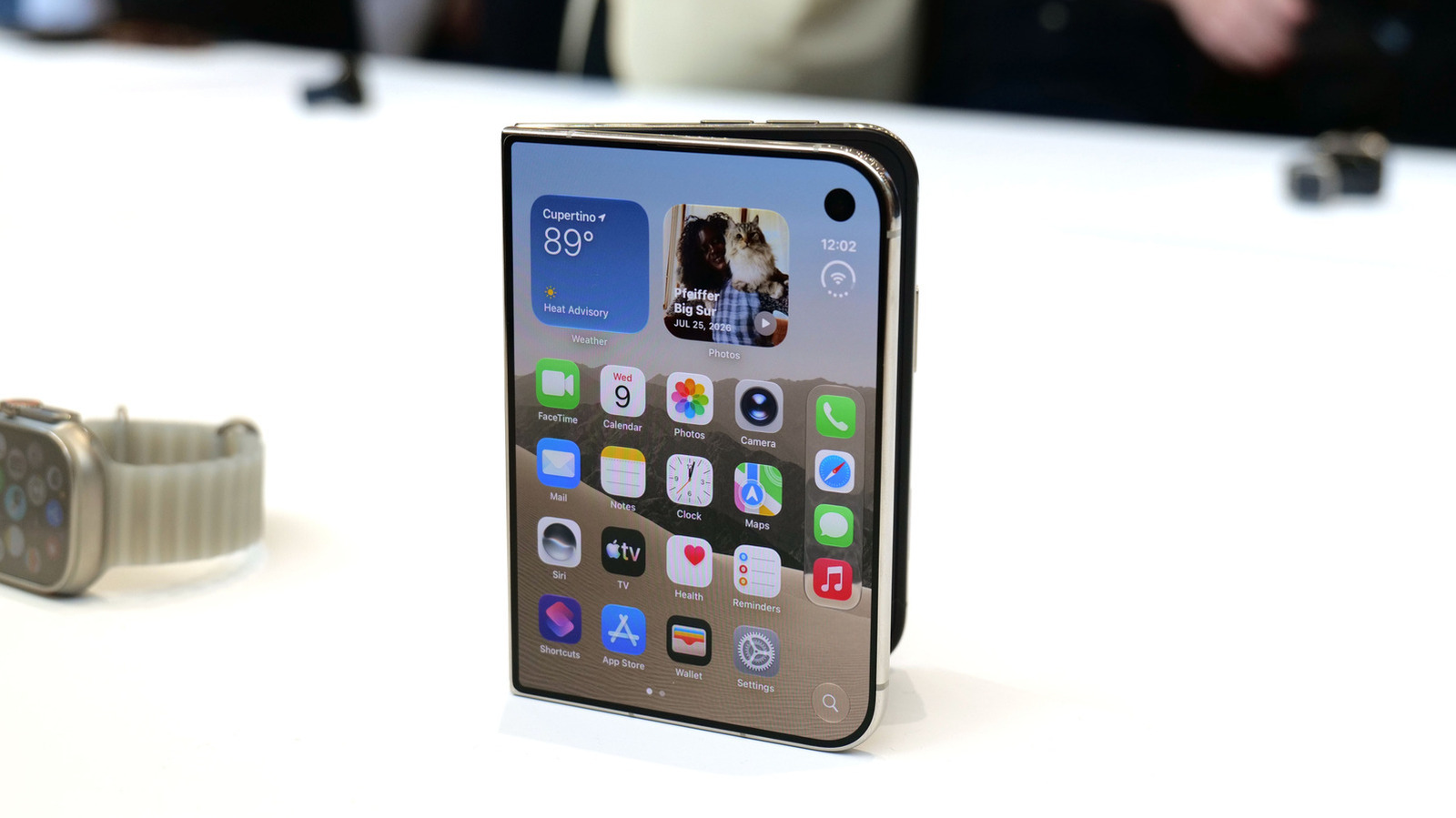
Apple iPhone Duo: A Daring Debut with Notable Compromises
Apple's highly anticipated iPhone Duo, priced at $2,000, has gone on pre-order. While hailed as "Apple's most exciting device in a decade" for its innovative foldable design and immersive display, it comes with significant drawbacks like the absence of FaceID and a premium camera.