
How to Enable Spatial Audio on Your Echo Studio for Immersive Sound
Learn to activate spatial audio on your compatible Echo device in just a few steps to experience breathtaking, room-filling sound and an incredibly wide soundstage.
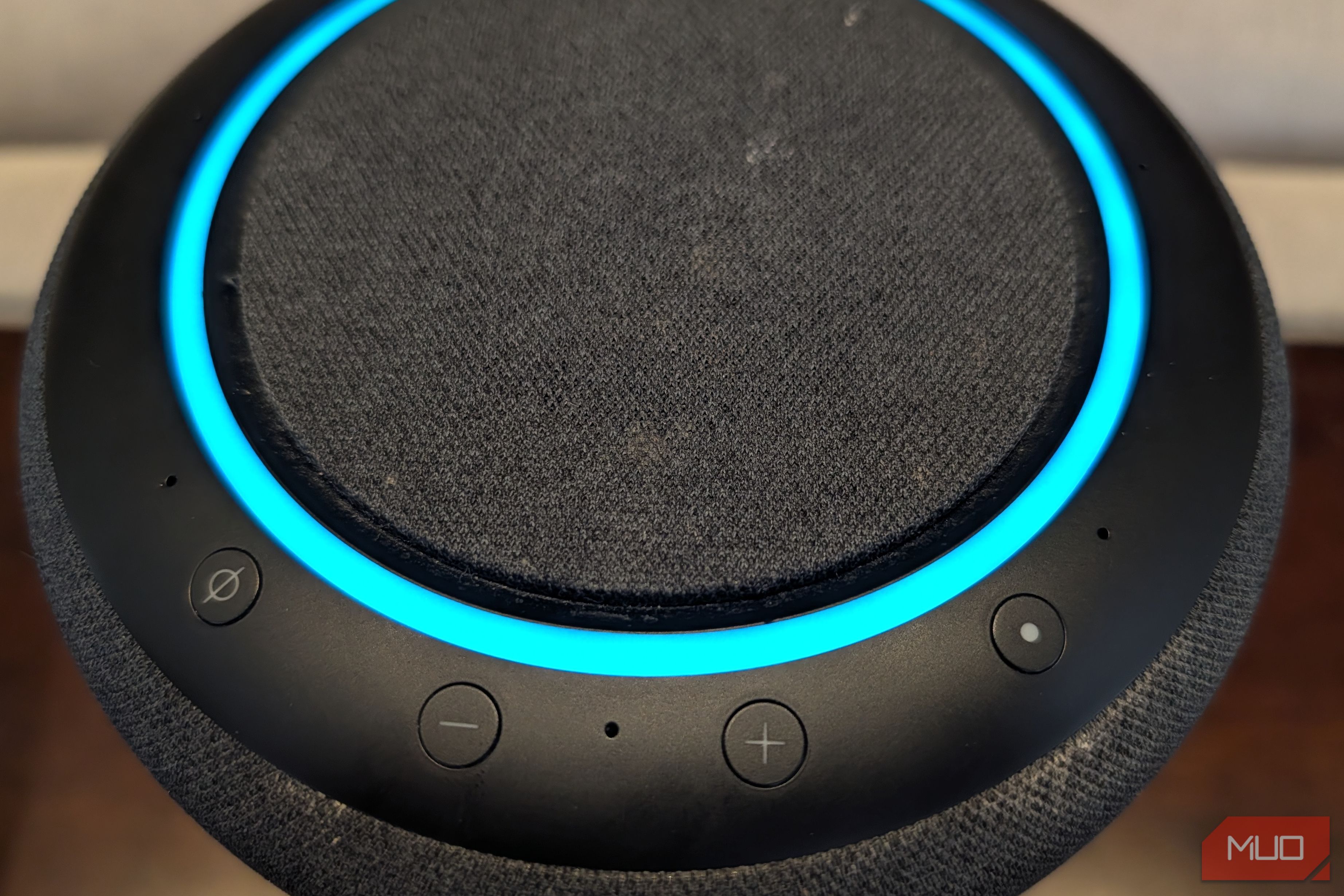
Get ready to transform your audio experience! If you own an Amazon Echo Studio or a compatible Echo Show device, you're sitting on a potential goldmine of immersive sound that you might not even know exists. By default, spatial audio — a feature designed to create a multidimensional soundscape — is often turned off. But with a few simple taps in the Alexa app, you can unlock a truly breathtaking listening experience.
This guide will walk you through enabling spatial audio, understanding what makes it so special, and how to get the most out of it. Prepare to be shocked by the difference it makes when your music truly fills the room with an expansive, dynamic soundstage.
Understanding Spatial Audio
Spatial audio is Amazon's innovative approach to delivering a "multidimensional audio experience." Instead of sound simply coming from a single speaker, spatial audio makes it feel like music and other audio are originating from various points around your room, creating an incredibly wide and deep soundstage.
How does it achieve this magic? Compatible Echo devices, particularly the Echo Studio, are equipped with seven beam-forming microphones. These microphones are not just for listening to your voice commands; they actively "listen" to how sound behaves in your specific room. This data, combined with advanced spatial audio processing and a feature called crosstalk cancellation, allows the device to intelligently steer sound.
Crosstalk cancellation works by sending subtle "anti-noise" signals to separate what your left ear should hear from what your right ear should hear. This precise control over sound direction and layering creates an immersive effect, making it seem as though instruments are playing distinctly from different locations within your space, rather than just from a central speaker. The result is an unbelievably rich and engaging listening experience, regardless of whether you're into hip hop, jazz, pop, or hard rock.
Prerequisites: Compatible Echo Devices
Before you dive into the settings, it's crucial to confirm that your Amazon Echo device supports spatial audio. Not all Echo models are equipped with the necessary hardware and processing capabilities. According to Amazon, the following devices are compatible:
- Echo Studio (all generations): This is Amazon's high-fidelity smart speaker, built from the ground up for superior audio and fully supports spatial audio.
- Echo Show 8 (3rd generation): The latest iteration of the popular smart display brings spatial audio capabilities to your visual and auditory experience.
- Echo Show 11 (2025): A future model that will also include spatial audio support.
If you have one of these devices, you're all set to proceed! Even an older, first-generation Echo Studio can deliver exceptional spatial audio performance.
How to Enable Spatial Audio on Your Echo
For many users, spatial audio is turned off by default. Don't worry, activating it is a straightforward process through the Amazon Alexa app.
Follow these steps to enable the feature and begin your immersive audio journey:
- Open the Amazon Alexa App: Launch the Alexa app on your smartphone or tablet. Ensure you are signed in to the Amazon account linked to your Echo device.
- Navigate to Devices: At the bottom of the app screen, tap the "Devices" icon. This will display a list of all your connected Echo devices.
- Select Your Compatible Echo Device: From the list, tap on the name of your Echo Studio, Echo Show 8 (3rd gen), or Echo Show 11 (2025).
- Access Device Settings: In the upper right corner of the device's screen, tap the "Settings" cog icon. This will open the specific settings for your chosen Echo device.
- Go to Sound Settings: Scroll down within the settings menu and tap on "Sound." Here, you'll find various audio-related options for your device.
- Open the Equalizer: Within the Sound settings, tap on "Equalizer." This panel allows you to adjust different audio frequencies.
- Turn On Stereo Spatial Enhancement: Scroll down in the Equalizer panel until you find the "stereo spatial enhancement" toggle. Tap it to turn the feature on. Once enabled, your Echo will begin processing audio to create a more spatial and immersive sound profile.
Enhancing Your Audio Experience (Optional Equalizer Adjustment)
While you're in the Audio Settings panel, you have an opportunity to further refine your sound. The source content suggests a useful tip:
- Boost Bass and Treble: Within the Equalizer settings, consider boosting both the bass and treble frequencies. Even for standard stereo audio sources, this adjustment can add noticeable depth and immersion to your music, making your listening experience richer across the board.
Making the Most of Spatial Audio: Source Content and Placement
Enabling spatial audio is the first step, but to truly appreciate its full potential, a few considerations regarding your audio source and device placement are key.
The Importance of Spatial Audio Sources
The biggest factor influencing your spatial audio experience is the source content itself. While your Echo Studio is designed to play spatial audio formats like Dolby Atmos and 360 Reality Audio, the quality can vary significantly:
- Best Results with Native Spatial Audio: For the most impactful and authentic spatial audio, listen to tracks specifically mixed and optimized for spatial audio. Amazon Music Prime, which is included with an Amazon Prime subscription, is your best bet here, offering a large catalog of spatial audio tracks.
- How to Find Spatial Audio: To ensure you're getting a true spatial audio track, you can use voice commands like, "Alexa, play the best of spatial audio playlist on Amazon Music" or "Alexa, play Metallica in Dolby Atmos." If you don't specify spatial audio, 3D audio, or Dolby Atmos, Alexa will typically play the standard stereo version.
- Upscaling Stereo Audio: If you play a regular stereo audio source (e.g., from a service that doesn't offer spatial audio) with spatial enhancement enabled, your Echo will attempt to "upscale" it to sound spatial. While this can add some depth, the results are often mixed and won't compare to native spatial audio tracks.
- Other Music Services: While Spotify doesn't currently offer Dolby Atmos spatial audio, other services like TIDAL do. For the most extensive and seamlessly integrated experience, Amazon Music Prime remains the top recommendation.
Device Placement for Optimal Calibration
Even with a high-quality spatial audio source, your Echo device's physical placement in the room plays a crucial role. To allow the device's internal processor to properly calibrate and map your environment for the best sound dispersion:
- Keep it Away from Walls: Ensure your Echo Studio or compatible Echo Show is placed far enough from walls. This allows the seven beam-forming microphones to accurately detect how sound bounces and behaves, which is essential for creating that room-filling, multi-directional effect.
Does It Actually Make a Difference?
Absolutely! When you combine a compatible Echo device, enabled spatial audio, and a native spatial audio source, the difference is often described as nothing short of stunning. The room-filling sound and incredible dynamic range elevate your music to a new level. What might have sounded like a good stereo track before can transform into an immersive performance where you feel surrounded by the music.
While the selection of Dolby Atmos and spatial audio tracks can still feel somewhat limited outside of Amazon Music's extensive catalog, the experience is profoundly rewarding for those willing to explore it. Many might consider the requirement for specific hardware and optimized sources a minor hurdle, but the payoff of superb, dynamic, and expansive audio is well worth it.
FAQ
Q: What exactly is spatial audio and why is it special? A: Spatial audio creates a multidimensional sound experience where music appears to come from various points in your room, rather than just one speaker. It uses beam-forming microphones and advanced processing to "steer" sound, separating audio for your left and right ears, resulting in an immersive, wide soundstage that truly fills the room.
Q: Which Amazon Echo devices support spatial audio? A: Spatial audio is currently supported on the Echo Studio (all generations), Echo Show 8 (3rd generation), and the upcoming Echo Show 11 (2025). You'll need one of these specific models to enable the feature.
Q: Do I need a special music service to experience spatial audio, or can I use Spotify? A: For the best and most consistent spatial audio experience, it's highly recommended to use native spatial audio tracks, primarily found on Amazon Music Prime (included with Amazon Prime). While TIDAL also offers Dolby Atmos, Spotify currently does not support spatial audio. Your Echo can attempt to upscale stereo audio, but the results are mixed compared to native spatial audio sources.
Related articles

DJI Solo Video Setups: Smart Choices for Lone Creators
This review delves into DJI's recommended solo video setups, highlighting the Osmo Pocket 3 Creator Combo as a top pick for its integrated camera, gimbal, and mic. It also covers stabilizers like the Osmo Mobile 8 and RS 4, and the DJI Mic Mini series for enhanced audio, providing honest pros, cons, and clear buying advice.

Ditch Merge & Center: The Better Way to Align Text in Excel
Learn to use Excel's "Center Across Selection" to align text across cells without merging, avoiding common data manipulation issues. This guide provides steps to utilize this newly accessible feature and add it to your Quick Access Toolbar.

Ars Technica's Rocket Report: Your Essential Space Industry Briefing
Quick Verdict Ars Technica's Rocket Report, presented by veteran space reporter Stephen Clark, offers an invaluable and meticulously organized weekly (or similar frequency, implied by "Edition 9.15") digest of the most

AI's Confidence vs. Formal Methods' Rigor: Design Flaws & Verification
While AI accelerates code generation, formal methods remain critical for ensuring system correctness. Languages like TLA+ and tools like Quint enable developers to model and verify system designs before coding, catching subtle flaws. Quint makes formal methods more accessible with developer-friendly syntax and executability. This approach is vital for verifying AI-generated code through trace validation and model-based testing, ensuring reliability against real-world data.

Ubisoft Proposes German Studio Workforce Reduction Amidst
Ubisoft is planning a voluntary departure program for about 100 employees across its Düsseldorf, Berlin, and Mainz studios in Germany. This move is part of a larger, ongoing cost-reduction and restructuring effort by the publisher, aiming to better position its studios for future projects.

Stop Android Auto Battery Drain: Essential Features to Disable and
Android Auto offers unparalleled convenience, bringing your phone's most useful features directly to your car's display. From navigation and calls to messages and music, it keeps you connected without distracting you