
How to Declutter Your Windows 11 Start Menu: Disable Suggestions for
Learn how to disable all unwanted suggestions and recommendations in your Windows 11 Start menu in just a few steps. This guide helps you declutter your Start menu, creating a cleaner, more personalized space focused on your pinned applications.
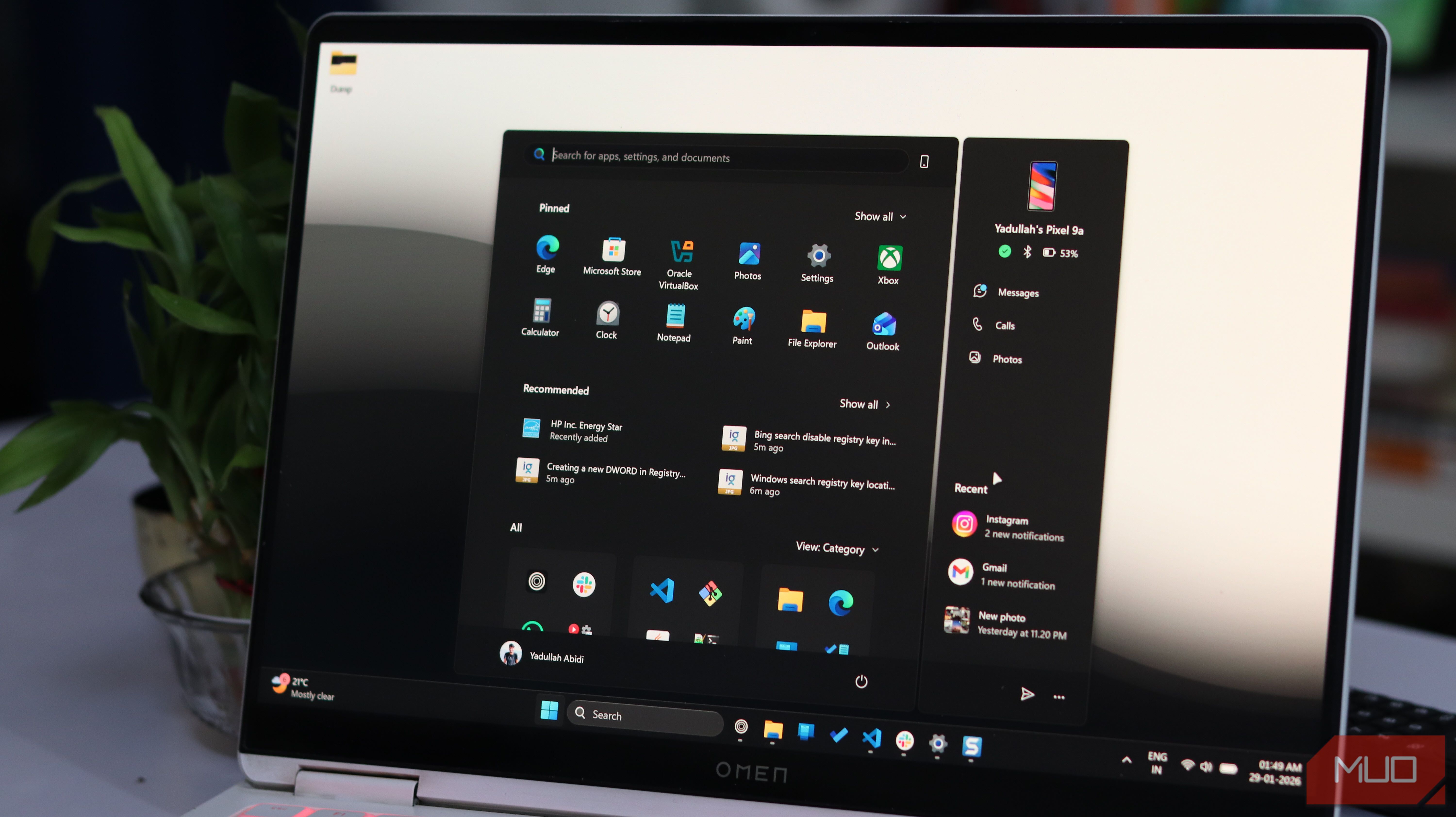
Windows 11 aims for a modern, streamlined experience, but for many users, the Start menu can feel anything but clean. It often greets you with a barrage of "Recommended" content, showcasing recently opened files, frequently used apps, and various suggestions that can overwhelm the space you primarily use to launch applications. If you're tired of this visual clutter and yearn for the simplicity of older Windows versions, you're in the right place.
This guide will walk you through the simple steps to disable all suggestions in your Windows 11 Start menu. By doing so, you'll reclaim valuable space, reduce distractions, and create a more personalized and efficient launchpad for your applications. Imagine a Start menu focused solely on the apps you choose to pin, free from unsolicited recommendations. That's what you'll achieve by following these instructions.
Before You Begin: What You'll Need
To effectively declutter your Start menu, ensure you meet these basic requirements:
- Windows 11 Operating System: These steps are specific to Windows 11.
- Up-to-date System: While the core functionality has been around, Microsoft has rolled out updates that provide more granular control over Start menu suggestions. Ensure your Windows 11 is updated to access all the options mentioned in this guide.
That's it! With these simple prerequisites, you're ready to transform your Start menu.
Step-by-Step Guide to a Cleaner Start Menu
Windows 11 provides straightforward settings to customize your Start menu experience. Follow these steps to disable unwanted suggestions:
Step 1: Open Windows Settings
There are several ways to open Settings:
- Right-click the Start button (the Windows icon on your taskbar) and select Settings from the context menu.
- Press the Windows key + I on your keyboard.
- Click the Start button, then click on the Settings gear icon.
Step 2: Navigate to Personalization Settings
In the Settings window:
- In the left-hand navigation pane, click on Personalization. This section allows you to customize the look and feel of your Windows experience, including the Start menu.
Step 3: Access Start Menu Settings
Within the Personalization section:
- On the right-hand side, scroll down and click on Start. This will open the specific settings related to the Start menu's behavior and content.
Step 4: Disable Suggestions and Recommendations
Now, you'll see a series of toggles under the "Start" settings. These allow you to control what appears in the "Recommended" section and other parts of your Start menu. To achieve a truly clean Start menu, you will want to disable the following options:
- Show recently added apps: Turn this toggle Off. This prevents newly installed applications from appearing in your recommendations.
- Show most used apps: Turn this toggle Off. This stops Windows from suggesting applications you frequently launch.
- Show recently opened items in Start, Jump Lists, and File Explorer: Turn this toggle Off. This is a crucial step to eliminate recommendations for recent documents and files.
- Show recommendations for tips, shortcuts, new apps, and more: This is often a broader category. Turn this toggle Off to prevent Windows from displaying general tips, suggestions for new applications, or other promotional content.
After disabling these options, your Start menu will immediately begin to feel less cluttered and more focused on the items you've chosen to pin. The change is often noticeable right away, offering a cleaner, more minimalist interface that many users prefer.
The Benefits of a Clutter-Free Start Menu
Disabling these suggestions isn't just about aesthetics; it significantly enhances your user experience:
- Improved Focus: Without constant recommendations, your Start menu becomes a dedicated launcher, helping you find and open applications more quickly and with less distraction.
- More Control: You decide what occupies the prime real estate of your Start menu. This level of personalization makes your computing experience feel more tailored to your workflow.
- Reduced Visual Noise: The "Recommended" section can take up a considerable portion of the Start menu. Removing it provides more breathing room and a cleaner visual interface.
While some users might find the recommendations genuinely helpful, particularly for discovering new features or quickly accessing recent documents, many others prefer a simpler approach. Windows 11 now empowers you to make that choice, moving away from a one-size-fits-all experience.
Troubleshooting Tips
If you encounter any issues or don't see the expected options:
- Update Windows 11: As mentioned, some of these granular controls were introduced in recent Windows updates. Go to
Settings > Windows Updateand check for any pending updates. Install them and restart your computer. - Restart Your PC: Sometimes, changes to system settings require a full restart to take effect. If your Start menu still looks cluttered after adjusting the settings, try restarting your computer.
Next Steps: Further Personalization
Now that your Start menu is lean and focused, consider exploring other personalization options in Windows 11:
- Rearrange Pinned Apps: Drag and drop your pinned applications to organize them in a way that suits you best.
- Create App Groups: You can group pinned apps into folders for even better organization.
- Customize Taskbar: Explore the
Personalization > Taskbarsettings to adjust what appears on your taskbar, further refining your desktop experience.
Embracing these customization options allows you to truly make Windows 11 your own, transforming it from an operating system that dictates your experience into one that adapts to your preferences.
FAQ
Q: Why does Windows 11 show recommendations in the Start menu in the first place? A: Microsoft includes recommendations in the Start menu to offer users quick access to recently opened files, frequently used applications, and other content it deems relevant. The intention is to provide convenience and help users discover new features or applications.
Q: Can I turn off only specific types of suggestions, or do I have to disable all of them?
A: Yes, Windows 11 allows for granular control. You can disable each type of suggestion (e.g., recently added apps, most used apps, recommended files, tips) individually using the toggles in the Settings > Personalization > Start menu. This means you can keep the recommendations you find useful while turning off others.
Q: What should I do if the options to disable suggestions are not visible in my Windows 11 settings?
A: If you don't see all the customization toggles mentioned in this guide, it's most likely because your Windows 11 system is not fully updated. Navigate to Settings > Windows Update and check for and install any available updates. After updating and restarting your computer, the full range of Start menu customization options should appear.
Related articles

Ditch Merge & Center: The Better Way to Align Text in Excel
Learn to use Excel's "Center Across Selection" to align text across cells without merging, avoiding common data manipulation issues. This guide provides steps to utilize this newly accessible feature and add it to your Quick Access Toolbar.

Ars Technica's Rocket Report: Your Essential Space Industry Briefing
Quick Verdict Ars Technica's Rocket Report, presented by veteran space reporter Stephen Clark, offers an invaluable and meticulously organized weekly (or similar frequency, implied by "Edition 9.15") digest of the most
regional: A two-person Seattle startup lands $1M to reinvent
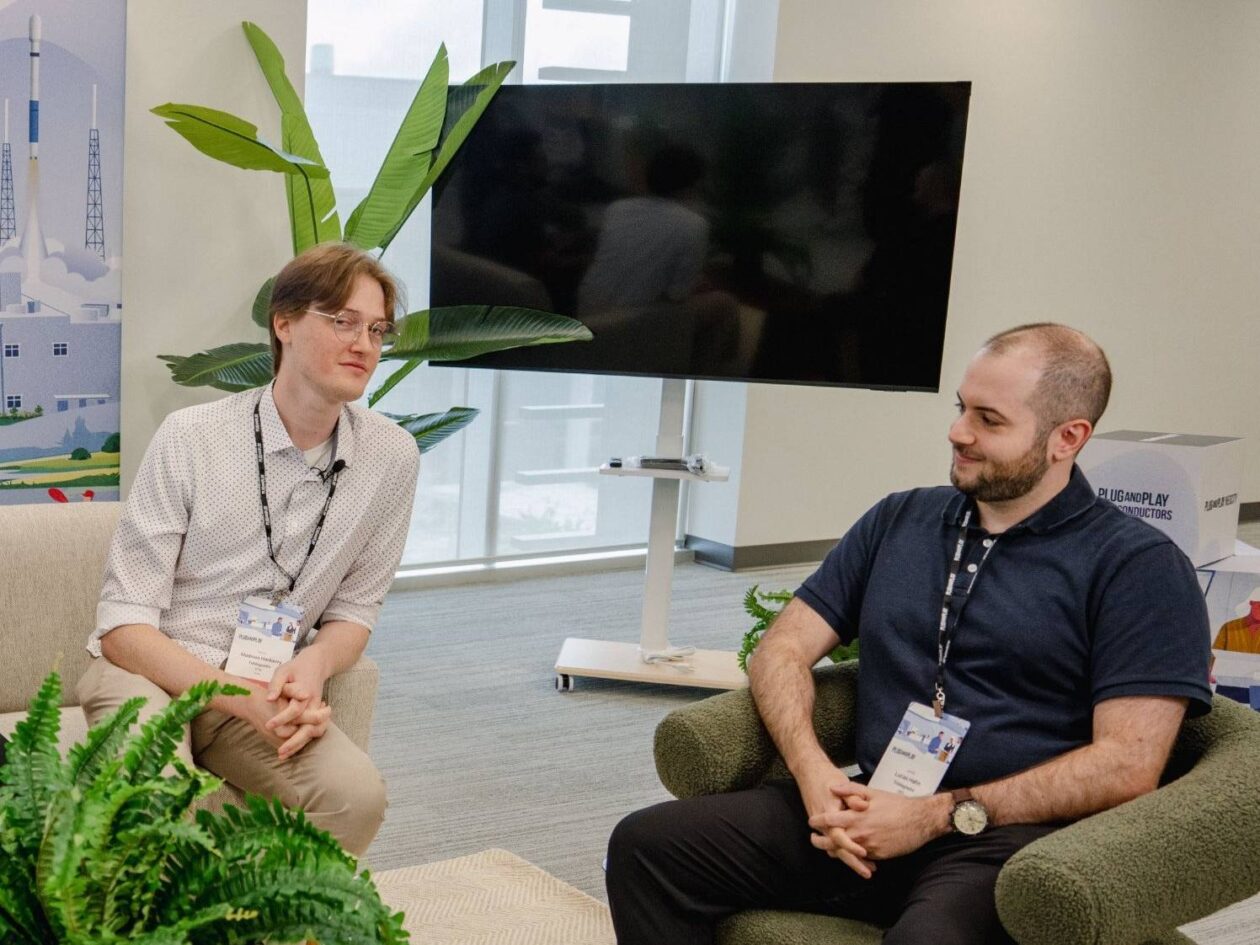
Seattle startup TriMagnetix has secured $1 million to develop semiconductor chips that consume 800 times less energy and are radiation-resistant. The two-person company, leveraging nanomagnetic technology, is targeting space applications and data centers. With new funding and key partnerships, TriMagnetix aims for commercial sales within a year.
regional: ‘What is fusion?’ Helion Energy harnesses the power of
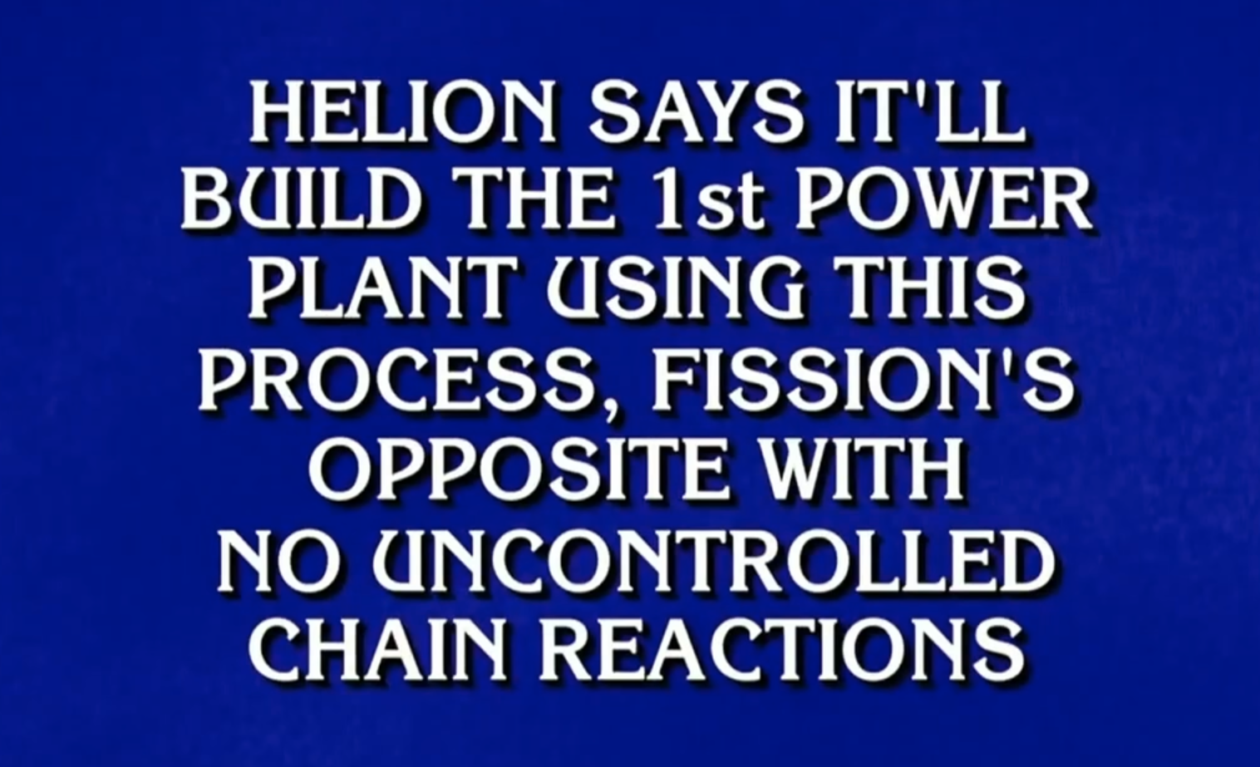
Helion Energy, the Everett-based fusion startup, gained mainstream attention this week after being featured as a clue on the popular game show "Jeopardy!". The $800 clue, part of a "Y Combinator" category, highlighted Helion's mission to build the first fusion power plant, bringing the concept of clean energy to a wider audience. CEO David Kirtley celebrated the "surreal" moment as a sign that reliable clean power is becoming more accessible.

Stop Android Auto Battery Drain: Essential Features to Disable and
Android Auto offers unparalleled convenience, bringing your phone's most useful features directly to your car's display. From navigation and calls to messages and music, it keeps you connected without distracting you

Windows October Update: A Must-Have Security Overhaul
Microsoft's October 2026 Windows update delivers a critical security overhaul, patching over 1,400 vulnerabilities including two zero-days, one already exploited. It's essential for all users, especially with several Windows 11 versions reaching end of support.