
How to Build a Personalized Desktop Dashboard with Themia
Learn to transform your Windows desktop into a personalized, productive dashboard using Themia's lightweight widgets in a few simple steps, enhancing your daily workflow and decluttering your screen.
Is your Windows desktop a cluttered mess, a graveyard of forgotten wallpapers, or just a wasted space? Imagine transforming it into a dynamic, personalized dashboard that puts exactly what you need, right where you need it, at a glance. With Themia, a lightweight and powerful desktop customization tool, you can achieve just that. This guide will walk you through setting up your ideal workspace, helping you declutter your digital life and boost your daily productivity.
What You'll Accomplish
By the end of this guide, you'll be able to:
- Install and set up Themia on your Windows machine.
- Understand and utilize Themia's extensive widget library.
- Design a custom desktop layout that streamlines your workflow and provides essential information instantly.
- Leverage advanced features like multi-screen setups and contextual layouts with Themia Pro.
Prerequisites
Before you begin, ensure you have the following:
- A computer running Windows 10 or Windows 11.
- An active internet connection to download Themia.
Step-by-Step Guide to Building Your Dashboard
1. Install Themia
Themia is built on the lightweight Tauri framework, meaning it's designed to run efficiently without bogging down your system.
- Download Themia: Visit the official Themia website and download the installer. The source mentions Nathaniel Walser as the developer.
- Run the Installer: Installation is quick and straightforward. Follow the on-screen prompts.
- Launch Themia: Once installed, Themia will launch and present a transparent canvas directly over your desktop, ready for customization.
2. Enter Edit Mode and Explore Widgets
This is where the magic begins. Themia offers a clean interface for adding and managing widgets.
- Enter Edit Mode: Right-click anywhere on your desktop. From the context menu, toggle the "Edit Mode" option. This will open Themia's widget library.
- Browse the Widget Library: You'll discover over thirty unique widget types organized into intuitive categories:
- Office: Folder, Email, Contacts, Calendar, To Do, OneDrive.
- System: CPU Monitor, RAM Monitor, GPU Monitor, Network Monitor, Disk Monitor, Battery, Bluetooth.
- Online: GitHub, RSS Feed, Stocks, Weather, Weather Forecast.
- Others: Clock, Now Playing, Calculator, Unit Converter, Notes, Bookmarks, and a Custom widget for advanced users.
3. Plan Your Personalized Layout
Before you start dragging widgets everywhere, take a deliberate approach. The key to a useful dashboard is discipline – only include what you actually look at repeatedly throughout the day. A cluttered dashboard quickly becomes one you ignore.
- Ask Yourself: What information do you need at a glance? What apps or files do you access most frequently? What system stats are important to monitor?
- Consider a Column Layout: A common and effective strategy, as highlighted by the source, is to organize widgets into columns. For example, dedicate a column to file management, another to system monitoring, and a third to app shortcuts or quick notes.
4. Add and Configure Your Essential Widgets
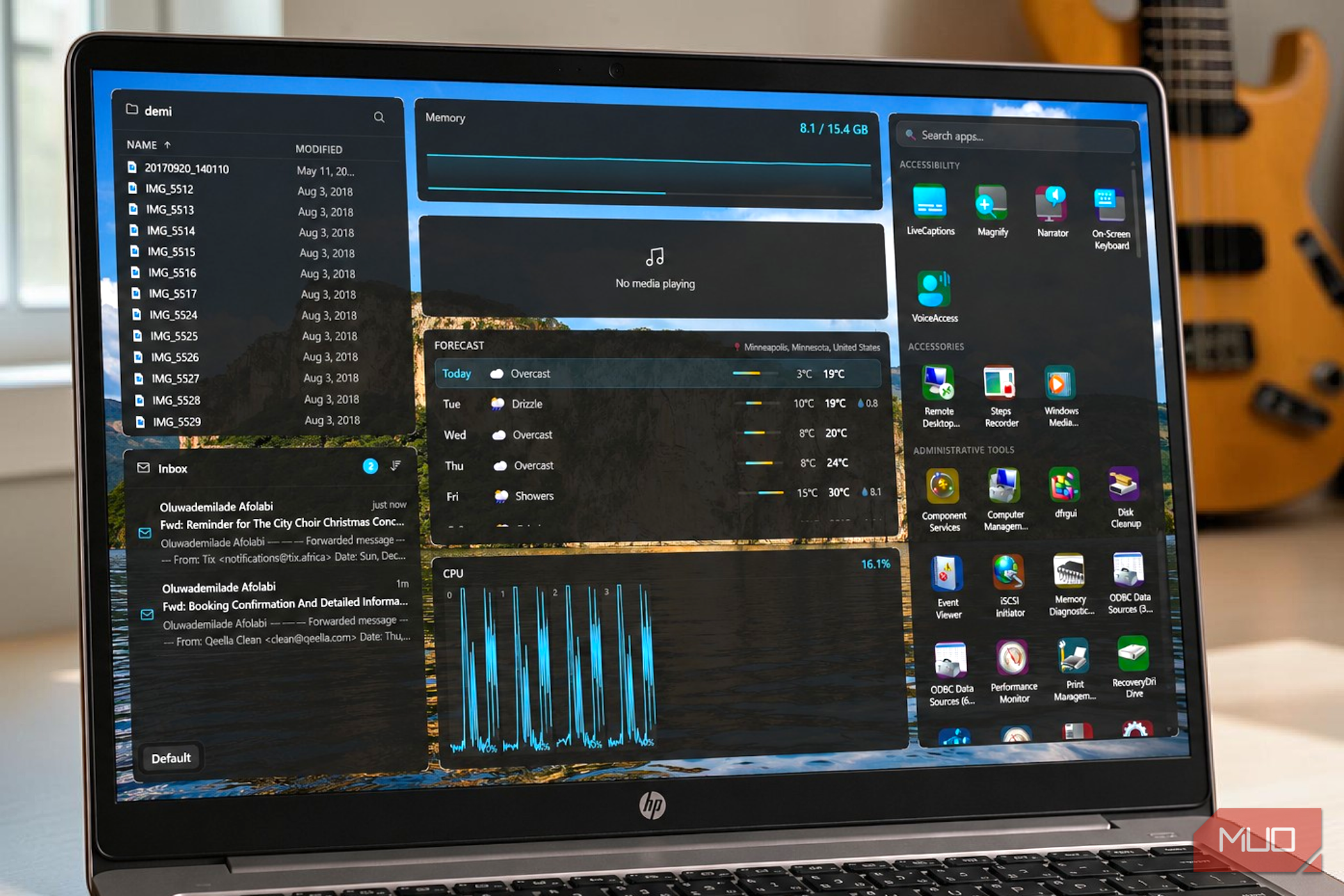
Based on your planning, start populating your desktop. Here's an example of a practical layout inspiration from the source:
-
Left Column: File and Communication Hub
- Folder Widget: Pin this to a frequently used directory. Configure it to display files in a clean list view, showing modification dates. You can even drag and drop files directly into this panel, managing your storage without opening File Explorer.
- Email Widget: Pulls from your inbox, previewing just enough body text to help you prioritize emails without opening your mail client.
-
Center Column: Core Information & Entertainment
- Memory Usage Graph: A real-time RAM consumption graph at the top.
- Now Playing Widget: Ready to display audio information when music or other media is active.
- Weather Forecast Widget: Anchor this to your location. It can occupy a generous space, showing today's conditions and a multi-day forecast with temperature ranges and precipitation data.
- CPU Monitor: Displays live processor load as a spiking graph, particularly useful during resource-intensive tasks.
-
Right Column: Application Access
- Apps Widget: Organize your frequently used applications by category. This functions as a persistent, searchable app drawer directly on your desktop, replacing the need to dig through folders or the Start menu.
5. Arrange and Customize for Optimal Flow
Once you've added your chosen widgets, it's time to refine their placement and appearance.
- Drag and Drop: Click and drag widgets to arrange them precisely where you want them on your canvas.
- Resize: Adjust the size of each widget to fit your layout and prioritize important information.
- Adjust Spacing: Ensure there's enough space between widgets to maintain readability and avoid a cluttered look. Themia's clean interface helps you maintain a polished appearance.
6. Leverage Multiple Screens and Themia Pro
For an even greater productivity boost, especially if you use a multi-monitor setup, consider Themia Pro.
- Free Tier Limitations: Themia's free tier allows up to ten widgets across two screens.
- Themia Pro Upgrade: For a one-time payment (currently discounted), Themia Pro unlocks unlimited widgets and screens, activation on up to five devices, and priority support. There's also a fourteen-day refund window if it doesn't meet your needs.
- Contextual Layouts: With Pro, you can build entirely different layouts for different mental contexts. Imagine:
- Primary Display (Work): A unified inbox, project folders, calendar, and a repository tracker for code commits.
- Secondary Monitor (Personal/Relaxed): News feeds, a stock chart, and a large music widget showing current album art.
- Quick Swapping: Use a single keyboard shortcut to seamlessly switch between your work layout and a calmer, off-duty arrangement of personal notes and clocks. This helps you mentally transition between tasks and states of mind.
Troubleshooting Common Issues
While Themia is designed to be stable, here are a few tips if you encounter minor hurdles:
- Widget Data Not Updating: For online widgets (weather, stocks, RSS), ensure your internet connection is stable. Sometimes, a quick restart of Themia or refreshing the individual widget's settings can resolve this.
- Dashboard Feels Cluttered: If your desktop starts to feel overwhelming, re-enter Edit Mode and ruthlessly evaluate each widget. Is it truly essential at a glance? Less is often more for sustained productivity.
- Performance Concerns: Themia is lightweight thanks to its Tauri framework. However, if you notice any unusual slowdowns, ensure your system meets Windows 10/11 requirements and consider closing any other resource-heavy background applications.
Next Steps for Your Customized Desktop
Your personalized dashboard is a living workspace that can evolve with your needs. Here are some ideas for continued optimization:
- Explore More Widgets: Dive deeper into Themia's library. You might discover new widgets that perfectly fit an evolving workflow.
- Experiment with Layouts: Don't be afraid to rearrange, resize, and even remove widgets as your daily habits change.
- Master Keyboard Shortcuts: If you've upgraded to Themia Pro, learn and utilize the keyboard shortcuts for quickly switching between different screen layouts.
- Integrate with Virtual Desktops: Combine Themia's powerful desktop customization with Windows' built-in virtual desktop features for an unparalleled level of organization.
FAQ
Q: What operating systems does Themia support? A: Themia is specifically designed for Windows 10 and Windows 11 operating systems.
Q: Is Themia a free application? A: Themia operates on a freemium model. The free tier allows you to use up to 10 widgets across two screens. For unlimited widgets, screens, activation on up to five devices, and priority support, you can upgrade to Themia Pro with a one-time purchase.
Q: Can I use Themia to manage files directly from my desktop? A: Yes, absolutely. The Folder widget allows you to pin any directory to your desktop and display its contents in a clean list view. You can even drag and drop files directly into these panels, enabling you to manage your actual storage drive without ever opening File Explorer.
Related articles
TCG Pocket Responds: A Much-Needed Pace Shift for Pokémon Fans
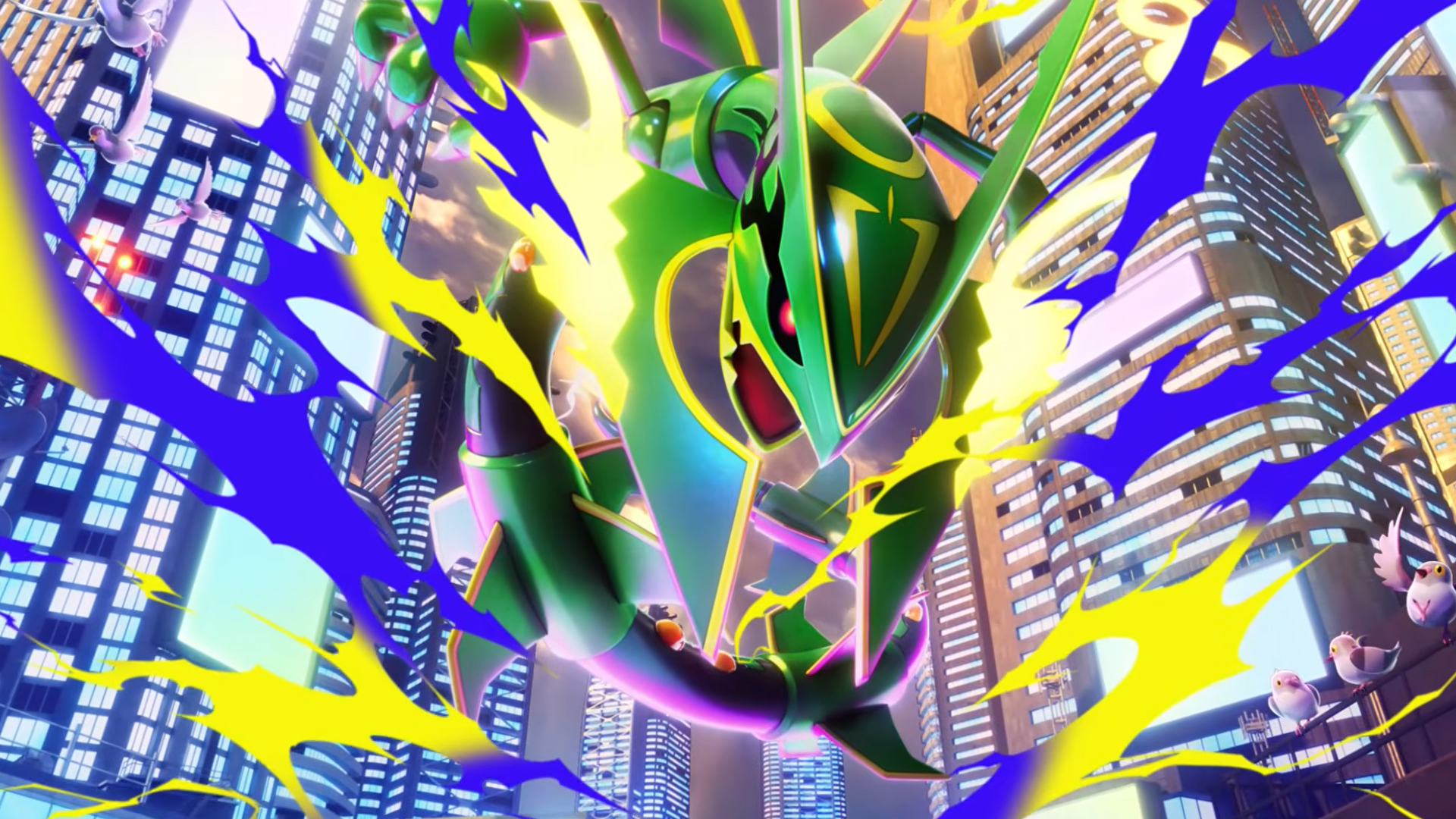
Pokémon TCG Pocket is rolling out a major update for its second anniversary, primarily addressing player concerns about overwhelming content releases by shifting to a six-week set schedule. This aims to curb player decline and improve overall engagement by giving trainers more time to collect and strategize. The update also adds new collection methods, improved deck-building features, and enhanced trading functionality.

Ditch Merge & Center: The Better Way to Align Text in Excel
Learn to use Excel's "Center Across Selection" to align text across cells without merging, avoiding common data manipulation issues. This guide provides steps to utilize this newly accessible feature and add it to your Quick Access Toolbar.
KDE Plasma 6.8: A Future-Focused 30th Anniversary Update
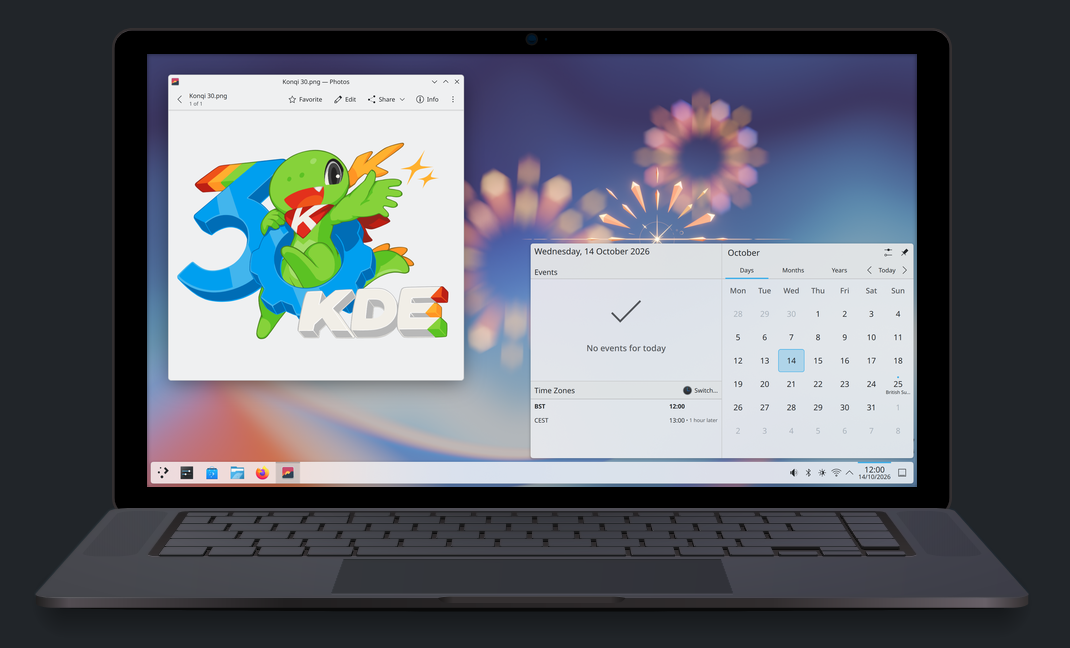
Quick Verdict KDE Plasma 6.8, arriving as the "30th Anniversary Edition," is a pivotal release that decisively pushes the desktop environment into the future. With a definitive farewell to native X11 sessions and a
Galaxy Watch One UI 9 Beta: Promising Progress, But Patience Needed
Galaxy Watch 8, Watch Ultra, and Watch 7 are receiving a new One UI 9 Watch beta build with bug fixes and a security patch. Active development signals progress, but a stable release date remains elusive.
regional: ‘What is fusion?’ Helion Energy harnesses the power of
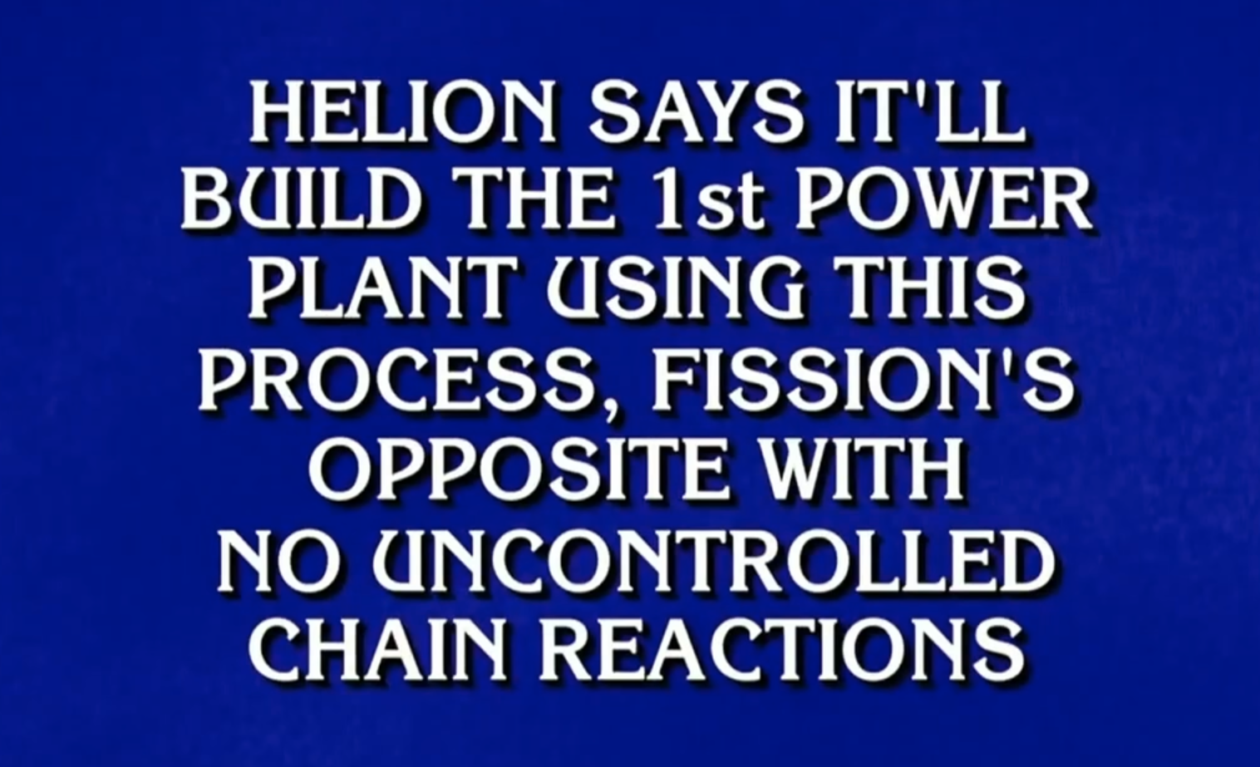
Helion Energy, the Everett-based fusion startup, gained mainstream attention this week after being featured as a clue on the popular game show "Jeopardy!". The $800 clue, part of a "Y Combinator" category, highlighted Helion's mission to build the first fusion power plant, bringing the concept of clean energy to a wider audience. CEO David Kirtley celebrated the "surreal" moment as a sign that reliable clean power is becoming more accessible.

Stop Android Auto Battery Drain: Essential Features to Disable and
Android Auto offers unparalleled convenience, bringing your phone's most useful features directly to your car's display. From navigation and calls to messages and music, it keeps you connected without distracting you