
Free Your Phone: Use a Home Server to Offload Photos & Save Money
Learn to transform an old laptop into a home server and use Immich to offload photos from your smartphone, freeing up storage and saving you from costly upgrades or cloud subscriptions.
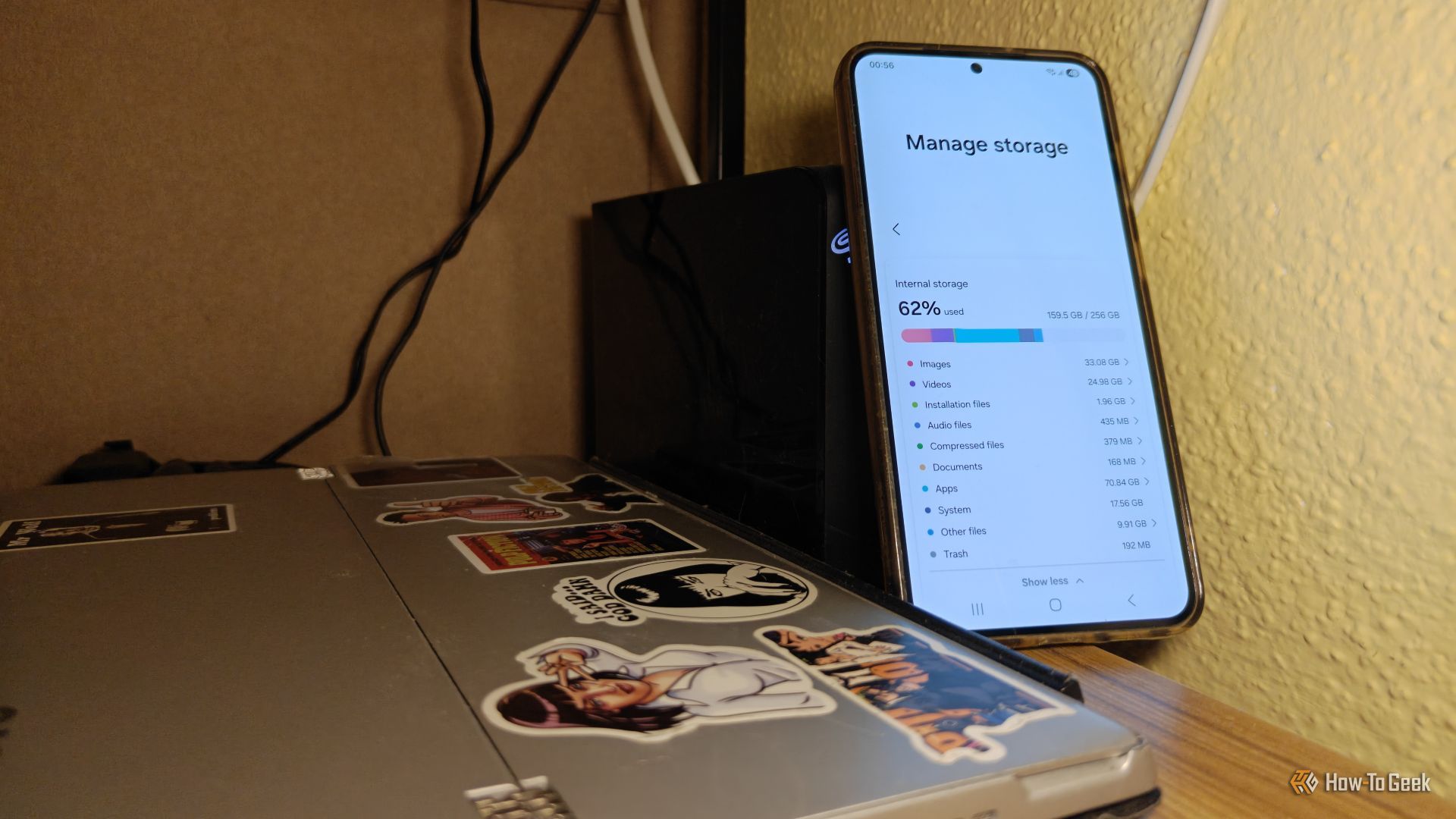
Is your smartphone constantly nagging you about low storage? Does it feel sluggish, even though it's still a powerful device? You're not alone. Many modern phones, like the Samsung Galaxy S23+, can slow down significantly once their internal storage approaches capacity, often due to an accumulation of high-quality photos and videos.
Instead of shelling out hundreds of dollars for a new phone with more storage or committing to ongoing cloud subscription fees, you can set up your own personal cloud using a home server and an open-source tool called Immich. This guide will walk you through the concept of building a simple home server to offload your precious memories, giving your phone a new lease on life and saving you significant money in the process.
What You'll Accomplish
By following this guide, you will learn how to:
- Utilize an old laptop or computer as a foundation for a home server.
- Set up Immich, a self-hosted photo and video backup solution, on your server.
- Automatically back up your smartphone's photos and videos in their original quality.
- Safely remove backed-up media from your phone, freeing up valuable storage space.
- Enjoy a faster, more responsive phone without sacrificing your digital memories.
- Save money by avoiding phone upgrades for storage or recurring cloud storage costs.
Prerequisites
Before you dive in, gather the following:
- An old laptop or computer: This will be the heart of your home server. It doesn't need to be top-of-the-line, but it should be functional.
- External storage: At least one external USB hard drive (e.g., a Seagate 6TB external HDD is a good starting point) or multiple smaller USB drives. Aim for significantly more storage than your phone currently holds.
- Internet connection: Essential for downloading software and initial setup.
- Basic computer skills: Familiarity with installing operating systems and navigating command lines (for server setup) will be beneficial.
- Your smartphone: The device you wish to free up storage on.
- Time and patience: Setting up a server involves a learning curve, but the long-term benefits are well worth it.
1. Laying the Foundation: Your Home Server
The first step is to transform your old laptop or computer into a dedicated home server. This will be the local storage and processing hub for your photos and videos.
Choose and Install a Server Operating System
While various options exist, a popular choice for home servers is Ubuntu Server. It's free, open-source, and provides a stable environment for running services like Immich.
- Prepare your old laptop: Ensure it can boot from a USB drive. You may need to access the BIOS/UEFI settings to change the boot order.
- Download Ubuntu Server: Head to the official Ubuntu website and download the latest Long Term Support (LTS) version of Ubuntu Server.
- Create a bootable USB drive: Use a tool like Rufus or Etcher to flash the Ubuntu Server ISO file onto a USB drive.
- Install Ubuntu Server: Boot your old laptop from the USB drive and follow the on-screen prompts to install Ubuntu Server. This typically involves partitioning the internal drive. For this setup, you can often choose a minimal installation to keep things lean.
Connect and Manage Your Storage
Your laptop's internal storage might be limited. The key to building a robust media server is external storage.
- Plug in external drives: Connect your USB hard drives to the newly set-up server. Modern USB 3.0 offers sufficient speed for most home server needs.
- Mount your drives: Once connected, you'll need to mount these drives to your server's file system so that Immich can access them. Tools like
fstaborsystemdcan be used to ensure these drives are automatically mounted every time your server starts. - Optional: Combine storage: For advanced users, tools like MergerFS can combine multiple physical drives into a single, larger storage pool, simplifying management and providing more seamless growth for your photo library. However, for a simpler setup, you can just dedicate a large external drive for your media.
2. Setting Up Immich for Photo Backup
Immich is a powerful self-hosted alternative to cloud photo services like Google Photos. It provides automatic background backups, a mobile app, and a web interface, all running on your own hardware.
Install Immich on Your Server
Installing Immich typically involves using Docker and Docker Compose, which simplifies the deployment of complex applications. While this guide focuses on the concept and phone interaction, you'll need to follow Immich's official documentation for the precise server-side installation steps, as they can be quite detailed and change over time.
- Install Docker and Docker Compose: Follow the official Docker documentation to install these tools on your Ubuntu Server.
- Follow Immich's deployment guide: Navigate to the Immich GitHub repository or documentation site. They provide comprehensive instructions for setting up Immich with Docker Compose, including database configuration, reverse proxy setup (for remote access, if desired), and defining your storage paths.
Configure Your Immich Instance
Ensure Immich is properly configured to use your external storage and any other settings you desire, such as user accounts if multiple people will be using it.
3. Integrate Your Smartphone with Immich
Once your Immich server is up and running, connecting your smartphone is the easiest part.
- Download the Immich mobile app: Search for "Immich" in your phone's app store (available for both Android and iOS).
- Connect to your server: Open the Immich app. It will prompt you for your server's address (IP address or domain name) and any necessary authentication details. Ensure your phone can access your server (e.g., both are on the same local network).
- Enable background backup: Within the Immich app settings, enable automatic background backup. This will ensure that new photos and videos are continuously uploaded to your server as you take them, without you having to manually intervene.
4. Free Up Space on Your Phone
This is where the magic happens – reclaiming your phone's internal storage.
- Wait for full sync: Allow Immich to complete its initial backup of all existing photos and videos on your phone. You can monitor the progress within the app.
- Access the "Free Up Space" feature: Once your media is fully backed up to your server, navigate to the "Free Up Space" option within the Immich mobile app. This feature is designed to safely remove local copies of photos and videos that have already been uploaded to your server.
- Select a cutoff date: The app usually allows you to select a date. Choosing a cutoff date from a few months or a year ago will prompt Immich to identify and remove all backed-up media older than that date from your phone's internal storage.
- Confirm the deletion: Review the selection and confirm the action. Immich will then proceed to remove the local copies, freeing up potentially tens or even hundreds of gigabytes of space on your device. All your memories remain safely stored on your home server in their original quality, accessible anytime via the Immich app or web interface.
Why This Solution Matters
Offloading your smartphone's media to a self-hosted server provides several significant advantages:
- Cost Savings: By extending the life of your current phone and avoiding the need to purchase a new, higher-storage model (which can cost an extra $200+), you save a substantial amount. The initial cost of an external hard drive (like a 6TB drive for around $159) is often much less than the price difference for more phone storage or years of cloud subscriptions.
- Performance Boost: A phone with near-full storage will inevitably slow down, even with powerful processors. By freeing up space, especially for temporary cache files, your phone will regain its responsiveness and feel faster in daily use.
- Data Control: Unlike cloud services where your data resides on someone else's servers, Immich gives you full control over where your photos and videos are stored. This offers peace of mind regarding privacy and ownership.
- Original Quality: Immich preserves your photos and videos in their original quality, unlike some cloud services that might compress media unless you pay for premium tiers.
- Scalability: As your photo library grows, expanding your home server's storage is typically straightforward – just add another hard drive.
Troubleshooting Tips
- Phone still feels sluggish: Ensure you've removed a significant amount of data. Check for other apps consuming excessive resources or consider clearing app caches manually if the problem persists.
- Immich not backing up: Verify that your server is running, the Immich Docker containers are active, and your phone has a stable network connection to the server. Check the Immich server logs for errors.
- Cannot access Immich app: Double-check your server's IP address or domain name. Ensure no firewalls are blocking the connection on either your server or router.
- Server storage full: It's a good practice to monitor your server's storage usage. If it's getting full, you can simply add another external hard drive and configure Immich to utilize the new space.
Best Practices
- Back up your server: While Immich stores your originals, a home server is still a single point of failure. Implement a robust backup strategy for your server's data, ideally to an offsite location or another external drive.
- Monitor server health: Regularly check your server's health, including disk usage, CPU temperature, and uptime. Tools like
htopordf -hcan be useful. - Consider a dedicated NAS: If your needs grow beyond a repurposed laptop, a dedicated Network Attached Storage (NAS) device offers better reliability, power efficiency, and scalability, often with user-friendly interfaces for managing storage and applications.
- Keep Immich updated: Regularly update Immich to benefit from new features, bug fixes, and security improvements.
Conclusion
By leveraging an old laptop and Immich, you can create a powerful, private, and cost-effective solution for managing your ever-growing library of photos and videos. This simple DIY project not only solves the annoying problem of low phone storage but also empowers you with full control over your data, saving you money and giving your smartphone a new lease on life. It's an excellent way to dip your toes into the world of home servers, proving that sometimes, the best solutions are the ones you build yourself.
FAQ
Q: Is it safe to delete photos from my phone after backing them up to Immich?
A: Yes, once Immich confirms the photos and videos are fully backed up to your server, it is safe to use the "Free Up Space" feature in the Immich app. This feature is designed to only remove local copies that have a verified backup, ensuring your memories are preserved in their original quality on your server.
Q: Do I need a fast internet connection for Immich?
A: For general use within your home network, the speed of your local network (Wi-Fi or Ethernet) is most important, not your internet connection speed. If you configure remote access to Immich from outside your home, then your internet upload speed will affect how quickly you can access your media remotely.
Q: Can I share photos from Immich with others?
A: Yes, Immich includes sharing capabilities similar to cloud services. You can create albums and generate shareable links to allow others to view your photos, either locally or remotely if you've configured public access for your server. Remember to consider security implications when enabling remote access or public sharing.
Related articles

Apple Unveils iPhone Duo: Pricey Foldable Sees Soaring Demand
Apple has officially entered the foldable smartphone arena with the long-anticipated launch of the iPhone Duo. Priced starting at a hefty $1,999, the device features a 5.4-inch outer display and a larger 7.6-inch inner

Ditch Merge & Center: The Better Way to Align Text in Excel
Learn to use Excel's "Center Across Selection" to align text across cells without merging, avoiding common data manipulation issues. This guide provides steps to utilize this newly accessible feature and add it to your Quick Access Toolbar.

Ars Technica's Rocket Report: Your Essential Space Industry Briefing
Quick Verdict Ars Technica's Rocket Report, presented by veteran space reporter Stephen Clark, offers an invaluable and meticulously organized weekly (or similar frequency, implied by "Edition 9.15") digest of the most
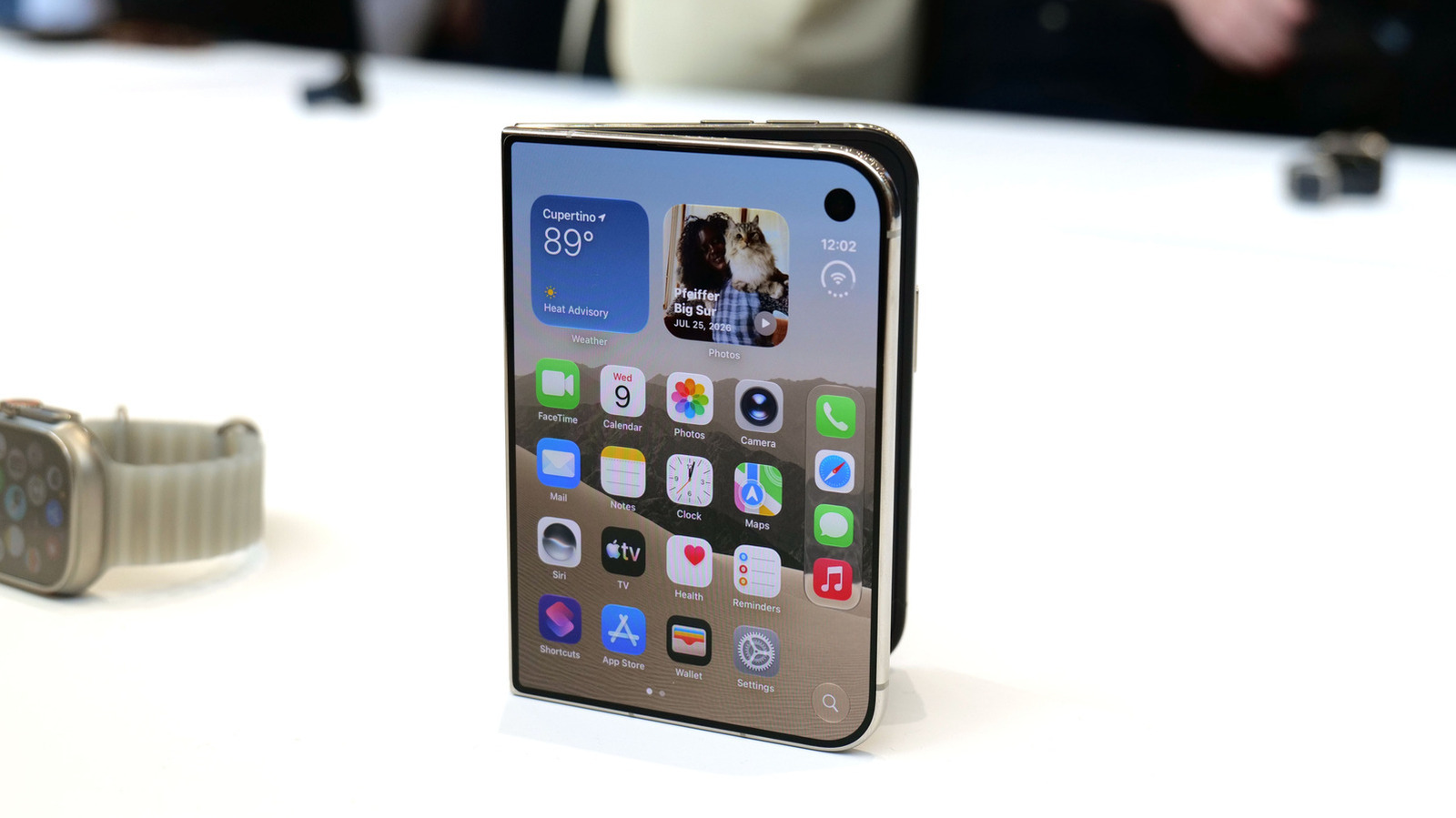
Apple iPhone Duo: A Daring Debut with Notable Compromises
Apple's highly anticipated iPhone Duo, priced at $2,000, has gone on pre-order. While hailed as "Apple's most exciting device in a decade" for its innovative foldable design and immersive display, it comes with significant drawbacks like the absence of FaceID and a premium camera.

Secure Internal API Access for AI Agents with MCP
AI agents accessing internal APIs directly pose significant risks, including identity loss, unrestricted queries, and security bypasses. The Model Context Protocol (MCP) offers a solution by defining explicit tools. A secure architecture involves an MCP server wrapping the API with strict input validation, coupled with a gateway that handles authentication, rate limiting, and audit logging, ensuring safe and accountable access.

Stop Android Auto Battery Drain: Essential Features to Disable and
Android Auto offers unparalleled convenience, bringing your phone's most useful features directly to your car's display. From navigation and calls to messages and music, it keeps you connected without distracting you