
Debloat Your Motorola Phone: Unlock Peak Performance and Speed
Is your Motorola phone feeling sluggish, bogged down by unnecessary pre-installed apps? You're not alone. Many budget Android phones, including Motorola models like the Moto G, come packed with what’s commonly known as
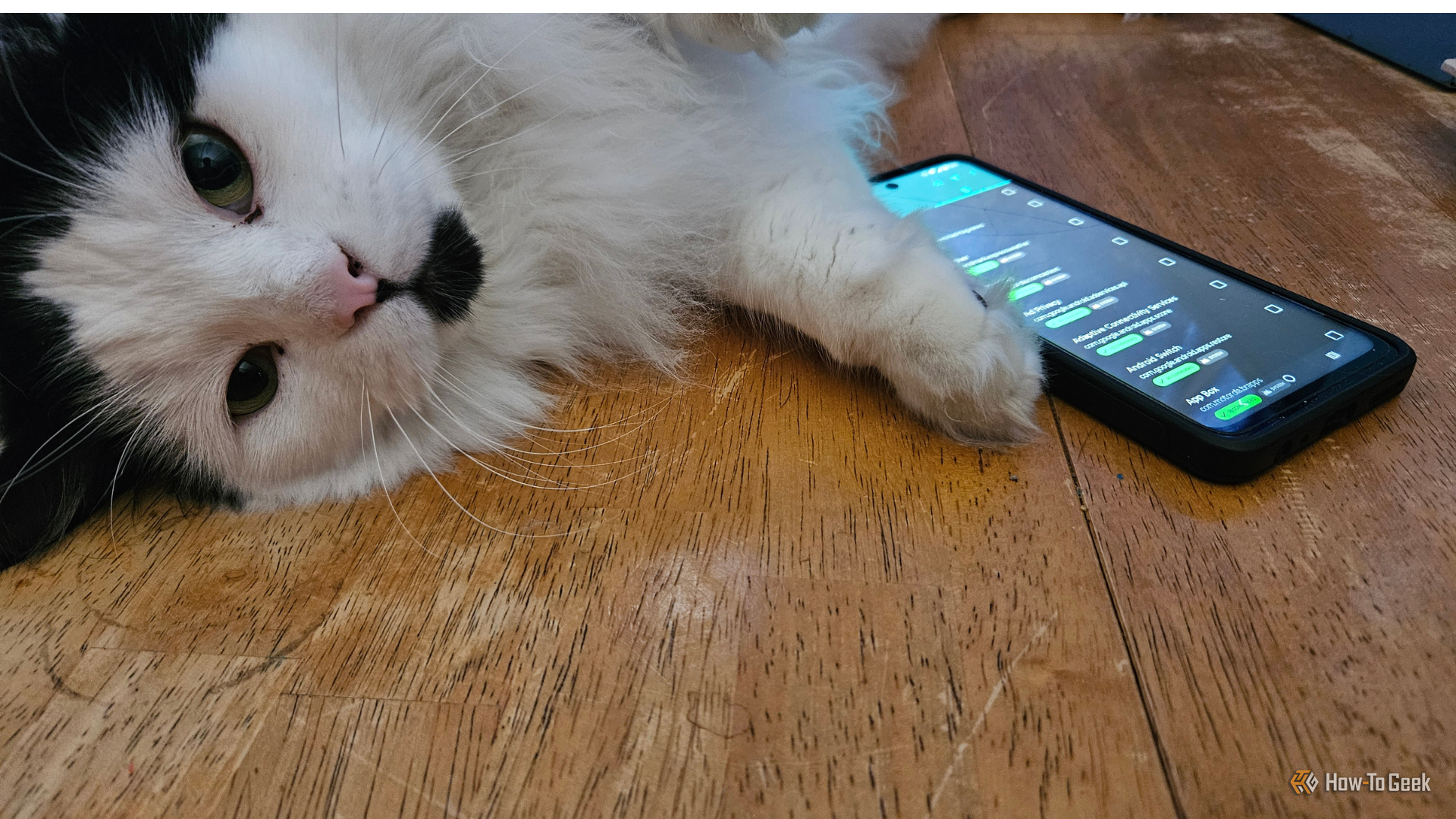
Is your Motorola phone feeling sluggish, bogged down by unnecessary pre-installed apps? You're not alone. Many budget Android phones, including Motorola models like the Moto G, come packed with what’s commonly known as bloatware – unwanted applications that consume storage, resources, and can significantly slow down your device. These can range from obscure news feeds to persistent weather apps and carrier-specific services.
But there’s good news! You can safely remove much of this bloatware without rooting your phone, giving it a new lease on life. This guide will walk you through using two powerful apps, Canta and Shizuku, to clean up your Motorola device, resulting in faster boot times, smoother app performance, and a much cleaner interface.
Crucial Safety Warning
Before you begin, understand that removing system apps carries a risk. Uninstalling critical applications can potentially soft-brick your device, causing it to get stuck in a boot loop and requiring a factory reset. This will erase all your data. Therefore:
- Always back up your important data before starting this process.
- Proceed at your own risk.
- Research any app you're unsure about before removing it.
Prerequisites: What You'll Need
To debloat your Motorola phone using Canta and Shizuku, you'll need the following:
- Your Motorola Phone: Ensure it's charged.
- Canta App: Available from the Google Play Store or F-Droid.
- Shizuku App: Download the APK file from its GitHub repository.
- A Network Connection: Required for Shizuku's pairing process.
Step-by-Step Guide to Debloating Your Motorola Phone
Step 1: Prepare Your Phone and Install Essential Apps
First, you need to enable developer options on your phone, which unlocks advanced settings necessary for this process.
- Enable Developer Options:
- Go to Settings on your Motorola phone.
- Scroll down and tap on About Phone.
- Find Device Identifiers (or similar, sometimes just “Build Number”).
- Tap Build Number repeatedly (about 8 times) until you see a message confirming "You are now a developer!".
- Enable Debugging Options:
- Go back to Settings, then navigate to System (or just find Developer Options directly).
- Tap on Developer Options.
- Enable USB debugging.
- Enable Wireless debugging.
- Install Canta: Download and install Canta from the Google Play Store or F-Droid.
- Install Shizuku: Download the Shizuku APK file directly from its GitHub page and install it.
Step 2: Connect Shizuku and Canta
Shizuku acts as a bridge, allowing Canta to perform powerful uninstall actions without needing root access.
- Launch Shizuku: Open the Shizuku app.
- Start Wireless Debugging Pairing: Inside Shizuku, follow the prompts to initiate pairing via wireless debugging.
- Get Pairing Code: Go to your phone's Developer Options > Wireless Debugging to find the pairing code.
- Complete Pairing: Enter the pairing code into Shizuku. Shizuku requires a network connection for this step.
- Grant Canta Access: Once Shizuku is running, open Canta. It will detect Shizuku and prompt you to grant it the necessary permissions. Grant Canta access.
Step 3: Identify and Remove Bloatware Safely
Now that Canta is ready, you can start identifying and removing unwanted applications. Exercise caution and research before removing.
- Navigate Canta's Interface: Open Canta. You'll see a list of installed applications.
- Understand Badge Info: Canta provides a helpful "Badge Info" guide. To access it, tap the three dots in the upper right corner of the Canta interface and select Badge Info. This guide categorizes apps:
- Recommended (green): Generally safe to remove. These are your primary targets for debloating.
- Advanced (yellow): May cause minor issues or require alternative apps. Proceed with caution.
- System (gray): Core system apps; generally, you should not remove these.
- Expert (red) or Unsafe (purple): Do NOT remove these! They are vital for your phone’s operation and removing them can severely damage your device.
- Research Apps: If unsure, cross-reference Canta's recommendations with external resources like the Universal Debloater Alliance list.
- Start with "Recommended" Apps: Begin by removing apps labeled "Recommended." Common bloatware examples include:
- Specific weather apps (e.g., 1Weather)
- News feeds (e.g., #news, Smart Feed)
- Carrier-specific apps (e.g., Boost Mobile, Verizon, AT&T bloatware)
- Unnecessary app stores or notification services
- Other obscure services like "Android Switch," "federated computations," or "health and fitness framework."
- Consider "Advanced" Apps: For "Advanced" apps like Google Chrome, you might remove them if you have a preferred alternative (e.g., Vivaldi).
- Avoid Essential Features: Be mindful that some seemingly unnecessary apps, like gesture-based functions or adaptive volume control, might actually be features you use. Avoid removing these if you want to keep that functionality.
Step 4: Test and Observe Performance Improvements
After removing a batch of apps, test your phone's performance to gauge the impact.
- Remove Incrementally: Remove a few "Recommended" apps, then pause and test your phone.
- Reboot Your Phone: A quick reboot can help finalize changes and reveal immediate performance gains.
- Notice the Difference: You should observe faster app launches, quicker package installations (for apps like Termux), and smoother video and music playback. The device will feel significantly more responsive and less cluttered.
Troubleshooting Tip
If you accidentally remove a critical app and your phone enters a boot loop (soft-bricks), your primary recourse is a factory reset. This will wipe all data and return your phone to its original state. This is why a data backup is non-negotiable before starting.
Conclusion
Debloating your Motorola phone using Canta and Shizuku can truly make it feel like a brand-new device. By safely removing unwanted bloatware, you reclaim valuable resources, enhance speed, and simplify your user experience. The process is straightforward and, with proper caution, can yield impressive results without the complexities and risks associated with rooting. Enjoy your faster, cleaner Motorola phone!
FAQ
Q: Is rooting my phone necessary for this process?
A: No, the Canta and Shizuku method allows you to remove bloatware without rooting your device, offering a lower-risk approach than traditional ADB commands or custom firmware.
Q: What should I do if my phone gets stuck in a boot loop after removing an app?
A: If your phone becomes soft-bricked and gets stuck in a boot loop, you will likely need to perform a factory reset to restore its functionality. Always back up your data before starting any debloating process to minimize data loss.
Q: How do I know which apps are safe to remove?
A: Canta provides a "Badge Info" guide within the app, labeling apps as Recommended (usually safe), Advanced (might cause issues but often replaceable), System (core apps, avoid), Expert, or Unsafe (do not remove as they can break vital system parts). Always research an app you're unsure about before uninstalling it to ensure it's not crucial for your device's operation.
Related articles

Apple Unveils iPhone Duo: Pricey Foldable Sees Soaring Demand
Apple has officially entered the foldable smartphone arena with the long-anticipated launch of the iPhone Duo. Priced starting at a hefty $1,999, the device features a 5.4-inch outer display and a larger 7.6-inch inner
Android 17 QPR2 Beta 7.1: The Performance Relief You've Been Waiting
Android 17 QPR2 Beta 7.1: Finally Fixing the QPR1 Performance Woes Verdict: Android 17 QPR2 Beta 7.1 is a crucial and highly anticipated software update for Google Pixel users, specifically targeting and resolving the

Ditch Merge & Center: The Better Way to Align Text in Excel
Learn to use Excel's "Center Across Selection" to align text across cells without merging, avoiding common data manipulation issues. This guide provides steps to utilize this newly accessible feature and add it to your Quick Access Toolbar.

Ars Technica's Rocket Report: Your Essential Space Industry Briefing
Quick Verdict Ars Technica's Rocket Report, presented by veteran space reporter Stephen Clark, offers an invaluable and meticulously organized weekly (or similar frequency, implied by "Edition 9.15") digest of the most
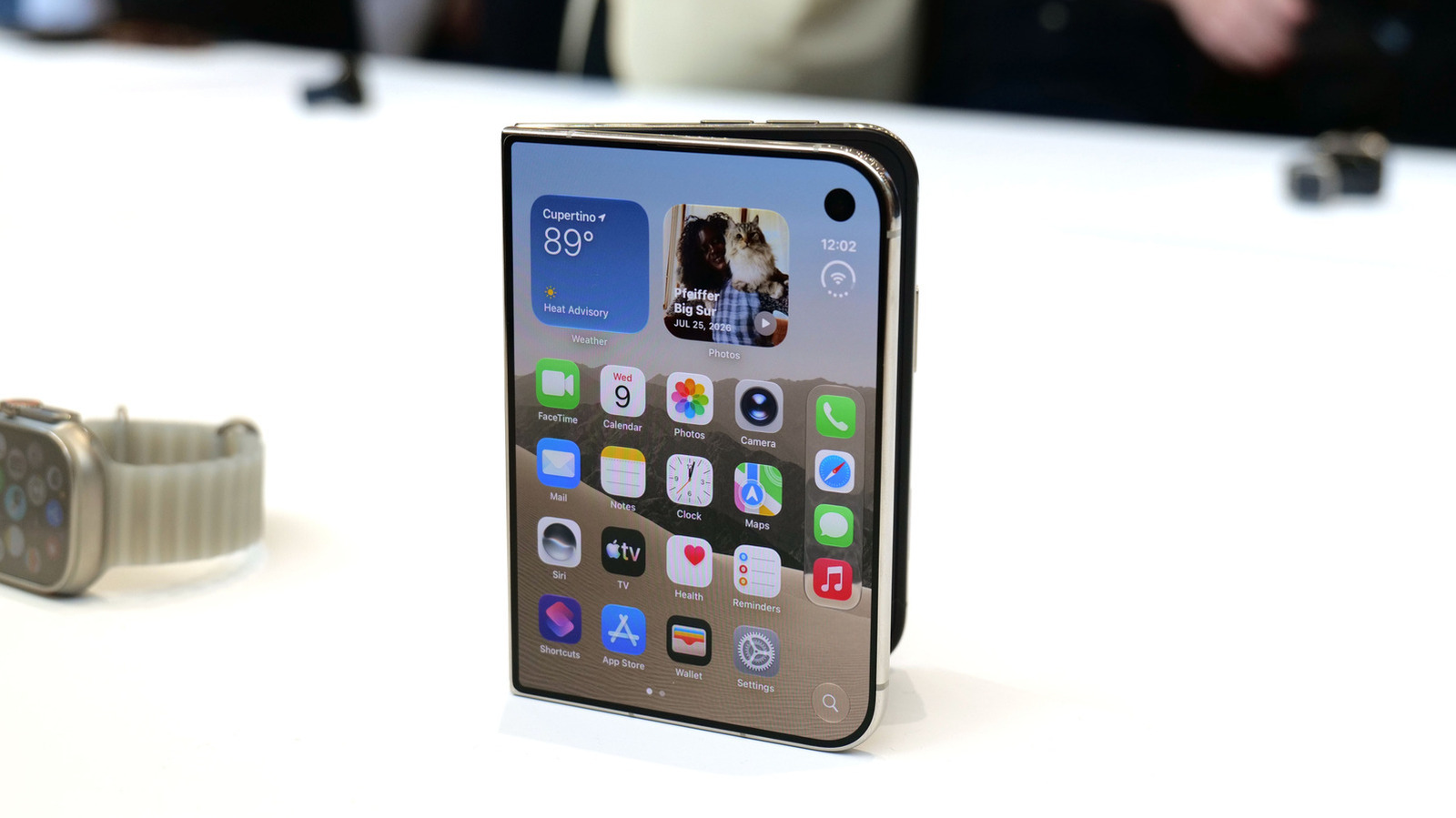
Apple iPhone Duo: A Daring Debut with Notable Compromises
Apple's highly anticipated iPhone Duo, priced at $2,000, has gone on pre-order. While hailed as "Apple's most exciting device in a decade" for its innovative foldable design and immersive display, it comes with significant drawbacks like the absence of FaceID and a premium camera.

Stop Android Auto Battery Drain: Essential Features to Disable and
Android Auto offers unparalleled convenience, bringing your phone's most useful features directly to your car's display. From navigation and calls to messages and music, it keeps you connected without distracting you