
Building Responsive, Accessible React UIs with Semantic HTML
Build responsive and accessible React UIs. This guide uses semantic HTML, mobile-first design, and ARIA to create inclusive applications, ensuring seamless user experiences across devices.

Building modern React UIs demands responsive layouts and accessible user experiences for all. By integrating semantic HTML, responsive design, and accessibility best practices like ARIA and keyboard navigation, developers create interfaces that perform across all devices and for every user. This article explores designing scalable, inclusive React UIs with practical examples.
Why Accessibility and Responsiveness Matter
Responsive and accessible design is fundamental, impacting usability, performance, and reach. It supports users with disabilities, improves SEO, ensures consistent UX across devices, and boosts performance. Ignoring these leads to broken layouts, poor screen reader compatibility, and limited user engagement.
Core Principles of Accessible and Responsive Design
Foundational principles are crucial for effective implementation.
1. Semantic HTML First
Semantic HTML uses elements describing their meaning (e.g., <button> instead of <div> for actions). This provides built-in accessibility, better SEO, and improved readability, as screen readers understand them automatically.
Non-semantic: html
<div onClick={handleClick}>Submit</div>Semantic: html <button type="button" onClick={handleClick}>Submit</button>
2. Mobile-First Design
Mobile-first design begins with smallest screens, progressively enhancing layouts for larger displays. It prioritizes core content and functionality, keeping layouts simple and performant for mobile users, ensuring default mobile optimization and scaling with media queries.
css .container { display: flex; flex-direction: column; /* Mobile: vertical / } @media (min-width: 768px) { .container { flex-direction: row; / Desktop: horizontal */ } }
3. Progressive Enhancement
Progressive enhancement builds a baseline user experience for all, then layers advanced features. It ensures core functionality remains accessible regardless of device, browser, or network. A basic HTML form provides usability; React can then enhance it.
html
<form> <label htmlFor="email">Email</label> <input id="email" type="email" /> <button type="submit">Submit</button> </form>4. Keyboard Accessibility
Users must navigate and interact with your application solely via keyboard. This is vital for users with motor disabilities and power users. Interactive elements need focusability, logical tab order, and visible focus indicators. The <button> element inherently handles keyboard interaction. Use custom components with role="button" and tabIndex only if native elements are insufficient.
Bad Example (Not Accessible) html
<div onClick={handleClick}>Submit</div>Good Example html <button type="button" onClick={handleClick}>Submit</button>
Using Semantic HTML in React
Semantic HTML elements offer default accessibility behaviors (focus management, keyboard interaction), reducing React component complexity. They provide superior screen reader support and make code more maintainable.
Non-semantic: html
<div className="nav"> <div onClick={goHome}>Home</div> </div>Semantic: html
<nav> <a href="/">Home</a> </nav>Using <nav> and <a> clearly defines navigation and provides built-in link behavior.
Structuring a Page with Semantic Elements
Organizing your React app's layout with semantic HTML creates clear, accessible regions for developers and assistive technologies. This defines a logical hierarchy, improving screen reader navigation, SEO, and readability.
javascript function Layout() { return ( <> {/* Skip link for keyboard and screen reader users */} <a href="#main-content" className="skip-link"> Skip to main content </a> <header> <h1>My App</h1> </header> <nav> <ul> <li><a href="/">Home</a></li> </ul> </nav> <main id="main-content"> <section> <h2>Dashboard</h2> </section> </main> <footer> <p>© 2026</p> </footer> </> ); }
Building Responsive Layouts
Responsive layouts adapt UI seamlessly across devices using modern CSS.
Using CSS Flexbox (One-Dimensional):
css .container { display: flex; flex-direction: column; /* Mobile: vertical / } @media (min-width: 768px) { .container { flex-direction: row; / Desktop: horizontal */ } }
Ensures content readability on small screens and efficient space use on larger displays.
Using CSS Grid (Two-Dimensional):
css .grid { display: grid; grid-template-columns: 1fr; /* Mobile: single column / gap: 16px; } @media (min-width: 768px) { .grid { grid-template-columns: repeat(3, 1fr); / Desktop: three columns */ } }
Grid simplifies complex layouts, scaling from single to multi-column designs.
React Example:
javascript function CardGrid() { return ( <div className="grid"> <div className="card">Item 1</div> <div className="card">Item 2</div> <div className="card">Item 3</div> </div> ); }
The CardGrid component uses the .grid class for responsive behavior, separating structure from layout and enhancing reusability.
Accessibility with ARIA
ARIA attributes augment accessibility, especially for custom React components lacking full native HTML semantics. ARIA provides semantic information via Roles (element type) and States/Properties (condition).
Critical Rule: Use Native HTML First. Only apply ARIA when native elements are insufficient (e.g., custom modals, dynamic updates); incorrect usage can reduce accessibility. For production, consider robust libraries like react-aria, Radix UI, or Headless UI.
Example: Accessible Modal
javascript function Modal({ isOpen, onClose }) { const dialogRef = React.useRef(); React.useEffect(() => { if (isOpen) { dialogRef.current?.focus(); } }, [isOpen]);
if (!isOpen) return null;
return ( <div role="dialog" aria-modal="true" aria-labelledby="modal-title" tabIndex={-1} ref={dialogRef} onKeyDown={(e) => { if (e.key === 'Escape') onClose(); }} > <h2 id="modal-title">Modal Title</h2> <button type="button" onClick={onClose}>Close</button> </div> ); }
This modal uses role="dialog", aria-modal="true", aria-labelledby, tabIndex={-1} for programmatic focus, and Escape key support.
Key ARIA Attributes
role: Defines an element's type (e.g.,dialog).aria-label: Provides an accessible name.aria-hidden: Hides elements from assistive technologies.aria-live: Announces dynamic content changes automatically.
Example: Accessible Dropdown (Custom Component)
javascript function Dropdown({ isOpen, toggle }) { return ( <div> <button type="button" aria-expanded={isOpen} aria-controls="dropdown-menu" onClick={toggle} > Menu </button> {isOpen && ( <ul id="dropdown-menu"> <li> <button type="button" onClick={() => console.log('Item 1')}> Item 1 </button> </li> <li> <button type="button" onClick={() => console.log('Item 2')}> Item 2 </button> </li> </ul> )} </div> ); }
This dropdown uses aria-expanded and aria-controls. It leverages native <button>, <ul>, <li>, correctly interpreted by screen readers without complex ARIA role="menu" needs.
Practical Takeaways
Building inclusive React UIs hinges on prioritizing semantic HTML, mobile-first design, modern CSS layouts, and judicious ARIA. Favor native HTML, ensure robust keyboard accessibility, and structure content logically for a superior, universal UX.
FAQ
Q: Why is "Mobile-First Design" a core principle for responsive UIs?
A: It prioritizes essential content for small screens, aligning with user access. This creates simpler, performant mobile layouts, then progressively enhances for larger displays, mitigating complexity.
Q: When should ARIA attributes be used or avoided?
A: Use ARIA when native HTML can't convey semantics for custom UI components (e.g., modals, dynamic updates). Avoid if a native HTML element exists; incorrect ARIA use can reduce accessibility. Always "use native HTML first."
Q: How does semantic HTML benefit screen reader users?
A: Semantic HTML elements (e.g., <header>, <button>) provide inherent roles and context screen readers interpret. This allows users to navigate logical page regions, understand interactive elements, and use keyboard commands, significantly improving their experience.
Related articles

TCG Pocket Responds: A Much-Needed Pace Shift for Pokémon Fans
Pokémon TCG Pocket is rolling out a major update for its second anniversary, primarily addressing player concerns about overwhelming content releases by shifting to a six-week set schedule. This aims to curb player decline and improve overall engagement by giving trainers more time to collect and strategize. The update also adds new collection methods, improved deck-building features, and enhanced trading functionality.

Ditch Merge & Center: The Better Way to Align Text in Excel
Learn to use Excel's "Center Across Selection" to align text across cells without merging, avoiding common data manipulation issues. This guide provides steps to utilize this newly accessible feature and add it to your Quick Access Toolbar.

AI's Confidence vs. Formal Methods' Rigor: Design Flaws & Verification
While AI accelerates code generation, formal methods remain critical for ensuring system correctness. Languages like TLA+ and tools like Quint enable developers to model and verify system designs before coding, catching subtle flaws. Quint makes formal methods more accessible with developer-friendly syntax and executability. This approach is vital for verifying AI-generated code through trace validation and model-based testing, ensuring reliability against real-world data.
Ephemeral PR Preview Environments on GKE: A Deep Dive
Every development team eventually grapples with the limitations of shared staging environments. The familiar scenario: multiple features deployed simultaneously, database migrations clashing, and the phrase "it works on

Secure Internal API Access for AI Agents with MCP
AI agents accessing internal APIs directly pose significant risks, including identity loss, unrestricted queries, and security bypasses. The Model Context Protocol (MCP) offers a solution by defining explicit tools. A secure architecture involves an MCP server wrapping the API with strict input validation, coupled with a gateway that handles authentication, rate limiting, and audit logging, ensuring safe and accountable access.
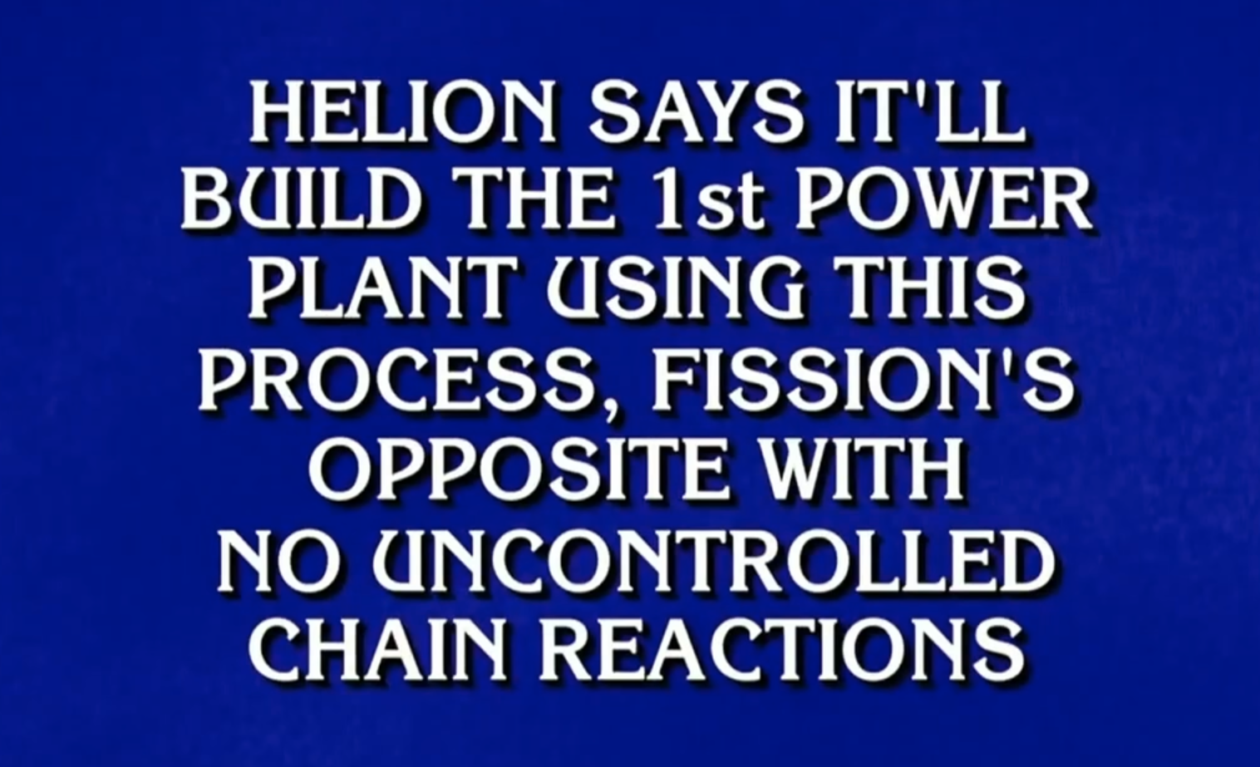
regional: ‘What is fusion?’ Helion Energy harnesses the power of
Helion Energy, the Everett-based fusion startup, gained mainstream attention this week after being featured as a clue on the popular game show "Jeopardy!". The $800 clue, part of a "Y Combinator" category, highlighted Helion's mission to build the first fusion power plant, bringing the concept of clean energy to a wider audience. CEO David Kirtley celebrated the "surreal" moment as a sign that reliable clean power is becoming more accessible.