
Automate Data Tasks in Excel: Faster Results Without AI Chatbots
Most people assume that artificial intelligence (AI) chatbots like ChatGPT are the quickest way to clean, sort, or analyze data. However, Excel offers a powerful suite of automation features that can handle a vast array
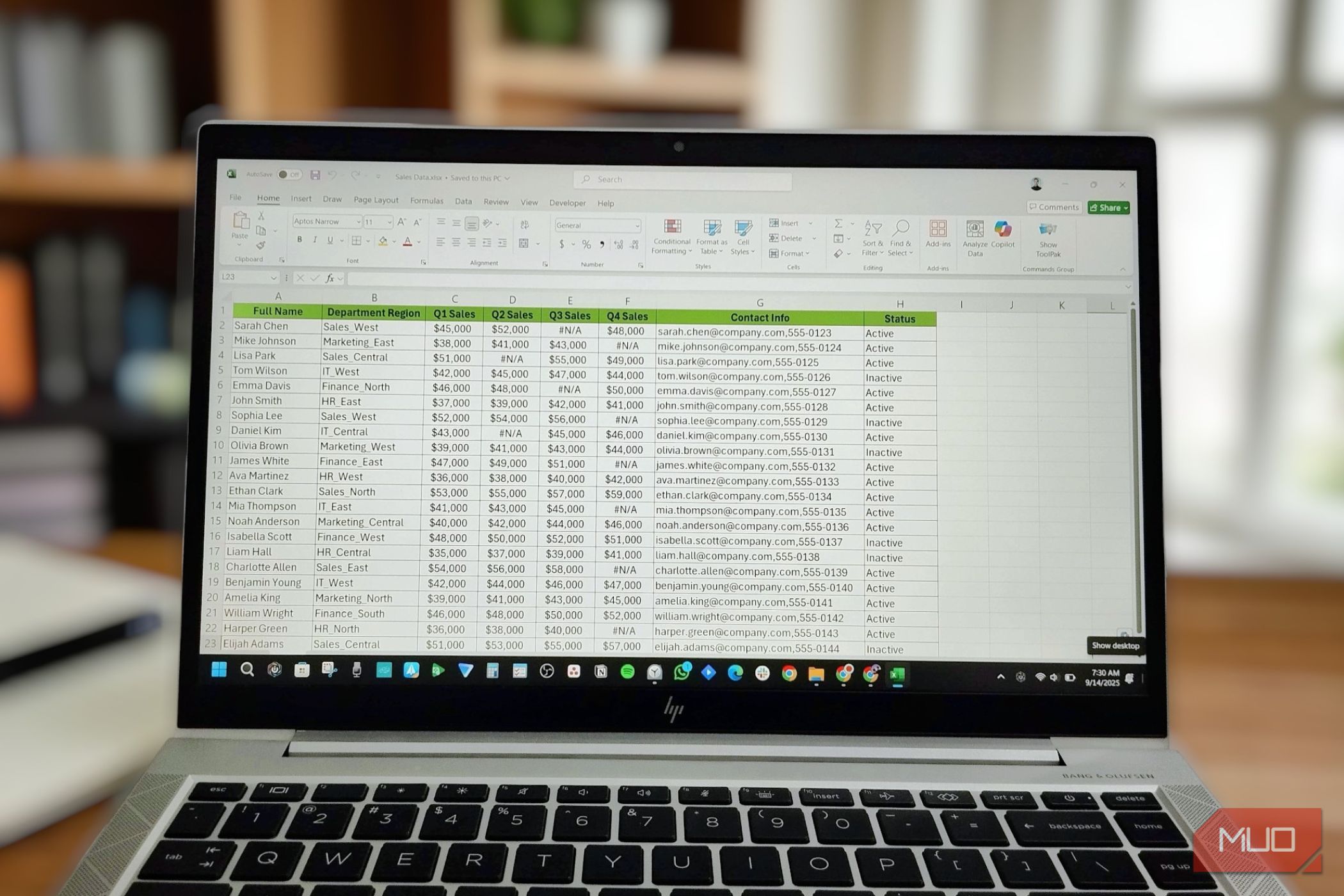
Most people assume that artificial intelligence (AI) chatbots like ChatGPT are the quickest way to clean, sort, or analyze data. However, Excel offers a powerful suite of automation features that can handle a vast array of data tasks with remarkable speed, often surpassing external tools. The challenge often lies in knowing which specific feature to use and where to locate it within Excel's menus.
This guide will walk you through Excel's essential automation capabilities. Once you understand their purpose and discover their exact locations, you'll be able to leverage these built-in tools to automate repetitive data work, saving you time and streamlining your workflow without needing to open other applications.
What You'll Accomplish
By the end of this guide, you will be able to:
- Automate repetitive data cleaning and organization: Effortlessly transform raw data into a usable format.
- Quickly summarize and analyze large datasets: Generate insightful reports and summaries in seconds.
- Create reusable scripts: Record your actions to run complex workflows on demand.
- Instantly extract and reformat text patterns: Swiftly clean up inconsistent text entries.
- Build dynamic reports: Create outputs that automatically update as your source data changes.
Prerequisites
To follow this guide, you'll need:
- Microsoft Excel: Access to the desktop application (Windows or macOS) or the web app.
- Basic familiarity with Excel: Understanding of cells, columns, rows, and basic navigation.
- (Optional but recommended for Macros) Enable the Developer tab in Excel.
Key Excel Automation Features
Let's explore the core automation tools built into Excel, how they work, and where to find them.
1. Power Query: Import, Clean, and Reorganize Data Without Repeating Yourself
Power Query is your go-to feature if you frequently import data from external sources—like files, databases, or web pages—and then spend time cleaning, splitting columns, fixing data types, or merging tables. It's designed to automate these exact processes.
What it does: Power Query records every transformation you apply to your data as a series of steps. The next time your source data updates, you simply hit "Refresh," and Power Query reruns all those steps automatically. It can even combine data from different sources into one clean table while keeping your original source data untouched.
How to find it:
- Navigate to the Data tab on the Excel ribbon.
- Look for the Get & Transform Data group.
- From here, you can select options like "From Text/CSV," "From Web," or "From Database" to connect to your data source.
Tip: Power Query is invaluable for establishing robust, repeatable data pipelines, ensuring consistency and saving immense time on recurring data imports and cleanups.
2. PivotTables: Drag, Drop, and Watch Your Data Organize Itself
PivotTables have been an integral part of Excel for years, offering a remarkably fast way to summarize, count, and analyze data that many users still attempt to do with manual formulas.
What it does: This feature allows you to instantly generate summarized totals (sums, counts, averages, etc.) by simply selecting your data and dragging fields into designated areas. You can quickly slice and dice the same data in multiple ways, for example, viewing sales by region, then instantly swapping to view sales by month or product without re-entering any information.
How to find it:
- Select any cell within your data range.
- Go to the Insert tab on the Excel ribbon.
- Click on PivotTable.
- Follow the prompts to create a new PivotTable, then drag your desired fields into the Rows, Columns, and Values areas in the PivotTable Fields pane.
Tip: After a brief period of experimentation, you'll likely discover that PivotTables make calculating, summarizing, and analyzing data significantly easier than relying on complex manual formulas.
3. Office Scripts: Record It Once and Run It Forever
Think of Office Scripts as a personal assistant within Excel that observes your actions and can repeat them whenever needed.
What it does: The Action Recorder, a component of Office Scripts, converts your manual steps into a reusable TypeScript-based script. This script can then be run on demand across various workbooks and worksheets. A powerful aspect of Office Scripts is its integration with Power Automate, allowing your script to run automatically based on specific events, such as when you open a file or receive a particular email. For instance, if you get a weekly data report via email and always apply the same cleanup routine, you can automate the entire process from email receipt to a fully cleaned spreadsheet.
How to find it:
- Go to the Automate tab on the Excel ribbon.
- Look for the Action Recorder to begin recording your actions.
Tip: For advanced automation, explore connecting your Office Scripts to Power Automate to create sophisticated, event-driven workflows.
4. Flash Fill: Show Excel the Pattern Once, and It Does the Rest
Flash Fill is an incredibly intuitive feature that recognizes and completes patterns for you.
What it does: If you start typing a pattern in an adjacent column—for example, extracting just the first names from a column of full names—Excel will detect your intent and offer to finish the task for the entire column automatically. This feature is particularly effective for text transformations like reformatting phone numbers, combining first and last names, extracting specific parts of a text string, or standardizing inconsistent capitalization.
How to find it:
- Type your first example into a cell in an empty column immediately next to your data.
- Press Ctrl + E.
- Alternatively, go to the Data tab on the ribbon and click Flash Fill.
Tip: Flash Fill is a massive time-saver for quick data cleanup tasks where a consistent pattern is evident.
5. Dynamic Array Functions: Let Your Data Grow Without Constantly Rewriting Formulas
Unlike traditional Excel formulas that return a single value to a single cell, dynamic array functions return an entire range of values that automatically "spill" into neighboring cells. The output range resizes itself automatically as your source data changes.
What it does: Functions like SORT, FILTER, and UNIQUE are prime examples. If you need a list of unique customer names from a column containing duplicates, a simple UNIQUE formula will generate a spilled list that updates automatically whenever your source data is modified. Similarly, you can filter a table to show only rows that meet a specific condition, for example: =FILTER(A2:D100, C2:C100="Yes"). This formula will spill all rows from your table where column C equals "Yes," and it will continue to update automatically as you add or remove data from the main table, requiring no adjustments or rewrites from you.
How to find it: These functions behave just like regular Excel formulas.
- Simply type the function directly into the formula bar of a cell.
- Excel handles the dynamic spilling of results automatically.
Tip: Dynamic array functions dramatically simplify the creation of live, auto-updating reports and filtered views of your data.
6. Macros (VBA): The Original Automation Tool That Still Does It All
Before many of Excel's newer automation tools emerged, Macros were the cornerstone of automation, and they remain one of the most flexible options available.
What it does: When you activate the macro recorder and perform a sequence of actions, Excel captures each step as Visual Basic for Applications (VBA) code. You can then assign this recorded macro to a button or a keyboard shortcut, allowing the entire sequence to run instantly whenever you need it. Macros offer extensive control for custom automation scenarios.
How to find it: The Developer tab, where macro tools reside, is hidden by default.
- Go to File -> Options (or Excel Preferences on a Mac).
- Select Customize Ribbon.
- Check the Developer box.
- Once enabled, you'll find all the necessary tools to record, edit, and manage macros directly on the Developer tab.
Tip: While newer tools handle specific tasks efficiently, Macros provide unparalleled flexibility for highly customized or complex automation routines.
Troubleshooting Tips
- Check Data Format: Ensure your data is consistently formatted. Many automation features rely on clean, structured data.
- Update Excel: Make sure your Excel application is up to date, as new features and improvements are regularly released.
- Enable Developer Tab: If you're working with Macros, confirm the Developer tab is visible in your ribbon.
- Start Small: When encountering issues, try applying the automation to a smaller subset of your data to isolate the problem.
Best Practices
- Organize Source Data: Clean, well-structured source data makes automation much easier and more reliable.
- Experiment: Don't be afraid to try out different features on sample data to see what works best for your specific tasks.
- Save Frequently: Especially when recording macros or building complex Power Queries, save your work often to prevent loss.
- Learn Keyboard Shortcuts: Shortcuts like
Ctrl + E(Flash Fill) can significantly speed up your workflow.
Next Steps
These tools, some decades old, are powerful and readily available within Excel. Once you understand their capabilities and locations, you'll find yourself spending far less time on manual, repetitive work or relying on external AI tools for tasks Excel can handle internally. Continue to explore:
- Excel's Official Documentation: Dive deeper into specific features for advanced usage.
- Power Automate Integration: Learn how to connect Excel with Power Automate for end-to-end workflow automation.
- Practice with Your Own Data: Apply these features to your actual datasets to solidify your understanding and discover new efficiencies.
FAQ
Q: Can I really replace ChatGPT for data tasks with these Excel features? A: Yes, for a wide range of common data cleaning, sorting, analysis, and transformation tasks, Excel's built-in automation features are often faster and more efficient than using an external AI chatbot. They are designed specifically for spreadsheet data and integrate seamlessly with your existing workbooks.
Q: Are these features difficult to learn for a beginner? A: While some features like Macros (VBA) can have a steeper learning curve, many, such as Flash Fill and PivotTables, are incredibly intuitive and can be mastered with just a few minutes of experimentation. Starting with simpler tools and gradually exploring more advanced ones is a great approach.
Q: Do these tools work on all versions of Excel? A: Many of these features, like PivotTables and Macros, have been in Excel for years. Dynamic Array functions and Office Scripts are newer additions and are available in Microsoft 365 versions of Excel. Flash Fill is also a relatively modern feature. Generally, using an up-to-date version of Microsoft Excel (desktop app or web app) will give you access to the full suite of these powerful automation tools.
Related articles

Seattle Warned on Big Tech Reliance; Microsoft/OpenAI Sued; Apple's
A new City of Seattle study warns of the city's risky economic over-reliance on a few dominant tech companies. Simultaneously, the Seattle Times and Newsday are suing Microsoft and OpenAI for alleged AI training data theft, while Apple's new foldable iPhone Duo evokes memories of Microsoft's defunct Surface Duo.

Understanding the Anti-Woke Right's Challenge with Grand Theft Auto VI
Welcome to this guide on understanding the current cultural conversation surrounding the highly anticipated game, Grand Theft Auto VI. This resource is designed to help you navigate the specific challenges and

Nscale Adds Former OpenAI Exec Fidji Simo to Board Ahead of IPO
Nscale, the U.K.-based AI data center startup, has appointed former OpenAI, Meta, and Instacart executive Fidji Simo to its board of directors. This high-profile addition comes as Nscale prepares for a potential IPO this fall, leveraging Simo's extensive experience in scaling major tech platforms and guiding a company through a successful public offering.

How to Quote Movies Accurately - Avoid Common Misquotes
Learn to identify and correct 10 frequently misquoted movie lines to impress your friends and become a true cinematic aficionado.
Pixel Connectivity: Battery Drain, Not Data Speed, Is the Real
Google's Pixel series has consistently offered a compelling Android experience, often earning a spot on recommendation lists for its clean software and camera prowess. However, a recurring shadow has loomed over the

How to Choose and Maximize Your Bissell Pet Carpet Cleaner Deal
Dealing with unexpected pet messes or persistent carpet stains can be a real headache. Whether it’s muddy paw prints, accidental spills, or allergens from pet dander, keeping carpets clean and fresh is an ongoing