
Activate Android's Earthquake Alerts: Your Guide to Life-Saving
Learn to activate and understand Android's life-saving earthquake alerts in a few simple steps, leveraging its physics and crowdsourced network for crucial advance warnings.
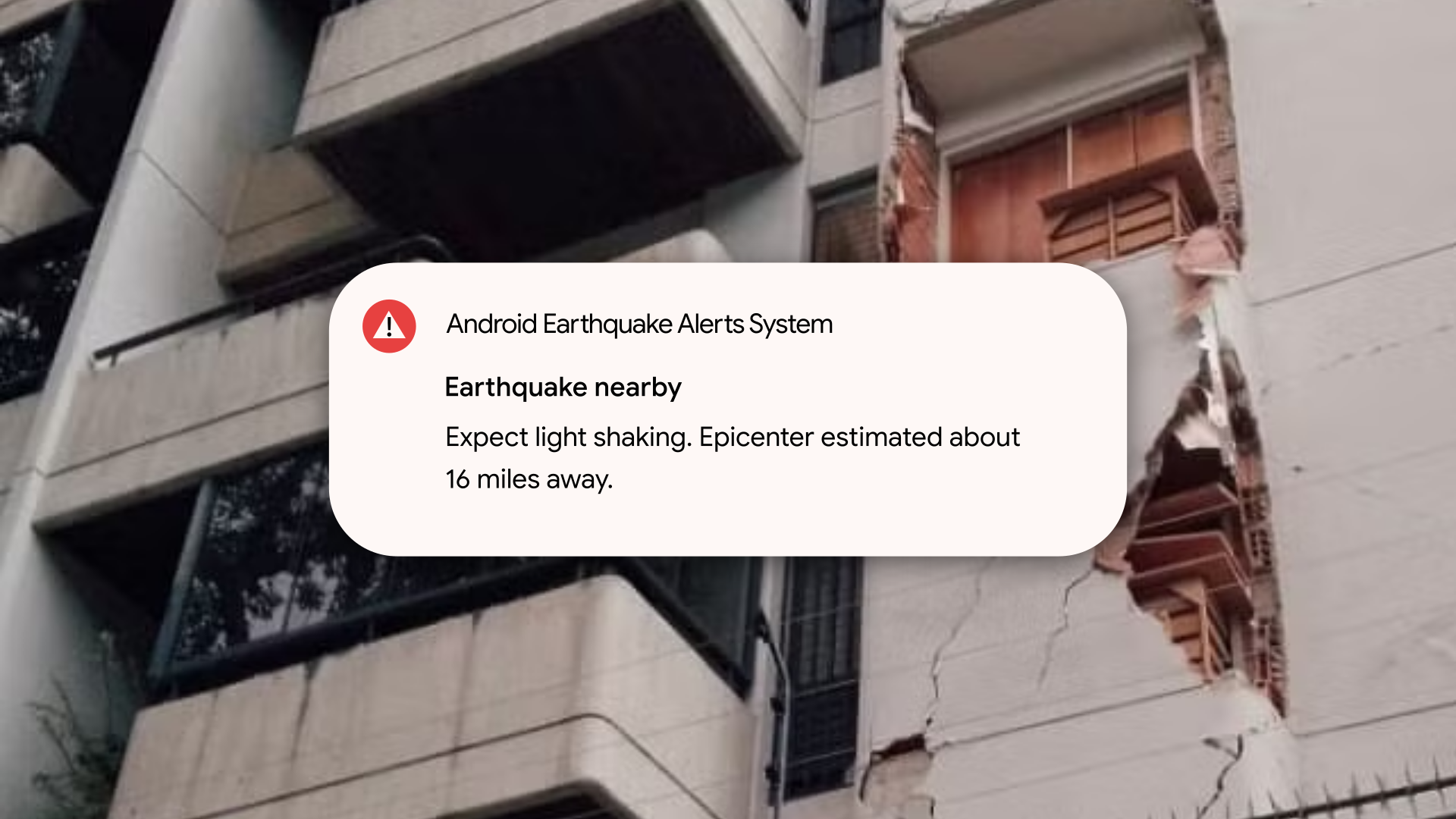
Last Wednesday, thousands in Venezuela faced a terrifying reality: two powerful earthquakes struck just seconds apart. For many, including one How-To Geek contributor, their Android phone provided precious moments of warning that made the difference between safety and severe danger. This guide will show you how to ensure your Android device is ready to deliver these critical alerts and help you understand how this innovative system works to protect you.
By the end of this guide, you will:
- Verify that Android Earthquake Alerts are enabled on your phone.
- Understand the science and technology behind these life-saving warnings.
- Know the immediate actions to take when an alert is received.
- Be better prepared to react safely during an earthquake.
What You'll Need
Before you begin, make sure you have the following:
- An Android smartphone with Google Play Services.
- An active internet connection (Wi-Fi or cellular data).
- Location services enabled on your device.
Step-by-Step: Activating Your Earthquake Alerts
Android's Earthquake Alerts System is typically enabled by default in many regions, but it's crucial to confirm its active status. Follow these steps to check and enable it:
- Open your phone's Settings app. You can usually find this by swiping down from the top of your screen and tapping the gear icon, or by locating the "Settings" app in your app drawer.
- Navigate to "Safety & emergency". Scroll down through the Settings menu and tap on "Safety & emergency." (The exact wording might vary slightly depending on your Android version or phone manufacturer, e.g., "Location" > "Advanced" > "Earthquake alerts").
- Find "Earthquake alerts". Within the "Safety & emergency" menu, look for and tap on "Earthquake alerts."
- Toggle on the feature. If it's not already enabled, tap the toggle switch to turn on "Earthquake alerts." You may be prompted to confirm location permissions if they are not already granted. Ensure this feature is active to receive warnings.
Understanding How Android's Alerts Protect You
Receiving an alert is just the first step; understanding why it works and what it means can empower you to act decisively. The Android Earthquake Alerts System is a technological marvel built on basic physics and clever crowdsourcing.
The Physics of Warnings
Earthquakes generate two main types of seismic waves:
- P-waves (Primary waves): These are faster but cause minimal damage.
- S-waves (Secondary waves): These travel slower but carry the destructive energy responsible for structural damage and strong shaking.
The critical window of opportunity lies between the detection of the initial P-waves and the arrival of the more destructive S-waves. Android's system leverages this time gap to provide an advance warning, often mere seconds, but those seconds can be life-saving.
Two Powerful Detection Methods
Google's system operates on a dual-track approach:
- Partnerships with National Seismological Agencies: In many countries, Android integrates directly with official seismic monitoring bodies. When these agencies detect an earthquake, data is fed into Google's system, and alerts are dispatched rapidly to affected Android phones.
- Crowdsourced Phone Network: This is the truly innovative and often most critical component, especially in regions with limited official infrastructure. Every Android phone equipped with an accelerometer can act as a mini-seismograph. When a phone detects shaking patterns consistent with seismic activity, it anonymously sends this data to Google's servers. If enough devices in a specific area report similar motion simultaneously, the system can triangulate the earthquake's epicenter and estimated magnitude, then broadcast an alert to nearby phones. This means your phone helps detect earthquakes for others, and other phones help detect them for you.
In places like Venezuela, where national seismic monitoring might be under-resourced and official partnerships with Google are absent, this crowdsourced network becomes the primary and most effective early warning system, demonstrating its global impact.
The Alert Experience
When an earthquake alert is issued, your phone won't just buzz quietly. The system overrides volume settings to blare a distinctive, continuous civil defense siren-like sound. A full-screen notification provides crucial information: an initial magnitude estimate, the epicenter, and immediate instructions to "Drop, Take Cover, and Hold On." This unmistakable alarm is designed to cut through distractions and prompt immediate action.
The Value of Seconds
While fifteen to twenty seconds of warning might seem brief, they are invaluable. These seconds allow you to move away from dangerous areas, duck under sturdy furniture, or even exit a building before the main shaking begins. As demonstrated in Venezuela, these few moments can be the difference between being safely covered or being caught off guard, or even avoiding a dangerous situation like being in a compromised elevator.
What to Do When an Alert Sounds
Receiving an alert is a cue for immediate action. Do not hesitate or try to verify; assume the alert is real and act quickly:
- React Immediately: When your phone screams the earthquake alert, do not ignore it. Your body should instinctively move to protect itself.
- Drop, Cover, and Hold On: This is the universal safety protocol for earthquakes.
- Drop to the ground.
- Cover your head and neck with your arms, and get under a sturdy table or desk if possible.
- Hold On to your shelter until the shaking stops.
- Evacuate Safely (After Shaking Stops): Once the shaking subsides, assess your surroundings. If your building shows signs of significant damage or you are in a vulnerable location, carefully evacuate. Be aware of aftershocks.
Troubleshooting & Important Considerations
Not Receiving Alerts?
If you suspect you should have received an alert but didn't:
- Check Settings: Revisit the "Earthquake alerts" setting in your phone's "Safety & emergency" menu to ensure it's toggled on.
- Internet Connection: Confirm your phone has an active Wi-Fi or cellular data connection. The system relies on data transmission.
- Location Services: Ensure location services are enabled for Google Play Services or your device, as the system needs to know your geographic position to send relevant alerts.
What About False Alarms?
The system is designed for accuracy, but initial magnitude readings are sometimes underestimates, and the system prioritizes rapid warning. While false alarms are rare, the distinct alarm and clear instructions are meant to be taken seriously. Those precious seconds are worth acting upon, even if the eventual shaking is less severe than initially projected. The system's layered redundancy aims to minimize unnecessary alerts while maximizing critical warnings.
What if I have an iPhone?
Apple's approach to earthquake alerts typically relies on government-issued Wireless Emergency Alerts (WEA), which are robust in well-resourced countries like the United States. However, in regions where government infrastructure for these alerts is inconsistent or absent, iPhone users may not receive warnings. Unlike Android, Apple has not implemented a widespread, hardware-level crowdsourced seismic detection network using iPhone accelerometers, leaving a gap in preparedness in many vulnerable areas.
Best Practices for Preparedness
- Keep Location Services Enabled: For the system to know where you are and send localized alerts, your location services must be active.
- Keep Your Phone Charged: A dead battery means no alerts. Keep your device adequately charged, especially in seismically active areas.
- Familiarize Yourself with the Alert Sound: While you hope to never hear it, recognizing the unique siren sound will help you react without hesitation.
- Develop an Emergency Plan: Discuss earthquake safety with your family and establish meeting points and emergency contacts.
Next Steps
Android's earthquake alerts are a powerful tool for personal safety. By ensuring your phone is set up correctly and understanding how the system works, you've taken a significant step toward preparedness. In the aftermath of major seismic events, communities often need support. If you wish to contribute to recovery efforts, consider looking for reputable organizations supporting affected families and rescue operations, like the one mentioned in the original account (e.g., donating via yummyrides.com, or contacting local relief efforts directly).
FAQ
Q: Does Android's Earthquake Alert System use a lot of my phone's battery or data?
A: No, the system is designed to be very efficient. It passively uses your phone's accelerometer and only sends small packets of data to Google's servers if seismic activity is detected. It does not significantly impact battery life or data usage during normal operation.
Q: Do I need to download a special app to get these earthquake alerts?
A: No, you do not need a separate app. The Android Earthquake Alerts System is built directly into Google Play Services, which runs on virtually all Android phones. You just need to ensure the feature is enabled in your phone's settings.
Q: What if I receive an alert but don't feel any shaking right away?
A: The alert system is designed to provide advance warning, detecting P-waves before the more destructive S-waves arrive. This means you might receive the alert a few seconds before you feel the shaking, especially if you are farther from the epicenter. Always take the alert seriously and follow the "Drop, Cover, Hold On" protocol immediately, as those seconds are your window to safety.
Related articles
Android 17 QPR2 Beta 7.1: The Performance Relief You've Been Waiting
Android 17 QPR2 Beta 7.1: Finally Fixing the QPR1 Performance Woes Verdict: Android 17 QPR2 Beta 7.1 is a crucial and highly anticipated software update for Google Pixel users, specifically targeting and resolving the

Ditch Merge & Center: The Better Way to Align Text in Excel
Learn to use Excel's "Center Across Selection" to align text across cells without merging, avoiding common data manipulation issues. This guide provides steps to utilize this newly accessible feature and add it to your Quick Access Toolbar.

Ars Technica's Rocket Report: Your Essential Space Industry Briefing
Quick Verdict Ars Technica's Rocket Report, presented by veteran space reporter Stephen Clark, offers an invaluable and meticulously organized weekly (or similar frequency, implied by "Edition 9.15") digest of the most
%20102026%20top%20art%20SOURCE%20Govee.jpg)
in-depth: The Best Permanent Outdoor Lights (2026): Govee, Eufy
WIRED, a leading voice in technology journalism, has just released its updated guide for 2026 on the best permanent outdoor lights, spotlighting top contenders Govee, Eufy, and Cync. These innovative eave lights are

Stop Android Auto Battery Drain: Essential Features to Disable and
Android Auto offers unparalleled convenience, bringing your phone's most useful features directly to your car's display. From navigation and calls to messages and music, it keeps you connected without distracting you

Beyond the Bugs: Conquering Studio Headaches in Indie Dev
This guide, part three in a series on running an indie studio, tackles the crucial but often overlooked aspect of dealing with non-development related issues. It introduces creating a shared 'studio backlog' for collective problems and using the IDS (Identify, Discuss, Solve) framework to address them constructively. The core message is to build powerful habits that keep studios from getting quietly derailed by lingering challenges.